
Úvod
The Microsoft Optical Desktop Elite for Bluetooth provides a wireless keyboard and mouse solution designed for use with Windows PCs. This combo utilizes Bluetooth wireless technology for connectivity, offering enhanced range and reliability. It enables synchronization and information sharing between your PC and other Bluetooth-enabled devices.
Čo je v krabici
- Microsoft Bluetooth Keyboard
- Microsoft Bluetooth Optical Mouse
- USB Bluetooth Transceiver
- Batérie (predinštalované alebo dodávané samostatne)
- Produktová dokumentácia

Image: The retail packaging for the Microsoft Optical Desktop Elite for Bluetooth, showing the keyboard, mouse, and USB transceiver.
Nastavenie
Nainštalujte batérie
Ensure fresh batteries are installed in both the keyboard and the mouse. Refer to the battery compartment markings for correct polarity.
Connect USB Transceiver
Plug the included USB Bluetooth transceiver into an available USB port on your Windows PC. The system will typically install the necessary drivers automatically.
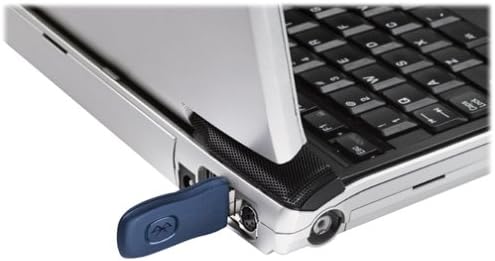
Image: A blue USB Bluetooth transceiver plugged into the side of a laptop computer.
Spárovať zariadenia
Follow the on-screen prompts or refer to your Windows Bluetooth settings to pair the keyboard and mouse with the transceiver. This usually involves pressing a connect button on the devices and the transceiver.
Install Software (Optional)
For advanced customization of keyboard shortcuts and mouse buttons, install the Microsoft IntelliPoint and IntelliType Pro software from the official Microsoft webstránku alebo priložené CD (ak je to relevantné).
Návod na obsluhu
The Microsoft Optical Desktop Elite for Bluetooth offers a range of features for enhanced productivity.

Image: The Microsoft Optical Desktop Elite keyboard and mouse, showcasing their ergonomic design and wireless nature.
Vlastnosti klávesnice:
- Štandardné rozloženie QWERTY: Full-size keyboard with a standard QWERTY layout.
- Programmable Hot Keys: Utilize the customizable hot keys for quick access to applications, documents, or web stránky.
- Ovládanie médií: Vyhradené tlačidlá na ovládanie hlasitosti, prehrávanie/pozastavenie a navigáciu medzi skladbami.
- Side-to-Side Scrolling: The keyboard features a scroll wheel or button for horizontal scrolling in documents and web stránky.
Vlastnosti myši:
- Optické sledovanie: Poskytuje presné a plynulé ovládanie kurzora na rôznych povrchoch.
- Rolovacie koliesko: For vertical scrolling and button functionality.
- Side-to-Side Scrolling: The mouse scroll wheel also supports horizontal scrolling.
- Programovateľné tlačidlá: Customize side buttons for specific functions using the IntelliPoint software.
- Dlhšia výdrž batérie: Designed for extended use between battery replacements.

Image: A detailed diagram highlighting various features and buttons on the Microsoft Optical Desktop Elite keyboard and mouse.
Údržba
Čistenie:
- klávesnica: Použite mäkkú handričku, ktorá nepúšťa vlákna dampvodou alebo jemným čistiacim roztokom. Zabráňte nadmernej vlhkosti.
- myš: Clean the optical sensor area on the bottom of the mouse with a dry cotton swab. Wipe the body with a soft, damp plátno.
- Do not immerse devices in liquid.
Výmena batérie:
- When battery indicators on the keyboard or mouse signal low power, replace batteries promptly.
- Otvorte priehradku na batérie, vyberte staré batérie a vložte nové, pričom dbajte na správnu polaritu.
- Staré batérie zlikvidujte v súlade s miestnymi predpismi.
Riešenie problémov
- Devices not connecting or frequently disconnecting:
- Ensure the USB Bluetooth transceiver is securely plugged into a working USB port.
- Check battery levels in both the keyboard and mouse. Replace if low.
- Re-pair the devices with the transceiver. Refer to the "Pair Devices" step in the Setup section.
- Ensure no other strong wireless signals (e.g., Wi-Fi routers, other Bluetooth devices) are causing interference. Try moving the transceiver closer to the devices.
- Reštartujte počítač.
- Kurzor myši je nepravidelný alebo nereaguje:
- Vyčistite optický senzor na spodnej strane myši.
- Ensure you are using the mouse on a suitable surface. Highly reflective or transparent surfaces may cause issues.
- Skontrolujte úroveň nabitia batérie.
- Keyboard keys are not responding:
- Skontrolujte úroveň nabitia batérie.
- Ensure the keyboard is paired correctly.
- Verify that the keyboard is not in a sleep mode. Press any key to wake it.
- Side-to-side scrolling not working:
- Ensure the IntelliPoint/IntelliType Pro software is installed and configured correctly.
- Verify that the application you are using supports horizontal scrolling.
Špecifikácie
| Funkcia | Detail |
|---|---|
| Značka | Microsoft |
| Model | Optical Desktop Elite for Bluetooth |
| Technológia pripojenia | Bluetooth, USB, bezdrôtové pripojenie |
| Kompatibilné zariadenia | Personal Computer (Windows OS) |
| Detekcia pohybu | Optical (Mouse) |
| Rozloženie klávesnice | QWERTY (105 Keys) |
| Zdroj napájania | Napájanie z batérie |
| Hmotnosť položky | 4 libier (približne) |
| Farba | Čierna/Modrá |
Záruka a podpora
For warranty information and technical support, please refer to the documentation included with your product or visit the official Microsoft support webstránky. Uschovajte si doklad o kúpe pre prípad reklamácie.
Online podpora: support.microsoft.com