
1. Úvod
The SteelSeries Kana Optical Gaming Mouse is engineered for precision and versatility, designed to accommodate all three primary grip styles: palm, claw, and fingertip. This ambidextrous mouse features an ergonomic button layout and size, developed in collaboration with professional gaming teams to ensure consistent performance and accuracy in competitive environments. This manual provides comprehensive instructions for setup, operation, maintenance, and troubleshooting to help you maximize your gaming experience.
2. Obsah balenia
- SteelSeries Kana Optical Gaming Mouse (White)
- Quick Start Guide (integrated into this manual)
3. Produkt skončilview
Familiarize yourself with the key components of your SteelSeries Kana mouse:
- Ľavé tlačidlo myši: Tlačidlo primárnej akcie.
- Pravé tlačidlo myši: Tlačidlo sekundárnej akcie.
- Rolovacie koliesko: For scrolling and a clickable middle button. The scroll wheel is illuminated.
- CPI Toggle Button: Located centrally, allows quick switching between sensitivity settings.
- Bočné tlačidlá (x2): One on each side, large and easily accessible for rapid-fire actions. These can be customized or disabled via software.
- Optický senzor: Nachádza sa na spodnej strane a umožňuje presné sledovanie.
- USB konektor: For connecting the mouse to your computer.
- Opletený kábel: Durable, tangle-free nylon cord.
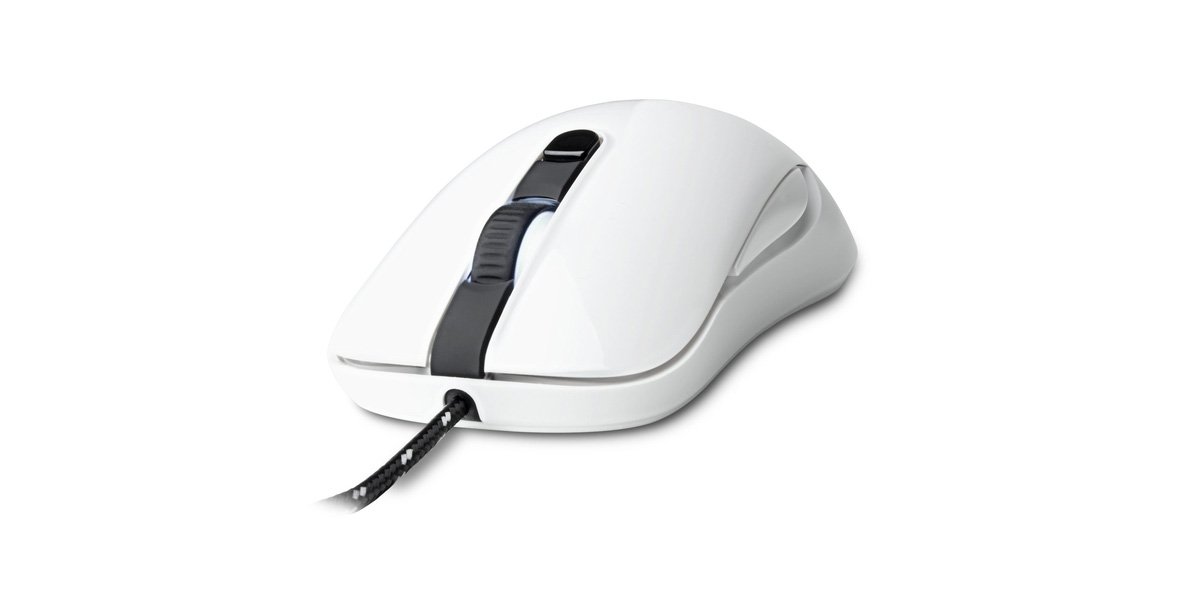
Image of the SteelSeries Kana Optical Gaming Mouse in white, showcasing its ambidextrous design, illuminated scroll wheel, and side buttons.
4. Nastavenie
4.1 Hardvérové pripojenie
- Nájdite na svojom počítači voľný port USB.
- Plug the USB connector of the SteelSeries Kana mouse into the USB port.
- Your operating system should automatically detect and install basic drivers for the mouse.
4.2 Software Installation (SteelSeries Engine)
To unlock the full customization potential of your SteelSeries Kana mouse, including CPI settings, button programming, macros, and LED intensity, install the SteelSeries Engine software.
- Navštívte oficiálnu stránku SteelSeries webmiesto: steelseries.com/engine
- Download the SteelSeries Engine software compatible with your operating system (Windows or macOS).
- Dokončite inštaláciu podľa pokynov na obrazovke.
- Once installed, launch the SteelSeries Engine to configure your mouse settings.
Poznámka pre používateľov počítačov Mac: Compatibility with macOS versions 10.9 and later for SteelSeries Engine 2.0 (required for Kana) has historically been inconsistent. Please check the official SteelSeries website for the latest software updates and compatibility information before installation.
5. Návod na obsluhu
5.1 Základné funkcie
- pohyb: Pohybom myši po povrchu ovládate kurzor na obrazovke.
- Kliknutie: Use the left and right buttons for primary and secondary actions.
- Posúvanie: Rotate the scroll wheel to navigate documents and web pages. Press the scroll wheel for its assigned middle-click function.
5.2 Adjusting CPI (Counts Per Inch)
The centrally located CPI toggle button allows you to switch between two pre-defined sensitivity settings instantly. The default CPI settings are optimized for gaming, but can be customized using the SteelSeries Engine software. The maximum CPI supported is 3200.
- Press the CPI toggle button once to switch to the alternate CPI setting.
- Press it again to revert to the previous setting.
5.3 Customizing with SteelSeries Engine
The SteelSeries Engine software provides extensive customization options:
- CPI Settings: Fine-tune or set custom CPI values beyond the pre-defined options.
- Programovanie tlačidiel: Assign custom functions, keyboard shortcuts, or macros to any of the 6 programmable buttons (including side buttons and scroll wheel click).
- Makrá: Create and assign complex sequences of commands with precise timing control.
- LED Intensity: Adjust the brightness of the illuminated scroll wheel.
- Profiles: Vytvorte a uložte viacero profesionálovfiles for different games or applications, with automatic switching based on game triggers.
6. Údržba
6.1 Čistenie myši
To ensure optimal performance and longevity, keep your mouse clean.
- Exteriér: Použite mäkkú handričku, ktorá nepúšťa vlákna dampPovrch myši opláchnite vodou alebo jemným čistiacim roztokom. Vyhnite sa agresívnym chemikáliám alebo abrazívnym materiálom.
- Optický senzor: Gently clean the optical sensor lens on the underside of the mouse with a dry cotton swab or compressed air to remove dust or debris.
- Nohy myši: Ensure the mouse feet are clean and free of obstructions for smooth gliding.
Pozor: Do not immerse the mouse in water or any cleaning solution. Avoid spraying liquids directly onto the mouse.
7. Riešenie problémov
| Problém | Možné riešenie |
|---|---|
| Mouse not detected / Not responding |
|
| Inaccurate or erratic tracking |
|
| Buttons not responding or performing incorrectly |
|
| SteelSeries Engine software not recognizing mouse (Mac OS) |
|
8. Špecifikácie
| Značka | SteelSeries |
| Číslo modelu | 62029 |
| Farba | Biela |
| Technológia detekcie pohybu | Optické |
| Počet tlačidiel | 6 (programovateľných) |
| Orientácia rúk | Ambidextrous (Left, Right) |
| Hardvérová platforma | PC |
| Typ kábla | Pletený nylon |
| Hmotnosť položky | 0.16 kg |
| Špeciálna funkcia | Ergonomic Design, Illuminated Scroll Wheel |
9. Záruka a podpora
9.1 Informácie o záruke
The SteelSeries Kana Optical Gaming Mouse comes with a 1-ročná obmedzená záruka od dátumu nákupu. Táto záruka sa vzťahuje na výrobné chyby a chyby spracovania pri bežnom používaní. Nevzťahuje sa na škody spôsobené nesprávnym použitím, nehodami, neoprávnenými úpravami alebo bežným opotrebením. Uschovajte si doklad o kúpe pre prípad uplatnenia záruky.
9.2 Zákaznícka podpora
For technical assistance, warranty claims, or further information, please visit the official SteelSeries support webmiesto:
You can find FAQs, driver downloads, and contact information for customer service on their webstránky.