
Úvod
Thank you for choosing the KROM Kernel TKL Mechanical Gaming Keyboard. This compact, tenkeyless (TKL) keyboard is designed for gaming enthusiasts, offering a responsive mechanical experience with customizable RGB backlighting and a Spanish layout. This manual provides detailed instructions for setup, operation, maintenance, and troubleshooting to ensure optimal performance and longevity of your device.
Koniec produktuview
Kľúčové vlastnosti
- Mechanické spínače: Durable and responsive mechanical key switches for precise input.
- Dizajn bez kľúča (TKL): Compact form factor without a numeric keypad, ideal for saving desk space and improving mouse movement.
- RGB podsvietenie: Customizable LED backlighting with various effects and colors.
- Funkcia makra: Assign macro functions to any key for personalized commands.
- Multimediálne klávesy: Dedicated or function-layer multimedia controls for convenience.
- Anti-Ghosting: Zaisťuje presnú registráciu všetkých stlačení klávesov, a to aj počas intenzívnych herných sedení.
- Odolná konštrukcia: Vyrobené z kvalitných materiálov pre dlhotrvajúci výkon.
- Španielske rozloženie: Designed with a QWERTY Spanish key layout.
Obsah balenia
- KROM Kernel TKL Mechanical Gaming Keyboard
- USB kábel (priložený)
- Používateľská príručka (tento dokument)
- (Note: Additional accessories may vary by region or specific product bundle.)
Obrázok 1.1: KROM Kernel TKL Mechanical Gaming Keyboard packaging, showing the front and back of the box with product features and design.

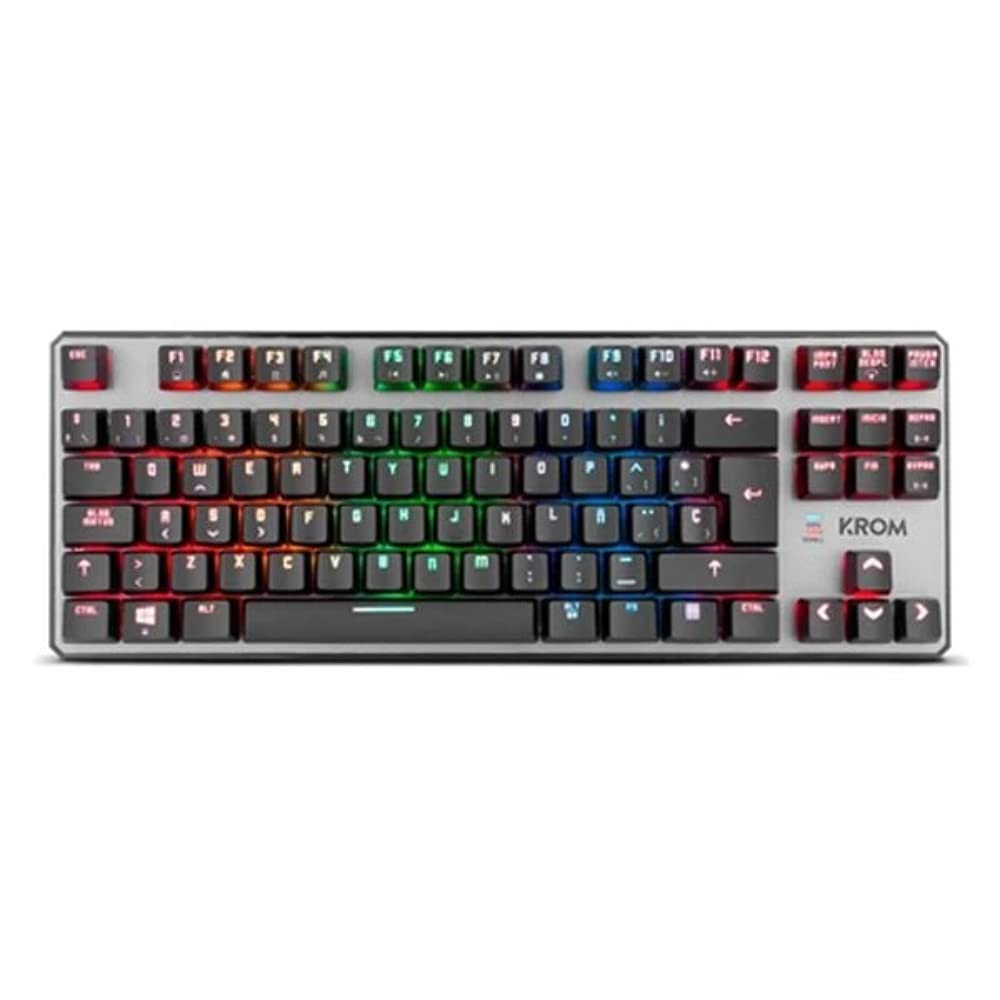
Obrázok 1.2: Zhora nadol view of the KROM Kernel TKL keyboard, showcasing its compact design and vibrant RGB backlighting across all keys.
Nastavenie
- Rozbaľte klávesnicu: Carefully remove the KROM Kernel TKL keyboard from its packaging.
- Pripojiť k počítaču: Locate the USB cable attached to the keyboard. Plug the USB connector into an available USB port on your computer (PC or laptop).
- Inštalácia ovládača: The keyboard is plug-and-play. Your operating system (Windows 7/8/8.1/10) should automatically detect and install the necessary drivers. This process may take a few moments.
- Overte funkčnosť: Once drivers are installed, test the keyboard by typing in a text editor or browser to ensure all keys are responsive.
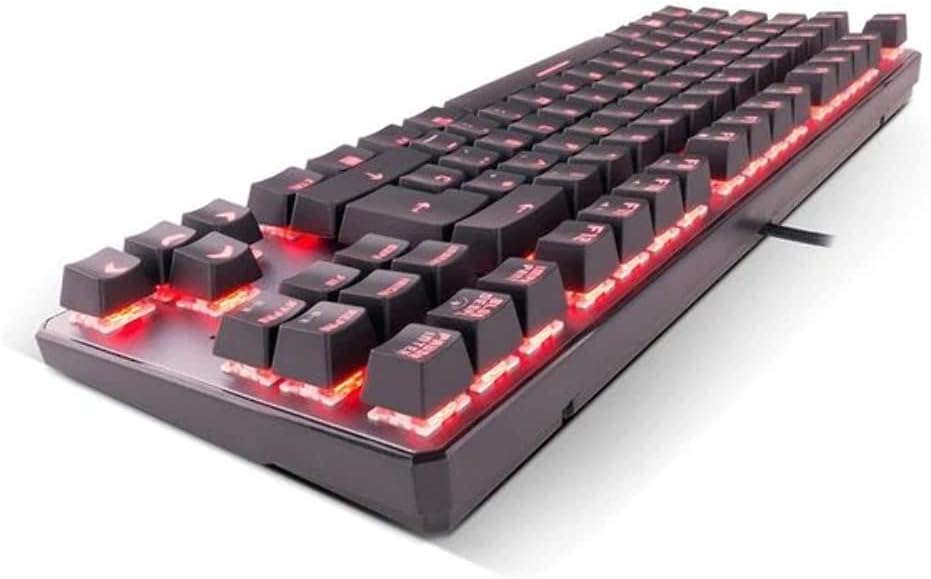
Obrázok 2.1: Side view of the KROM Kernel TKL keyboard, highlighting the red backlighting visible beneath the keycaps and the compact profile.
Návod na obsluhu
Ovládanie podsvietenia RGB
The KROM Kernel TKL keyboard features dynamic RGB backlighting. Use the following key combinations to adjust lighting effects:
- Fn + [kláves]: Specific function keys (often F1-F12 or dedicated keys) are used in combination with the Function (Fn) key to cycle through lighting modes, adjust brightness, change speed, or select colors. Refer to the keyboard's keycap legends for specific symbols indicating lighting controls.
- Nastavenie jasu: Typically Fn + Up/Down arrow keys or dedicated brightness keys.
- Effect Speed: Often Fn + Left/Right arrow keys to increase or decrease the speed of dynamic lighting effects.
- Prepínanie režimov: Cycle through various pre-set RGB lighting modes (e.g., wave, ripple, breathing, static color) using a dedicated Fn combination.

Obrázok 3.1: The KROM Kernel TKL keyboard displaying its full RGB spectrum backlighting, enhancing the visual appeal during use.
Macro Function Assignment
The keyboard supports on-the-fly macro recording or software-based macro assignment. For on-the-fly recording:
- Initiate Recording: Press a specific Macro Record key (often labeled "MR" or a Fn combination).
- Select Target Key: Press the key you wish to assign the macro to.
- Poradie záznamu: Zadajte postupnosť klávesov, ktorú chcete zaznamenať ako makro.
- Ukončiť nahrávanie: Press the Macro Record key again to save the macro.
Note: Detailed macro programming instructions may require specific software or refer to the full digital manual available on the KROM webstránky.
Multimédiá a klávesové skratky
Access multimedia functions and system shortcuts using the Fn key in combination with the F-keys (F1-F12) or other designated keys. Common functions include:
- Ovládanie hlasitosti: Fn + Fx (e.g., F1-F3 for Mute, Volume Down, Volume Up).
- Prehrávanie médií: Fn + Fx (e.g., F5-F8 for Play/Pause, Stop, Previous Track, Next Track).
- Skratky aplikácií: Fn + Fx (e.g., F9-F12 for Email, Web Browser, My Computer, Calculator).

Obrázok 3.2: Detailný záber view of the KROM Kernel TKL keyboard's keycaps, clearly showing the Spanish QWERTY layout and secondary functions.
Údržba
Správna údržba zaisťuje dlhú životnosť a výkon vašej klávesnice.
- Čistenie:
- Pred čistením odpojte klávesnicu od počítača.
- Na odstránenie prachu a nečistôt medzi klávesmi použite nádobu so stlačeným vzduchom.
- Klávesy a povrch klávesnice utrite mäkkou, jemne navlhčenou handričkou.amphandričkou, ktorá nepúšťa vlákna. Zabráňte nadmernej vlhkosti.
- Nepoužívajte agresívne chemikálie, abrazívne čistiace prostriedky ani rozpúšťadlá.
- Ukladací priestor: Klávesnicu skladujte na suchom a chladnom mieste mimo dosahu priameho slnečného žiarenia a extrémnych teplôt.
- Manipulácia: Avoid dropping the keyboard or exposing it to liquids. Do not attempt to disassemble the keyboard as this may void the warranty.

Obrázok 4.1: Vedľajší profesionálfile view of the KROM Kernel TKL keyboard, illustrating its ergonomic tilt and compact design.

Obrázok 4.2: A close-up image showing a mechanical switch on the KROM Kernel TKL keyboard, highlighting its design and potential for easy replacement (CIY Technology).

Obrázok 4.3: The CIY Technology logo, indicating that the keyboard features hot-swappable mechanical switches for easy customization or replacement.
Riešenie problémov
If you encounter issues with your KROM Kernel TKL keyboard, refer to the following common solutions:
- Klávesnica nereaguje:
- Uistite sa, že kábel USB je bezpečne zapojený do klávesnice aj do počítača.
- Skúste zapojiť klávesnicu do iného USB portu na počítači.
- Reštartujte počítač.
- Otestujte klávesnicu na inom počítači, aby ste zistili, či je problém s klávesnicou alebo s vaším systémom.
- Podsvietenie nefunguje alebo je nesprávne:
- Check if the backlighting is turned off. Use the Fn key combinations to cycle through lighting modes and adjust brightness.
- Ensure no software conflicts are interfering with the lighting controls.
- Klávesy sa neregistrujú alebo sa píšu dvakrát:
- Očistite postihnuté klávesy stlačeným vzduchom, aby ste odstránili všetky nečistoty.
- If the keyboard uses hot-swappable switches (like the "CIY Technology" mentioned in an image), try gently removing and re-inserting the switch for the problematic key.
- Ensure your operating system drivers are up to date.
- Makro funkcie nefungujú:
- Review the macro programming steps to ensure correct recording.
- Check if any software is overriding the keyboard's native macro functions.
Špecifikácie
| Funkcia | Detail |
|---|---|
| Číslo modelu | NXKROMKRNLTKL |
| Typ klávesnice | Mechanické |
| Rozloženie | Spanish QWERTY (TKL) |
| Podsvietenie | RGB LED |
| Pripojenie | Káblové USB (pozlátené) |
| Dĺžka kábla | 180 cm (Braided) |
| Aktivačná sila | 60 +/- 10 g |
| Polling Rate | 1000 Hz |
| Vnútorná pamäť | 64 KB (for macros/profiles) |
| Aktuálna spotreba | 100-260 mA |
| Voltage | 5.0 +/- 0.25 V |
| Rozmery (D x Š x V) | 361 x 133.5 x 22.5 mm |
| Hmotnosť | 950 +/- 30 g |
| Kompatibilita | Windows 7/8/8.1/10 |
| Špeciálne funkcie | Macro function assignment, Multimedia keys, Shortcut keys |
Záruka a podpora
KROM products are designed for reliability and performance. This product comes with a standard manufacturer's warranty. For specific warranty terms and conditions, please refer to the warranty card included with your product or visit the official KROM webstránky.
For technical support, driver downloads, or further assistance, please visit the KROM official support page or contact their customer service. Contact information can typically be found on the KROM webmiesto alebo balenie produktu.
KROM Official Webmiesto: www.kromgaming.com (Poznámka: Toto je zástupný symbol URL, please verify the actual KROM support webstránky.)