
1. Úvod
The ZEBRONICS ZEB-DB250JP is a versatile Bluetooth wireless gamepad designed for an enhanced gaming experience across multiple platforms. It features 17 buttons, dual analog sticks, dual vibration motors, and quad front triggers for precise control. This gamepad is compatible with Android smartphones, tablets, Android TV boxes, Android TVs, and PCs running Windows 98 / 2000 / ME / XP / NT / VISTA / 7 / 8 / 10. It also supports PS3 consoles. The ergonomic design ensures comfortable use, and a phone mount is included for mobile gaming.
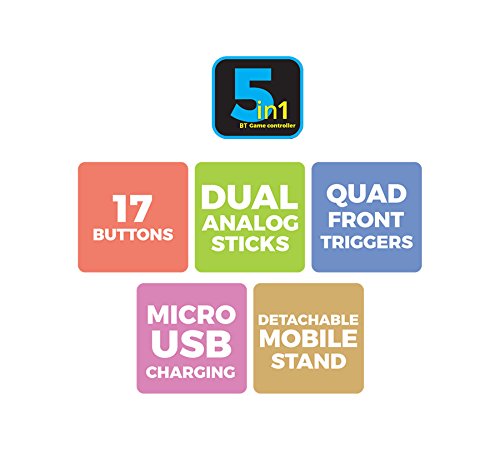
Obrázok 1: Koniecview of ZEB-DB250JP key features including 17 buttons, dual analog sticks, quad front triggers, micro USB charging, and a detachable mobile stand.
2. Čo je v krabici
- 1 x ZEB-DB250JP Joypad
- 1 x Micro USB nabíjací kábel
- 1 x Detachable Phone Mount
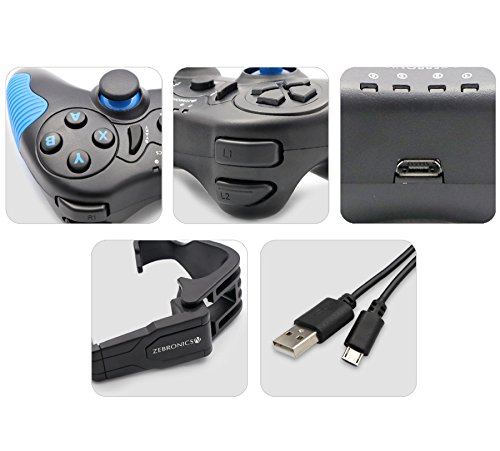
Image 2: A collage showing the ZEB-DB250JP gamepad, its triggers, micro USB port, detachable phone mount, and charging cable.
3. Nastavenie
3.1 Nabíjanie gamepadu
Before initial use, fully charge the gamepad. Connect the provided Micro USB cable to the gamepad's charging port and the other end to a USB power source (e.g., computer USB port, USB wall adapter). The built-in 300mAh battery provides extended playtime.

Obrázok 3: Hore view of the ZEB-DB250JP gamepad, highlighting the Micro USB charging port located between the L1/R1 and L2/R2 triggers.
3.2 Bluetooth Pairing (Android Devices & PS3)
- Uistite sa, že gamepad je nabitý.
- Stlačte a podržte DOMOV button along with the X button simultaneously until the indicator lights on the gamepad begin to flash, indicating it is in pairing mode.
- On your Android smartphone, tablet, Android TV box, or Android TV, navigate to the Bluetooth settings.
- Hľadať available devices and select "ZEB-DB250JP" (or similar name) from the list.
- Once connected, the indicator light on the gamepad will become solid. The Bluetooth range is approximately 8 meters.
- For PS3, connect the gamepad via USB cable first, then follow the console's instructions for pairing a new controller.
3.3 Pripojenie k PC
For PC gaming, the ZEB-DB250JP can be connected via the provided USB cable. Simply plug the Micro USB end into the gamepad and the USB-A end into an available USB port on your computer. The gamepad is compatible with Windows 98 / 2000 / ME / XP / NT / VISTA / 7 / 8 / 10 and should be recognized automatically.
3.4 Attaching the Phone Mount
To use the gamepad with your smartphone, attach the included phone mount to the designated slot on the gamepad. Secure your smartphone firmly into the mount.
4. Návod na obsluhu
4.1 Rozloženie tlačidiel
The ZEB-DB250JP features a standard gamepad layout with 17 buttons, including:
- Dve analógové páčky: Pre presný pohyb a ovládanie kamery.
- D-Pad: Smerový ovládač pre navigáciu v menu a špecifické herné vstupy.
- Akčné tlačidlá (A, B, X, Y): Pre akcie v hre.
- Quad Front Triggers (L1, L2, R1, R2): For additional actions, often used for shooting or accelerating.
- Domovské tlačidlo: For power on/off and system functions.
- SELECT/BACK and START/MENU Buttons: For game menus and options.


Image 4: Left side of the ZEB-DB250JP gamepad showing the D-pad and left analog stick. Image 5: Right side of the ZEB-DB250JP gamepad showing the action buttons (A, B, X, Y) and right analog stick.
4.2 Zapnutie/vypnutie
- Ak chcete zapnúť, stlačte tlačidlo DOMOV tlačidlo.
- Pre vypnutie stlačte a podržte DOMOV button for a few seconds until the gamepad shuts down.
4.3 Hranie
Once connected, the gamepad should be recognized by compatible games. Refer to your game's settings for controller configuration and button mapping. The dual vibration motors provide haptic feedback for an immersive gaming experience.
5. Údržba
- Čistenie: Na čistenie gamepadu používajte mäkkú, suchú handričku. Nepoužívajte agresívne chemikálie ani abrazívne materiály.
- Ukladací priestor: Gamepad skladujte na chladnom a suchom mieste mimo dosahu priameho slnečného žiarenia a extrémnych teplôt.
- Starostlivosť o batérie: Aby ste predĺžili výdrž batérie, vyhýbajte sa jej častému úplnému vybíjaniu. Gamepad pravidelne nabíjajte, aj keď ho dlhší čas nepoužívate.
6. Riešenie problémov
- Gamepad sa nepripája cez Bluetooth:
- Ensure the gamepad is charged.
- Make sure the gamepad is in pairing mode (HOME + X).
- Turn off and on Bluetooth on your device.
- Forget the device from your Bluetooth settings and try pairing again.
- Ensure your device is within the 8-meter Bluetooth range. - Buttons unresponsive or delayed input:
- Check battery level and charge if low.
- Ensure there are no obstructions between the gamepad and the connected device.
- For PC, try connecting via USB cable to rule out wireless interference.
- Restart the gamepad and the connected device. - Gamepad sa nenabíja:
- Verify the Micro USB cable is securely connected to both the gamepad and the power source.
- Try a different Micro USB cable or power adapter.
- Ensure the power source is functional. - Vibrovanie nefunguje:
- Check if the game supports vibration feedback.
- Ensure vibration settings are enabled in the game or device settings.
7. Špecifikácie
| Značka | ZEBRONIKA |
| Názov modelu | analógová páčka |
| Kompatibilné zariadenia | Android, PC, PS3 |
| Typ ovládača | Gamepad |
| Technológia pripojenia | Bluetooth (v3.0) |
| Vlastnosti produktu | Wireless, Dual Vibration Motors |
| Množstvo tlačidiel | 17 |
| Typ zdroja energie | Napájanie z batérie |
| Batéria | Vstavaná 300mAH |
| Dosah Bluetooth | 8m |
| Hmotnosť položky | 370 gramov |
| Rozmery položky | 17 x 12 x 6 centimetrov |
| Farba | Red (as per product details, though main image shows black/red) |
| Číslo modelu | DB250JP |
8. Záruka a podpora
The ZEBRONICS ZEB-DB250JP Bluetooth Gamepad Joystick comes with a 1-ročná záruka. For any warranty claims or service, please carry the product to an authorized ZEBRONICS Service Center. For a list of service centers, refer to the product information provided at the time of purchase or visit the official ZEBRONICS webstránky.
For further assistance or technical support, please contact ZEBRONICS customer service.