
1. Úvod
The Zoom GCE-3 is a compact USB Audio Interface designed to provide access to an extensive collection of guitar and bass effects, amplifiers, and cabinets through the Zoom Guitar Lab software. This device integrates a powerful Digital Signal Processor (DSP) to offload processing from your computer, ensuring low-latency performance for recording and practice. This manual provides essential information for setting up, operating, and maintaining your GCE-3 unit.
2. Produkt skončilview
2.1 Kľúčové vlastnosti
- Palm-sized audio interface with free download of Zoom Guitar Lab Mac/Windows software.
- Access to dozens of high-quality guitar effects and artist patches.
- Built-in DSP for circuit emulation of Zoom G-Series and B-Series pedals.
- USB-C port for connection to computer.
- Standard Guitar input, Aux input, and stereo headphone output with volume control.
2.2 Čo je v krabici
- Zoom GCE-3 Compact USB Audio Interface
- Steinberg Cubase LE license
- Protišmyková podložka
- USB kábel (typ A až C)
- Manuál (tento dokument)
2.3 Produkt Views
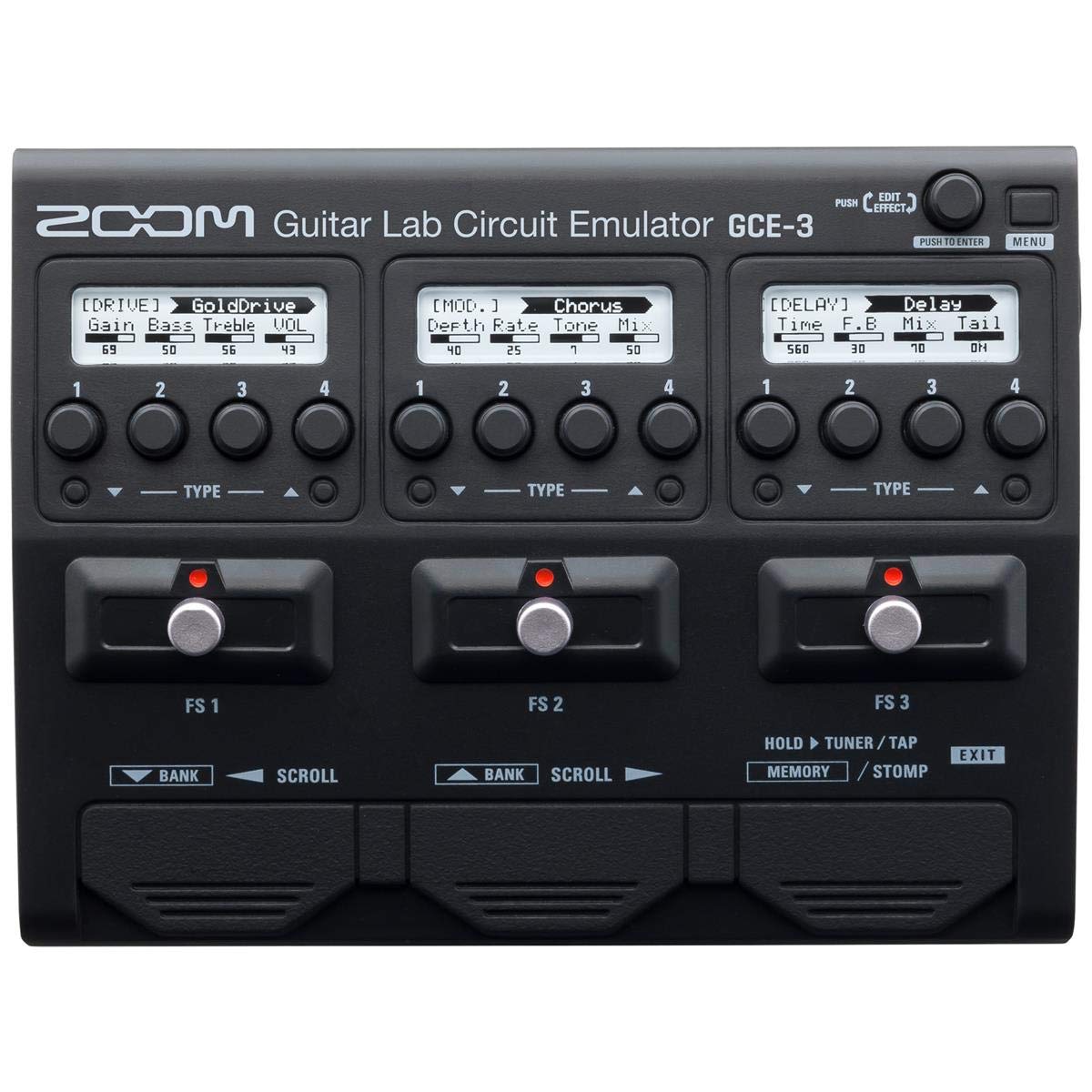


3. Nastavenie
3.1 Inštalácia softvéru
- Download the latest Zoom Guitar Lab software for your operating system (Mac or Windows) from the official Zoom webstránky.
- Install the software by following the on-screen instructions. This typically includes installing necessary drivers for the GCE-3.
- Install the included Steinberg Cubase LE software if desired, using the provided license.
3.2 Hardvérové pripojenia
- Pripojiť k počítaču: Use the supplied USB-C cable to connect the GCE-3 to a USB port on your computer. The GCE-3 is bus-powered via USB-C, so no external power adapter is typically required.
- Pripojiť nástroj: Plug your guitar or bass into the INPUT jack on the side of the GCE-3.
- Pripojenie slúchadiel: For monitoring, plug your headphones into the PHONES jack. Adjust the volume using the dedicated VOLUME control.
- Connect External Audio (Optional): If you wish to play along with backing tracks, connect an external audio player (e.g., smartphone, MP3 player) to the AUX IN jack. The audio from the AUX IN will be routed to your headphones but will not be recorded by your computer.
3.3 Počiatočné zapnutie
Once connected via USB, the GCE-3 will power on automatically. The power indicator LED will illuminate. Launch the Zoom Guitar Lab software on your computer. The software should detect the GCE-3 and begin loading its effects and patches.
Video 1: Overview of the Zoom GCE-3 USB Audio Interface, demonstrating its compact size, connectivity, and integration with Guitar Lab software for accessing various effects and amp modelov.
4. Návod na obsluhu
4.1 Using Zoom Guitar Lab Software
The GCE-3 functions as a hardware interface for the Zoom Guitar Lab software. All effect selection, parameter editing, and patch management are performed within the software interface on your computer. The GCE-3's built-in DSP handles the audio processing, freeing up your computer's resources.
- Device Emulation: Within Guitar Lab, you can select to emulate various Zoom multi-effects processors such as the G5n, G3Xn, G3n, and B3n. This provides access to the specific amp models, artist effects, DSP algorithms, and patches associated with those units.
- Výber efektu: Browse through a wide array of effects including:
- Dynamika: Compressors, noise gates.
- Filter: Wah, equalizers.
- Drive: Distortion, overdrive, fuzz, boosters.
- Amp: Rôzne amplifier models (e.g., MS 800, FD TWNR, UK 30A).
- skrinka: Speaker cabinet simulations (e.g., MS4x12, FD2x12).
- Modulácia: Chorus, flanger, phaser, tremolo.
- SFX: Special effects.
- Oneskorenie: Various delay types.
- Reverb: Various reverb types.
- Úprava opravy: Create, edit, and save custom patches by combining different effects, amps, and cabinets. Adjust parameters for each effect to fine-tune your sound.
- Nahrávanie: Connect the GCE-3 to your Digital Audio Workstation (DAW) software (e.g., Cubase LE, Ableton Live, Reaper). The GCE-3 will appear as an audio input device. You can record your guitar with the processed effects or record a dry signal and apply effects later within your DAW.
4.2 Monitorovanie
The GCE-3 provides direct monitoring through its headphone output. This allows you to hear your instrument with effects in real-time, without latency from your computer's audio processing. The dedicated VOLUME control adjusts the headphone output level.
5. Údržba
To ensure the longevity and optimal performance of your Zoom GCE-3, follow these maintenance guidelines:
- Čistenie: Na čistenie exteriéru jednotky použite mäkkú, suchú handričku. Nepoužívajte abrazívne čistiace prostriedky, rozpúšťadlá ani vosky.
- Ukladací priestor: Jednotku skladujte na chladnom a suchom mieste mimo dosahu priameho slnečného žiarenia, extrémnych teplôt a vysokej vlhkosti.
- Manipulácia: Avoid dropping the unit or subjecting it to strong impacts. Handle cables carefully to prevent damage to the ports.
- Aktualizácie softvéru: Regularly check the Zoom website for updates to the Guitar Lab software and GCE-3 firmware to ensure you have the latest features and bug fixes.
6. Riešenie problémov
If you encounter issues with your GCE-3, refer to the following common troubleshooting steps:
- Bez napájania: Ensure the USB-C cable is securely connected to both the GCE-3 and your computer. Try a different USB port or cable. Verify your computer's USB port is providing sufficient power.
- Not Recognized by Computer/Guitar Lab:
- Confirm that the Zoom GCE-3 drivers are correctly installed. Reinstall them if necessary.
- Restart your computer and the Guitar Lab software.
- Check your computer's device manager (Windows) or System Information (Mac) to see if the GCE-3 is listed as a connected audio device.
- Žiadny zvuk:
- Verify all cables (instrument, headphones, USB) are securely connected.
- Check the headphone VOLUME control on the GCE-3.
- Ensure the correct input/output device is selected in your DAW or computer's sound settings.
- Within Guitar Lab, confirm that effects are active and not bypassed, and output levels are set appropriately.
- Problémy s latenciou: The GCE-3's DSP is designed for near-zero latency. If you experience noticeable latency, ensure you are monitoring directly through the GCE-3's headphone output and not through your computer's software monitoring. Adjust buffer sizes in your DAW settings if necessary.
- Chyby softvéru: If Guitar Lab behaves unexpectedly, try closing and reopening the application. Ensure your software and firmware are up to date.
For further assistance, please visit the official Zoom support website or consult the comprehensive online manual for the Zoom Guitar Lab software.
7. Špecifikácie
| Značka | Zoom |
| Číslo modelu | GCE-3 |
| Kompatibilné zariadenia | Osobný počítač |
| Podporovaný softvér | Zoom Guitar Lab |
| Technológia pripojenia | USB |
| Počet kanálov | 3 |
| Operačný systém | Windows, macOS |
| Zvukový vstup | USB |
| Maximáample Rate | 44.1 kHz |
| Hmotnosť položky | 260 gramov |
| UPC | 884354020361 |
8. Záruka a podpora
8.1 Záruka na výrobok
The Zoom GCE-3 comes with a 1-ročná záruka na výmenu from the date of purchase. This warranty covers defects in materials and workmanship under normal use. For specific terms and conditions, please refer to the warranty information provided with your product or visit the official Zoom webstránky.
8.2 Zákaznícka podpora
For technical support, product registration, or further inquiries, please visit the official Zoom North America webmiesto:
You can also find FAQs, driver downloads, and additional resources on their support pages.