
Úvod
This manual provides essential information for the proper setup, operation, and maintenance of your Philips 346B1C Curved Monitor. This 34-inch WQHD (3440 x 1440) display features a 100 Hz refresh rate, 5ms response time, and a curved VA panel for an immersive viewing experience. Key features include USB-C docking, MultiView functionality, FreeSync technology, LowBlue Mode, and FlickerFree technology for enhanced user comfort and productivity.

Obrázok: Predná strana view of the Philips 346B1C curved monitor, showcasing its ultrawide display and key features like WQHD, USB-C Docking, and MultiView.
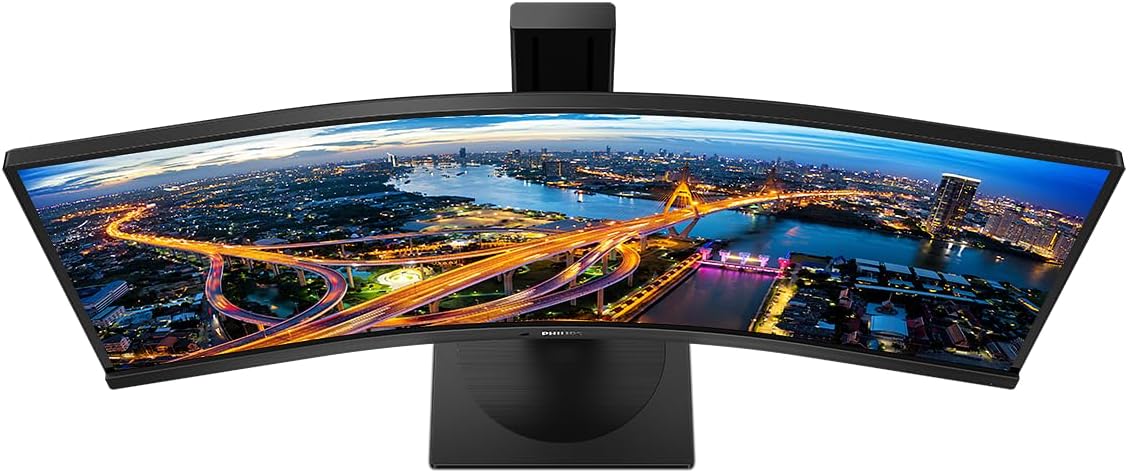
Obrázok: Zhora nadol view of the Philips 346B1C curved monitor, emphasizing the curvature of the screen.
Čo je v krabici
Pred pokračovaním v inštalácii skontrolujte, či sú všetky komponenty prítomné.
- Philips 346B1C Curved Monitor
- Stojan na monitor (základňa a krk)
- Napájací kábel
- HDMI kábel
- Kábel DisplayPort
- Kábel USB-C na USB-C
- USB-A to USB-B Cable (Upstream)
- Documentation (Quick Start Guide, User Manual CD)
Pokyny na nastavenie
1. Zloženie stojana
- Monitor položte obrazovkou nadol na mäkký, čistý povrch, aby ste predišli poškriabaniu.
- Pripevnite hrdlo stojana k panelu monitora. Uistite sa, že bezpečne zacvakne na miesto alebo je upevnený skrutkami, ak sú súčasťou balenia.
- Pripevnite základňu stojana k hrdlu stojana. Utiahnite skrutku alebo skrutky s vrúbkovanou hlavou zo spodnej časti základne.

Obrázok: Zadná strana view of the Philips 346B1C monitor, showing the stand attachment point and VESA mounting holes.
2. Pripojenie k počítaču
Pripojte monitor k počítaču jedným z nasledujúcich spôsobov:
- HDMI pripojenie: Pripojte jeden koniec HDMI kábla k HDMI portu monitora a druhý koniec k HDMI výstupu počítača.
- Pripojenie DisplayPort: Connect one end of the DisplayPort cable to the monitor's DisplayPort and the other end to your computer's DisplayPort output.
- Pripojenie USB-C: Connect one end of the USB-C cable to the monitor's USB-C port and the other end to your computer's USB-C port. This connection supports video, data, and power delivery (up to 90W) to your laptop.
For USB hub functionality, connect the USB-A to USB-B upstream cable from your computer to the monitor's USB-B upstream port.
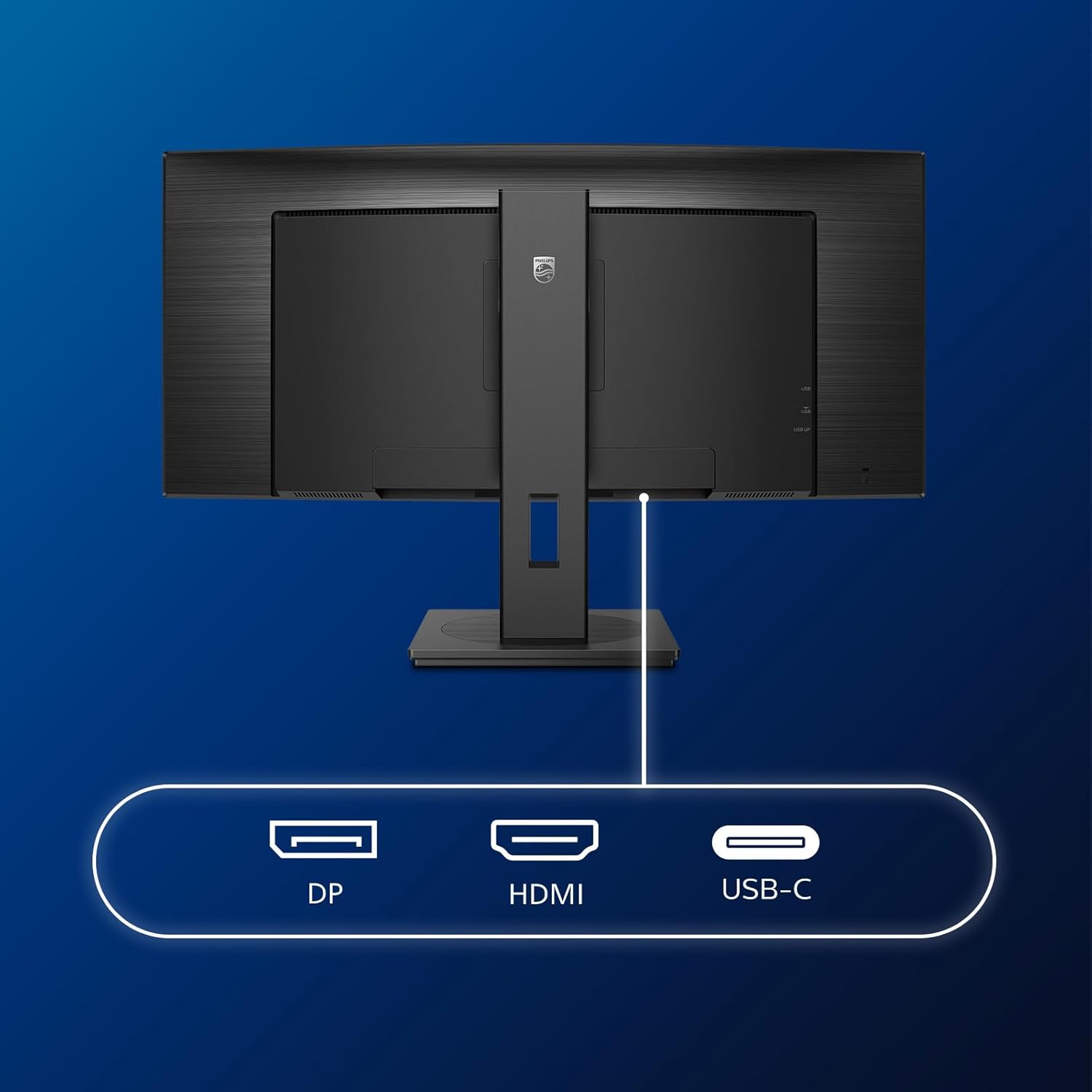
Obrázok: Podrobný view of the monitor's input ports, including DisplayPort (DP), HDMI, and USB-C, for connecting to various devices.
3. Pripojenie napájania
Pripojte napájací kábel k napájaciemu vstupu monitora a potom k uzemnenej elektrickej zásuvke.
4. Počiatočné zapnutie
Press the power button located on the monitor to turn it on. The monitor should automatically detect the input signal. If not, use the On-Screen Display (OSD) menu to select the correct input source.
Návod na obsluhu
Ponuka na obrazovke (OSD).
The OSD menu allows you to adjust various monitor settings. Use the joystick control located on the back or bottom of the monitor to navigate the menu.
- Jas/kontrast: Upravte celkový jas a kontrast displeja.
- Nastavenia farieb: Fine-tune color temperature, gamma, and color space.
- Výber vstupu: Manuálne prepínanie medzi vstupmi HDMI, DisplayPort a USB-C.
- Zvuk: Adjust volume or mute the built-in speakers.
- Režim obrazu: Select from preset picture modes (e.g., Standard, Gaming, Text).
ViacnásobnéView Funkčnosť
MultiView feature allows you to connect and view content from two different sources simultaneously on the screen. Access this feature through the OSD menu to select Picture-by-Picture (PbP) or Picture-in-Picture (PiP) modes and configure input sources.
USB-C dokovacia stanica
When connected via USB-C, the monitor acts as a docking station, providing video, data transfer through its integrated USB hub, and power delivery to charge your connected laptop (up to 90W).
SmartErgoBase and Adjustability
The monitor's SmartErgoBase allows for ergonomic adjustments including height, swivel, and tilt to optimize your viewpohodlie.

Image: Illustrations demonstrating the monitor's adjustable features, including height adjustment, tilt, and swivel capabilities for ergonomic positioning.
Funkcie pre pohodlie očí
- Režim LowBlue: Reduces harmful shortwave blue light emissions to prevent eye strain. Activate this mode via the OSD menu.
- FlickerFree Technology: Reguluje jas a redukuje blikanie pre pohodlnejšie používanie viewing. This feature is always active.
- PowerSensor & LightSensor: These sensors automatically adjust monitor brightness based on ambient light conditions and user presence, saving energy and reducing eye strain.
Údržba
Čistenie monitora
- Pred čistením monitor vždy odpojte.
- Jemne používajte mäkkú handričku, ktorá nepúšťa vlákna dampvodou alebo jemným, neabrazívnym čistiacim prostriedkom na obrazovky.
- Do not use alcohol, solvents, or ammonia-based cleaners, as these can damage the screen surface.
- Jemne utrite obrazovku, aby ste odstránili prach a šmuhy.
- Vyčistite monitor casinmäkkou, suchou handričkou.
Všeobecná starostlivosť
- Neklaďte na monitor ani na jeho káble ťažké predmety.
- Nevystavujte monitor priamemu slnečnému žiareniu, nadmernému teplu ani extrémnemu chladu.
- Zabezpečte správne vetranie okolo monitora.
Riešenie problémov
Ak sa vyskytnú problémy s monitorom, pozrite si nasledujúce bežné kroky na riešenie problémov:
| Problém | Možná príčina | Riešenie |
|---|---|---|
| Na obrazovke nie je žiadny obraz | Odpojený napájací kábel; Odpojený video kábel; Vybraný nesprávny vstupný zdroj. | Ensure power cable is securely connected; Check video cable connections (HDMI, DP, USB-C); Select correct input source via OSD menu. |
| Obraz je rozmazaný alebo skreslený | Nesprávne rozlíšenie; Problém s grafickým ovládačom. | Set display resolution to 3440 x 1440; Update graphics card drivers. |
| Žiadny zvuk z reproduktorov | Volume muted or too low; Incorrect audio output selected on computer. | Adjust monitor volume via OSD; Check computer's audio output settings. |
| USB porty nefungujú | Nie je pripojený kábel USB upstream. | Ensure the USB-A to USB-B upstream cable is connected from the monitor to your computer. |
For further assistance, please refer to the support section or contact Philips customer service.
Špecifikácie
| Funkcia | Detail |
|---|---|
| Značka | Philips |
| Číslo modelu | 346B1C |
| Veľkosť obrazovky | 34 palca (86 cm) |
| Rozlíšenie | 3440 1440 x XNUMX XNUMX (WQHD) |
| Pomer strán | 21:9 |
| Povrch obrazovky | Zakrivený VA panel |
| Obnovovacia frekvencia | 100 Hz |
| Čas odozvy | 5 Milliseconds (GtG) |
| Kontrastný pomer | 3000 1:XNUMX (typický) |
| Jas | 300 cd/m² |
| Viewing uhol | 178° (V) / 178° (V) |
| Konektivita | 1x HDMI 2.0, 1x DisplayPort 1.2, 1x USB-C 3.2 Gen 1 (upstream, power up to 90W), 1x USB-B (upstream), 4x USB 3.2 (downstream), RJ45 (Ethernet) |
| Adaptívna synchronizácia | FreeSync |
| Vstavané reproduktory | 2x 5W |
| Spotreba energie | 5 Watts (Eco mode) |
| Hmotnosť | 7.8 kilogramov (so stojanom) |
Záruka a podpora
Informácie o záruke
This Philips monitor comes with a 2-ročná záruka výrobcu. The specific terms and conditions of the warranty can be found in the detailed documentation provided with your product or on the official Philips support website. Your statutory rights as a consumer are not affected by this warranty.
Zákaznícka podpora
For technical assistance, product inquiries, or warranty claims, please visit the official Philips support website or contact their customer service department. You may need your monitor's model number (346B1C) and serial number (found on the back of the monitor) when contacting support.
Podpora spoločnosti Philips Webmiesto: www.philips.com/support


