
1. Úvod
This manual provides essential information for the safe and efficient use of your Amazon Fire HD 10 tablet (2021 release). Please read it thoroughly before operating your device.
Kľúčové vlastnosti
- Fast and Responsive: Powered by an octa-core processor and 3 GB RAM, offering 50% more RAM than the previous generation.
- Batéria s dlhou výdržou: Up to 12 hours of battery life for reading, browsing, video, and music.
- Živý displej: 10.1-inch 1080p Full HD display, 10% brighter than the previous generation, with over 2 million pixels.
- Ample Storage: Available with 32 GB or 64 GB internal storage, expandable up to 1 TB with a microSD card (sold separately).
- Kompatibilita aplikácií: Access to popular apps like Netflix, Facebook, Disney+, Instagram, TikTok a ďalšie prostredníctvom obchodu s aplikáciami Amazon.
- Nástroje produktivity: Supports apps like Microsoft Office, OneNote, and Dropbox for enhanced productivity.
- Odolný dizajn: Thinner and lighter than the previous generation, with a screen strengthened by aluminosilicate glass.
- Funkcia rozdelenej obrazovky: Allows two compatible apps to be open side-by-side for multitasking.
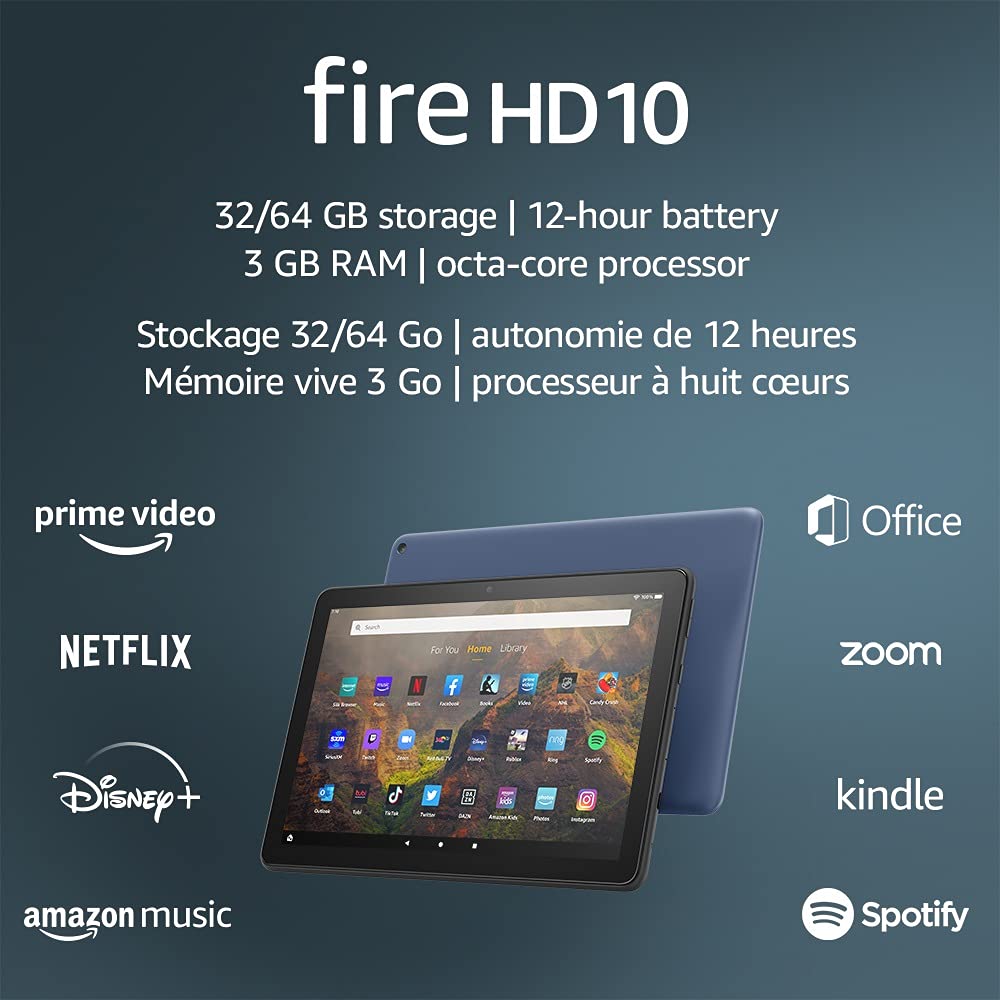
Image 1.1: The Amazon Fire HD 10 tablet highlighting its 32/64 GB storage, 12-hour battery, 3 GB RAM, and octa-core processor, alongside logos of supported applications such as Prime Video, Netflix, Disney+, Amazon Music, Office, Zoom, Kindle, and Spotify.
2. Nastavenie
2.1 Rozbalenie a počiatočné naúčtovanie
Upon receiving your Fire HD 10 tablet, carefully remove all components from the packaging. Before first use, it is recommended to fully charge the device.
- Connect the provided USB-C (2.0) cable to the tablet's USB-C port.
- Plug the other end of the USB-C cable into the 9W power adapter.
- Zapojte napájací adaptér do elektrickej zásuvky.
- A full charge from 0% to 100% typically takes approximately 4 hours while the device is in standby mode.
2.2 Zapnutie/vypnutie
- Zapnutie: Stlačte a podržte tlačidlo napájania umiestnené na boku tabletu, kým sa na obrazovke nezobrazí logo Amazonu.
- Vypnutie: Press and hold the power button until a power options menu appears. Select 'Power Off'.
- Ak chcete reštartovať: V ponuke možností napájania vyberte možnosť „Reštartovať“.
2.3 Pripojenie k Wi-Fi
To access online content and services, connect your Fire HD 10 to a Wi-Fi network.
- Na domovskej obrazovke potiahnite prstom zhora nadol a otvorte panel Rýchle nastavenia.
- Klepnite na ikonu Wi-Fi.
- Vyberte požadovanú sieť Wi-Fi zo zoznamu dostupných sietí.
- Ak sa zobrazí výzva, zadajte heslo siete a klepnite na „Pripojiť“.
- The tablet supports 2.4 GHz and 5.0 GHz networks. Ad-hoc (peer-to-peer) Wi-Fi networks are not supported.
2.4 Nastavenie účtu
During the initial setup process, you will be guided to register your Fire HD 10 to an Amazon account. This is necessary to download apps, access Amazon content, and utilize cloud services.
- Follow the on-screen prompts to sign in with an existing Amazon account or create a new one.
- Ensure your account details are accurate for full functionality.
3. Návod na obsluhu
3.1 Navigácia v rozhraní
The Fire HD 10 tablet features a touch-sensitive display for interaction.
- Klepnite na: Ak chcete vybrať položku, otvorte aplikáciu alebo aktivujte tlačidlo.
- Potiahnutie prstom: Na posúvanie sa medzi stránkami, zoznamami alebo prepínanie medzi domovskými obrazovkami.
- Priblíženie štipnutím prstov: Ak chcete obrázky priblížiť alebo oddialiť, web stránky alebo dokumenty.
- Dlhé stlačenie: Prístup ku kontextovým ponukám alebo presunutie ikon aplikácií.
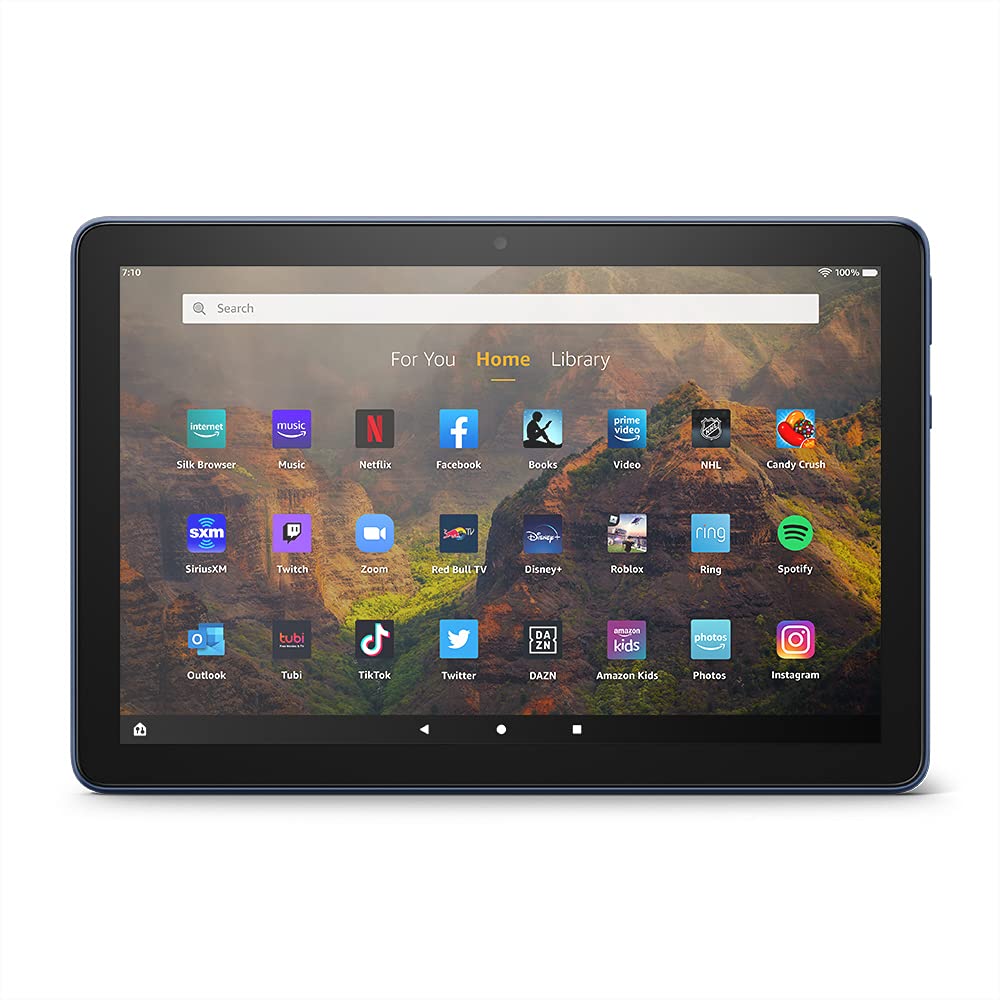
Image 3.1: The Amazon Fire HD 10 tablet's home screen, showcasing a grid of application icons including Silk Browser, Music, Netflix, Facebook, Books, Video, NHL, Candy Crush, SiriusXM, Twitch, Zoom, Red Bull TV, Disney+, Roblox, Ring, Spotify, Outlook, Tubi, TikTok, Twitter, DAZN, Amazon Kids, Photos, and InstagRAM.
3.2 Používanie aplikácií
Applications can be downloaded from the Amazon Appstore. Google Play is not supported.
- Tap an app icon on the Home screen to launch it.
- To find new apps, open the 'Appstore' application.
- Some apps may require a subscription for full access.

Image 3.2: A collage of content available on the Amazon Fire HD 10 tablet, featuring book covers like 'The Silent Patient', Amazon Original series and movies such as 'The Wilds', 'Coming to America', 'The Expanse', 'Dune', 'Hanna', 'One Night in Miami', 'Sound of Metal', 'The Marvelous Mrs. Maisel', 'Upload', and 'The Boys', alongside social media app logos for TikTok, Facebook, and Twitter.
3.3 Multitasking na rozdelenej obrazovke
The Fire HD 10 supports split screen functionality, allowing two compatible applications to run side-by-side.
- Otvorte prvú aplikáciu, ktorú chcete použiť.
- Swipe up from the bottom of the screen to reveal the navigation bar.
- Long-press the icon of the first app in the recent apps view.
- Select 'Split Screen' from the options.
- Choose a second compatible app from your recent apps or app drawer to fill the other half of the screen.

Image 3.3: The Amazon Fire HD 10 tablet, shown with an optional Bluetooth keyboard case, demonstrating its split-screen capability. Two applications are open simultaneously: a calendar app on the left and a messaging app on the right, illustrating enhanced productivity.
3.4 Používanie fotoaparátu
The tablet is equipped with a 2 MP front-facing camera and a 5 MP rear-facing camera, both capable of 720p HD video recording.
- Open the 'Camera' app from your Home screen or app drawer.
- Klepnutím na tlačidlo spúšte nasnímate fotografiu.
- Prepínajte medzi predným a zadným fotoaparátom pomocou ikony prepínača fotoaparátu.
- Vyberte režim videa na nahrávanie videí.
3.5 Zvuk a Bluetooth
The Fire HD 10 includes dual integrated speakers and a 3.5 mm stereo jack for headphones. It also supports Bluetooth 5.0 LE.
- Connect wired headphones or external speakers via the 3.5 mm jack.
- To pair Bluetooth devices (headphones, speakers, microphones, LE accessories):
- Go to 'Settings' > 'Connected Devices' > 'Bluetooth'.
- Skontrolujte, či je zapnutá funkcia Bluetooth.
- Vyberte svoje zariadenie zo zoznamu dostupných zariadení a postupujte podľa pokynov na párovanie.
3.6 Správa úložiska
Your Fire HD 10 comes with either 32 GB or 64 GB of internal storage. You can expand this by up to 1 TB using a microSD card.
- To insert a microSD card: Locate the microSD slot on the side of the tablet, open the cover, and gently insert the card until it clicks into place.
- Manage storage by going to 'Settings' > 'Storage'. Here you can view usage and move compatible apps or media to the microSD card.
4. Údržba
4.1 Starostlivosť o batérie
- Avoid exposing the tablet to extreme temperatures, as this can degrade battery performance.
- Pre optimálnu životnosť batérie sa vyhýbajte častému úplnému vybíjaniu batérie alebo jej dlhodobému udržiavaniu na 100 % nabitej.
- Use only the provided 9W power adapter and USB-C cable for charging.
4.2 Čistenie zariadenia
- Pred čistením tablet vypnite.
- Na jemné utrenie obrazovky a tela použite mäkkú handričku, ktorá nepúšťa vlákna.
- Na odolné šmuhy mierneamphandričku vodou. Nepoužívajte agresívne chemikálie, abrazívne čistiace prostriedky ani aerosólové spreje.
4.3 Aktualizácie softvéru
Amazon periodically releases software updates to improve performance and add new features. Ensure your device is connected to Wi-Fi to receive these updates.
- Updates are typically downloaded and installed automatically.
- You can manually check for updates by going to 'Settings' > 'Device Options' > 'System Updates'.
5. Riešenie problémov
5.1 Zariadenie nereaguje
- If the device is frozen or unresponsive, press and hold the power button for approximately 20 seconds to force a restart.
- Ensure the device has sufficient battery charge. Connect it to the charger and try powering it on again.
5.2 Problémy s pripojením k Wi-Fi
- Verify that Wi-Fi is enabled in Quick Settings or 'Settings' > 'Wireless'.
- Uistite sa, že ste v dosahu vášho Wi-Fi routera.
- Reštartujte Wi-Fi router a modem.
- Forget the network in 'Settings' > 'Wireless' and reconnect, re-entering the password if necessary.
5.3 Aplikácie padajú alebo sa nenačítavajú
- Zatvorte a znova otvorte aplikáciu.
- Clear the app's cache: Go to 'Settings' > 'Apps & Games' > 'Manage All Applications', select the problematic app, and tap 'Clear Cache'.
- Uistite sa, že softvér vášho tabletu je aktuálny.
- Ak problém pretrváva, zvážte odinštalovanie a opätovnú inštaláciu aplikácie.
5.4 Krátka výdrž batérie
- Znížte jas obrazovky.
- Zatvorte nepoužívané aplikácie spustené na pozadí.
- Vypnite Wi-Fi alebo Bluetooth, keď ich nepoužívate.
- Obmedzte spotrebu dát na pozadí pre aplikácie.
- Check 'Settings' > 'Battery' to identify apps consuming the most power.
6. Špecifikácie
| Funkcia | Detail |
|---|---|
| generácie | 11. generácia, vydanie 2021 |
| Displej | Brilantný 10.1-palcový displej s rozlíšením 1080p (1920 x 1200) s viac ako 2 miliónmi pixelov (224 ppi). Obrazovka je vystužená hlinitokremičitým sklom. |
| Veľkosť | 247 mm x 166 mm x 9.2 mm |
| Hmotnosť | 465 gramov (Skutočná veľkosť a hmotnosť sa môže líšiť) |
| CPU a RAM | Osemjadrový 2.0 GHz s 3 GB RAM |
| Skladovanie | 32 GB (24.2 GB available) or 64 GB (55.0 GB available) internal storage. Expandable up to 1 TB with microSD card. |
| Životnosť batérie | Up to 12 hours of mixed usage (reading, web, video, music). Varies by settings and usage. |
| Doba nabíjania | Approx. 4 hours (0-100%) with provided 9W adapter in standby. |
| Pripojenie WiFi | Supports 2.4 GHz and 5.0 GHz networks. Does not support ad-hoc networks. |
| Porty | USB-C (2.0) for charging, microSD slot for external storage. |
| Zvuk | 3.5 mm stereo jack, dual integrated speakers, external volume controls. |
| Senzory | Akcelerometer, senzory okolitého svetla. |
| Špecifikácie fotoaparátu | 2 MP front-facing, 5 MP rear-facing cameras with 720p HD video recording. |
| Mikrofóny | 2 vstavané mikrofóny. |
| Lokalizačné služby | Location-based services via WiFi. |
| Dostupné farby | Black, Denim. |
| Bluetooth | Built-in Bluetooth 5.0 LE with A2DP support for stereo headphones, speakers, microphone, and LE accessories. |
6.1 Funkcie prístupnosti
The Fire HD 10 tablet includes various accessibility features to assist users. These can be accessed via 'Settings' > 'Accessibility'.
- HlasView Čítačka obrazovky: Poskytuje hovorenú spätnú väzbu pre nevidiacich alebo zrakovo postihnutých používateľov.
- Zväčšovač obrazovky: Umožňuje používateľom približovať/odďaľovať a posúvať sa po obrazovke.
- Prístup s prepínačmi: Enables interaction for users with motor impairments via compatible Bluetooth devices.
- Čítanie nahlas pre Kindle: Alexa dokáže nahlas čítať knihy z Kindle.
- Nastavenia displeja: Includes options for Closed Captioning, Font Size, Display Size, High Contrast Text, Color Inversion, Color Correction, and Convert Stereo to Mono audio. (Note: Captions are not available for all content.)
7. Záruka a podpora
7.1 Informácie o záruke
Your Amazon Fire HD 10 tablet comes with a 1-year limited warranty and service. Optional 1-year, 2-year, and 3-year extended warranties are available for purchase separately for customers in Canada.
Use of the Fire HD 10 tablet is subject to Amazon's Conditions of Use and associated terms.
7.2 Súčasťou balenia
The following items are included with your Fire HD 10 tablet:
- Tablet Fire HD 10
- Kábel USB-C (2.0)
- 9W napájací adaptér
- Sprievodca rýchlym spustením
7.3 Ďalšia podpora
For additional assistance, please visit the Amazon Device Support website or contact Amazon Customer Service.