
Úvod
This manual provides essential information for setting up, operating, and maintaining your Amazon Fire TV 4-Series 50-inch 4K UHD Smart TV. The Fire TV 4-Series brings vivid 4K Ultra HD, HDR 10, HLG, and Dolby Digital Plus support, offering a clearer and more vibrant picture than 1080p Full HD. Enjoy access to over 1.5 million movies and TV episodes from various streaming services, along with live TV, video games, and music. The integrated Fire TV platform continuously updates with new Alexa skills, features, smart home capabilities, and voice functionality.

Obrázok: Predná strana view of the Amazon Fire TV 4-Series 50-inch 4K UHD Smart TV, showcasinjeho tenký rám a displej.
Čo je v krabici
Opatrne vybaľte krabicu a uistite sa, že sú k dispozícii všetky komponenty:
- Fire TV 4-Series 50-inch Television
- Vylepšené ovládanie hlasom Alexa
- Napájací kábel
- 2 batérie AAA (pre diaľkové ovládanie)
- 4 skrutky (na upevnenie stojana)
- TV stolík (2 nohy)
- Sprievodca rýchlym spustením

Image: All components included in the Amazon Fire TV 4-Series package, laid out for inspection.
Nastavenie
1. Attaching the TV Stand or Wall Mounting
The TV is designed to be lightweight for easier handling. For the 50-inch model, one person can typically unbox it, but for larger sizes, two people are recommended. The TV stand legs attach easily to the bottom of the television.
- Televízor opatrne položte obrazovkou nadol na mäkký, čistý povrch, aby ste predišli poškriabaniu.
- Zarovnajte každú nohu stojana s príslušnými otvormi na spodnej strane televízora.
- Každú nohu zaistite dodanými skrutkami.
Alternatively, for wall mounting, the TV supports a VESA Wall Mount Standard of 300 mm x 300 mm. Ensure you use a compatible wall mount (sold separately) and follow its installation instructions carefully.

Image: Visual guide to the TV components and stand assembly.
2. Pripojenie periférií
Connect your external devices such as cable boxes, gaming consoles, or sound systems to the appropriate ports on the back and side of the TV. The TV features 3 HDMI 2.0 ports and 1 HDMI 2.1 port with eARC, 1 USB port, 1 Ethernet port, and a Digital Optical Audio Port.

Obrázok: Podrobný view z portov pripojenia televízora.
3. Počiatočné zapnutie a nastavenie siete
- Zapojte napájací kábel do televízora a potom do elektrickej zásuvky.
- Insert the two AAA batteries into the Alexa Voice Remote Enhanced.
- Stlačením tlačidla napájania na diaľkovom ovládači zapnite televízor.
- Follow the on-screen prompts to select your language and connect to your Wi-Fi network. You can also use an Ethernet cable for a wired connection.
- The TV may download and install software updates. This process can take 10-15 minutes. Allow it to complete without interruption.
- Sign in with your Amazon account. If you do not have one, you will be prompted to create one.
- Configure any desired parental controls or additional channel subscriptions.
Obsluha TV
Základná navigácia
Use the Alexa Voice Remote Enhanced to navigate the Fire TV interface. The remote features a directional pad for menu navigation, a select button, and dedicated buttons for Home, Back, Menu, and various streaming services.
Using Alexa Voice Remote Enhanced
The included Alexa Voice Remote Enhanced allows you to control your TV and access content using voice commands. Press and hold the Alexa button on the remote, then speak your command. You can ask Alexa to:
- Find and launch movies, TV shows, and apps.
- Ovládanie prehrávania (prehrávanie, pozastavenie, rýchle pretáčanie dopredu, pretáčanie dozadu).
- Adjust TV settings like volume and input source.
- Check weather, sports scores, and other information.
- Ovládajte kompatibilné zariadenia inteligentnej domácnosti.
The remote can also control certain functions, such as power and volume, on a wide range of compatible IR-enabled devices, soundbars, and A/V receivers. Note that certain functions may not be available on all IR-enabled devices.
Prístup k obsahu
The Fire TV interface provides access to a vast library of streaming content. Subscription fees may apply for certain services.

Obrázok: Napramples of streaming services available on Fire TV.
Konektivita
The Amazon Fire TV 4-Series offers various connectivity options for your home entertainment system:
- HDMI porty: 3 porty HDMI 2.0 a 1 port HDMI 2.1 s eARC pre pripojenie zvuku a videa vo vysokom rozlíšení.
- Ethernet: 1 Ethernet port for a stable wired internet connection.
- USB: 1 USB port na pripojenie externého úložiska alebo iných USB zariadení.
- Digitálny optický audio výstup: Na pripojenie k soundbarom alebo audio prijímačom.
- Bezdrôtové pripojenie: Supports Wi-Fi for wireless internet access.
- Bluetooth: Bluetooth 5.0 for connecting compatible accessories like headphones.
Špecifikácie
| Funkcia | Špecifikácia |
|---|---|
| Rozlíšenie | 3840 x 2160 (4K UHD) |
| Vysoký dynamický rozsah (HDR) | HDR 10, HLG |
| Typ podsvietenia | Priama LED |
| Obnovovacia frekvencia | 60 Hz |
| Veľkosť obrazovky | 50 palcov (49.5 palca) viewschopný) |
| Porty HDMI | 3 HDMI 2.0 + 1 HDMI 2.1 s eARC |
| Ethernetový port | 1 |
| USB port | 1 |
| Podpora zvuku | Dolby Digital Plus s prepúšťaním zvuku kódovaného Dolby |
| Výkon zvuku | 8 W + 8 W |
| Operačný systém | Operačný systém Fire TV |
| Veľkosť produktu (bez stojana) | 44.2" x 25.6" x 3.5" |
| Hmotnosť (bez podstavca) | 20.6 lb |
| Štandardný držiak na stenu VESA | 300 mm x 300 mm |
| Číslo SKU | 4K50N400A |
| Konektivita | Wi-Fi or Ethernet, Bluetooth 5.0 |
| Alexa Voice Remote Enhanced Compatibility | Fire TV 2-Series, Fire TV 4-Series, Fire TV Omni Series, Fire TV Omni QLED Series, Fire TV Cube (3rd Gen) |
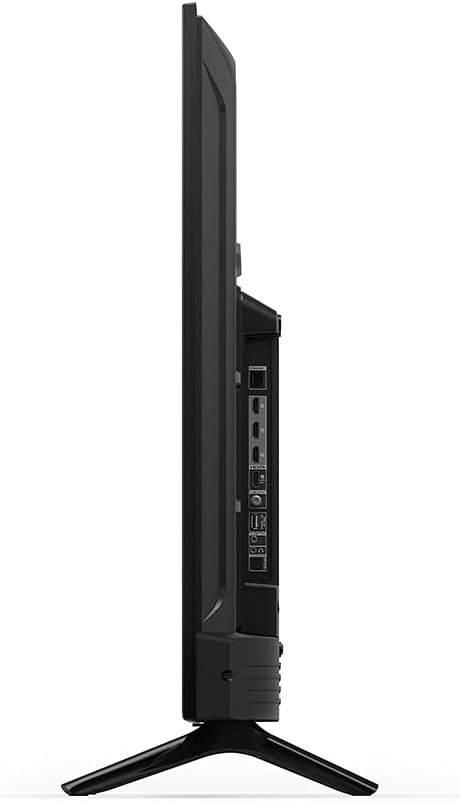
Obrázok: Side profile of the TV, highlighting its slimness.
Obrázok: Zadná strana view of the TV, illustrating the VESA mounting pattern.
Údržba
Čistenie televízora
- Pred čistením vždy odpojte televízor zo siete.
- Na jemné utrenie obrazovky a skrinky použite mäkkú, suchú handričku, ktorá nepúšťa vlákna.
- V prípade odolných škvŕn na obrazovke jemneamphandričku opláchnite vodou alebo roztokom na čistenie obrazoviek určeným špeciálne pre elektroniku. Nestriekajte tekutinu priamo na obrazovku.
- Nepoužívajte abrazívne čistiace prostriedky, vosky alebo rozpúšťadlá, pretože môžu poškodiť povrchovú úpravu.
Aktualizácie softvéru
Your Fire TV will periodically receive software security updates to improve performance and add new features. Ensure your TV is connected to the internet to receive these updates automatically. You can also check for updates manually through the TV's settings menu.
Riešenie problémov
Ak sa vyskytnú problémy s televízorom Fire TV, pozrite si nasledujúce bežné riešenia:
- Bez napájania: Uistite sa, že napájací kábel je bezpečne zapojený do televízora aj do funkčnej elektrickej zásuvky. Skúste inú zásuvku.
- Žiadny obraz/zvuk: Verify that the correct input source is selected. Check all cable connections (HDMI, audio) are secure. Restart the TV by unplugging it for 30 seconds and plugging it back in.
- Diaľkové ovládanie nereaguje: Replace the AAA batteries in the Alexa Voice Remote Enhanced. Ensure there are no obstructions between the remote and the TV. Re-pair the remote if necessary (hold Home button for 10 seconds).
- Problémy s pripojením k sieti: Check your Wi-Fi router and modem. Restart your network equipment. Ensure the TV is within range of your Wi-Fi signal or that the Ethernet cable is properly connected.
- Alexa neodpovedá: Ensure the remote batteries are fresh. Press and hold the Alexa button firmly when speaking. Check your internet connection.
For more detailed troubleshooting or persistent issues, refer to the online support resources for Fire TV.
Záruka a podpora
Informácie o záruke
Your Amazon Fire TV 4-Series 50-inch includes a 1-year limited warranty and service. Optional 3-Year and 4-Year Extended Warranties are available for U.S. customers and can be purchased separately. Use of Fire TV is subject to the terms found on the official Amazon webstránky.
Zákaznícka podpora
For additional support, frequently asked questions, or to manage your device, please visit the official Amazon Fire TV support pages online. You can find information specific to your device by visiting the 'Manage Your Content and Devices' section on Amazon.