
1. Úvod
The Razer Thunderbolt 4 Dock is a versatile connectivity solution designed to expand the capabilities of your laptop or desktop. It offers high-speed data transfer, support for multiple displays, and pass-through charging, all through a single Thunderbolt 4 cable connection. This dock is compatible with both Windows and Mac systems, and features customizable Razer Chroma RGB lighting.
Medzi kľúčové vlastnosti patrí:
- Full Thunderbolt 4 Functionality: Experience high-speed data transfer, connect multiple displays, and charge your laptop with a single cable.
- Široká kompatibilita: USB 4 compatible, works with legacy Thunderbolt devices, and supports Windows and Mac systems.
- Priechodné nabíjanie: Keep your USB-C powered laptop charged while simultaneously powering other connected devices.
- 10-Port Hub: Maximize your setup with a variety of ports for peripherals.
- Dual 4K or Single 8K Display Output: Expand your visual workspace with high-resolution display options.
- Razer Chroma RGB osvetlenie: Personalize your dock with customizable lighting effects.
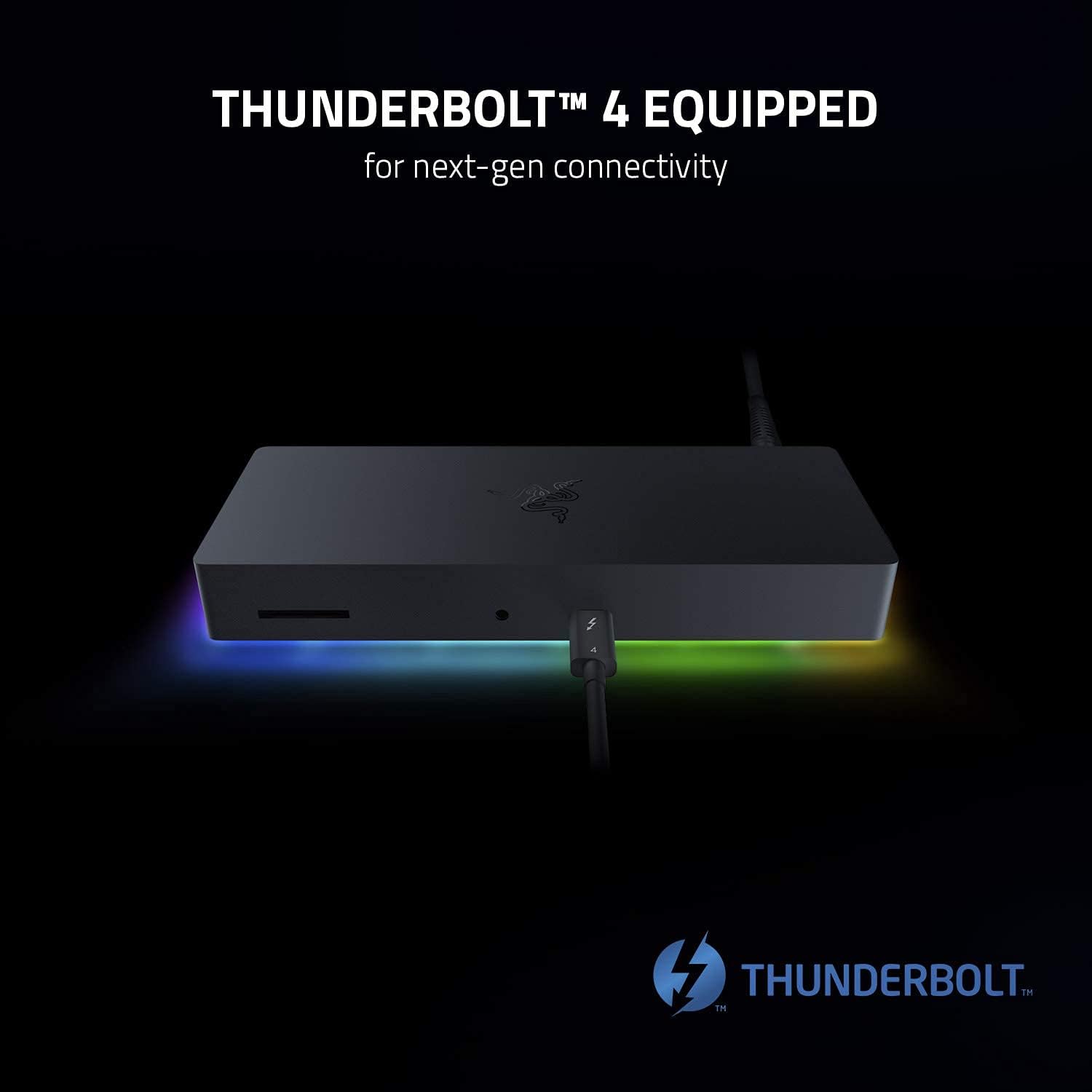
Image 1.1: The Razer Thunderbolt 4 Dock, highlighting its Thunderbolt 4 capabilities for next-generation connectivity.
2. Nastavenie
Follow these steps to set up your Razer Thunderbolt 4 Dock:
- Pripojenie napájania: Plug the included power adapter into the dock's power input port and then into a wall outlet. The dock's Chroma lighting should illuminate.
- Pripojenie k hostiteľskému zariadeniu: Use the provided Thunderbolt 4 cable to connect the dock's upstream Thunderbolt 4 port to a Thunderbolt 4 or USB-C port on your laptop or desktop computer.
- Pripojte periférne zariadenia:
- Zobrazuje: Connect your monitors to the available Thunderbolt 4 (USB-C) ports or the HDMI port on the dock. Ensure your cables support the desired resolution (e.g., 4K or 8K).
- Zariadenia USB: Plug in your USB peripherals (keyboard, mouse, external drives) into the USB-A ports.
- Ethernet: For a wired network connection, connect an Ethernet cable from your router or modem to the Gigabit Ethernet port on the dock.
- Zvuk: Pripojte slúchadlá alebo reproduktory k 3.5 mm audio konektoru.
- SD karta: Insert an SD card into the SD card slot for data transfer.
- Inštalácia ovládača (ak je to potrebné): For optimal performance, ensure your computer's operating system and Thunderbolt drivers are up to date. In most cases, the dock will be plug-and-play.

Image 2.1: Diagram illustrating the 10-port hub of the Razer Thunderbolt 4 Dock and various connected peripherals.

Obrázok 2.2: Predná a zadná časť views of the Razer Thunderbolt 4 Dock, showcasing its various ports for maximum versatility and ease of use.
3. Obsluha doku
Once set up, the Razer Thunderbolt 4 Dock operates seamlessly with your connected devices.
- Konfigurácia displeja: Your operating system should automatically detect connected displays. You can configure display settings (resolution, arrangement, mirroring/extending) through your computer's display settings. The dock supports dual 4K displays or a single 8K display.
- Priechodné nabíjanie: If your laptop supports USB-C power delivery, the dock will charge your laptop while it is connected, eliminating the need for a separate power adapter for your laptop.
- Razer Chroma RGB: To customize the dock's RGB lighting, download and install the Razer Synapse software from the official Razer website. Synapse allows you to synchronize lighting effects with other Razer Chroma-enabled devices and personalize your setup.

Image 3.1: The Razer Thunderbolt 4 Dock connected to a monitor and laptop, demonstrating its capability for dual 4K or single 8K display output.

Image 3.2: The Razer Thunderbolt 4 Dock connected to a laptop, illustrating its pass-through charging feature for convenience.

Image 3.3: The Razer Thunderbolt 4 Dock displaying its customizable Chroma RGB lighting, with the Razer Synapse software interface visible on a monitor.
4. Údržba
Proper maintenance ensures the longevity and optimal performance of your Razer Thunderbolt 4 Dock.
- Čistenie: Use a soft, dry cloth to wipe down the exterior of the dock. Avoid using harsh chemicals or abrasive materials. Ensure the dock is powered off and disconnected from all devices before cleaning.
- Vetranie: Uistite sa, že dokovacia stanica je umiestnená na dobre vetranom mieste, aby sa predišlo prehriatiu. Neblokujte žiadne vetracie otvory.
- Aktualizácie firmvéru: Periodically check the official Razer support website for any available firmware updates for your dock. Firmware updates can improve performance, add features, or resolve issues.
5. Riešenie problémov
If you encounter issues with your Razer Thunderbolt 4 Dock, try the following troubleshooting steps:
- Bez napájania: Ensure the power adapter is securely connected to both the dock and a working power outlet. Check if the Chroma lighting is active.
- Zariadenia neboli rozpoznané:
- Verify that the Thunderbolt 4 cable is securely connected between the dock and your computer.
- Try disconnecting and reconnecting the peripheral device to the dock.
- Reštartujte počítač.
- Ensure your computer's Thunderbolt drivers are up to date.
- Žiadny výstup na displej:
- Check all display cable connections (HDMI, USB-C to display).
- Uistite sa, že váš monitor je nastavený na správny vstupný zdroj.
- Test the display directly with your computer if possible to rule out monitor issues.
- Aktualizujte ovládače grafiky.
- Prerušované pripojenie: Ensure all cables are of high quality and securely connected. Avoid placing the dock near sources of electromagnetic interference.
- Chroma Lighting Issues: If Chroma lighting is not working as expected, ensure Razer Synapse is installed and running, and check its settings.
If these steps do not resolve your issue, please refer to the official Razer support resources.
6. Špecifikácie
| Číslo modelu | RC21-01690100-R3U1 |
| Rozmery produktu | 19 x 7.49 x 2.69 cm |
| Hmotnosť | 1.05 kg |
| Hardvérové rozhranie | Thunderbolt 4 |
| Kompatibilné zariadenia | Windows Laptops, MacBooks, Thunderbolt Devices, USB-C Devices |
| Celkový počet portov USB | 10 |
| Celkový počet portov HDMI | 1 |
| Farba | Čierna |
| UPC | 656942067061 |
7. Informácie o záruke
This product is sold as an Amazon Renewed item. Amazon Renewed products are professionally inspected and tested to work and look like new. If you are not satisfied with your purchase, renewed products are eligible for replacement or refund under the Amazon Renewed Guarantee. Please refer to the Amazon Renewed Guarantee terms and conditions for full details regarding your warranty and return options.
8. Podpora
For further assistance, technical support, or to download the latest drivers and software (such as Razer Synapse), please visit the official Razer support webmiesto:
You may also contact Amazon customer service for inquiries related to your Amazon Renewed purchase.