
1. Úvod
The PikDik Mini Portable Photo Printer PD-Q2 is a compact thermal printer designed for on-the-go printing. It connects via Bluetooth to compatible Android and iOS devices, allowing users to print photos, labels, lists, and more without the need for ink cartridges. This manual provides essential information for setting up, operating, maintaining, and troubleshooting your PD-Q2 printer.
2. Bezpečnostné informácie
- Nevystavujte tlačiareň vode ani nadmernej vlhkosti.
- Avoid extreme temperatures. Operate and store the printer within recommended environmental conditions.
- Používajte iba dodaný nabíjací kábel a odporúčané zdroje napájania.
- Uchovávajte mimo dosahu detí.
- Nepokúšajte sa tlačiareň rozoberať ani opravovať sami. So žiadosťou o pomoc kontaktujte zákaznícku podporu.
3. Obsah balenia
Skontrolujte, prosím, balenie, či neobsahuje nasledujúce položky:
- PikDik Mini Portable Photo Printer PD-Q2
- Nabíjací kábel USB typu C
- Roll of Thermal Photo Paper
- Používateľská príručka
4. Produkt skončilview
The PD-Q2 printer features a compact design with a single power/function button and a paper output slot. It utilizes thermal printing technology, eliminating the need for ink. The device is powered by a built-in rechargeable lithium battery.
5. Inštalačná príručka
5.1 Nabíjanie tlačiarne
Before first use, fully charge the printer. Connect the provided USB Type-C cable to the printer's charging port and a compatible USB power adapter. The LED indicator will show charging status.
5.2 Vkladanie termopapiera
- Otvorte kryt priehradky na papier v tlačiarni.
- Insert a new roll of thermal paper, ensuring the printing side faces the print head.
- Pull a small length of paper out of the slot and close the cover securely.
5.3 Inštalácia aplikácie a pripojenie Bluetooth
The PikDik PD-Q2 printer requires the "Meta Print" application for operation. Follow these steps to connect your device:
- Zapnite tlačiareň: Stlačte a podržte tlačidlo napájania, kým sa nerozsvieti kontrolka.
- Download and Install the "Meta Print" APP: Hľadať "Meta Print" on your smartphone's app store (Google Play for Android or App Store for iOS) and install it.
- Povoliť Bluetooth: On your phone or tablet, go to your device's settings and ensure Bluetooth is turned on.
- Connect in the APP: Open the "Meta Print" app. The app will guide you to link the printer via Bluetooth. Select the PD-Q2 from the list of available devices.
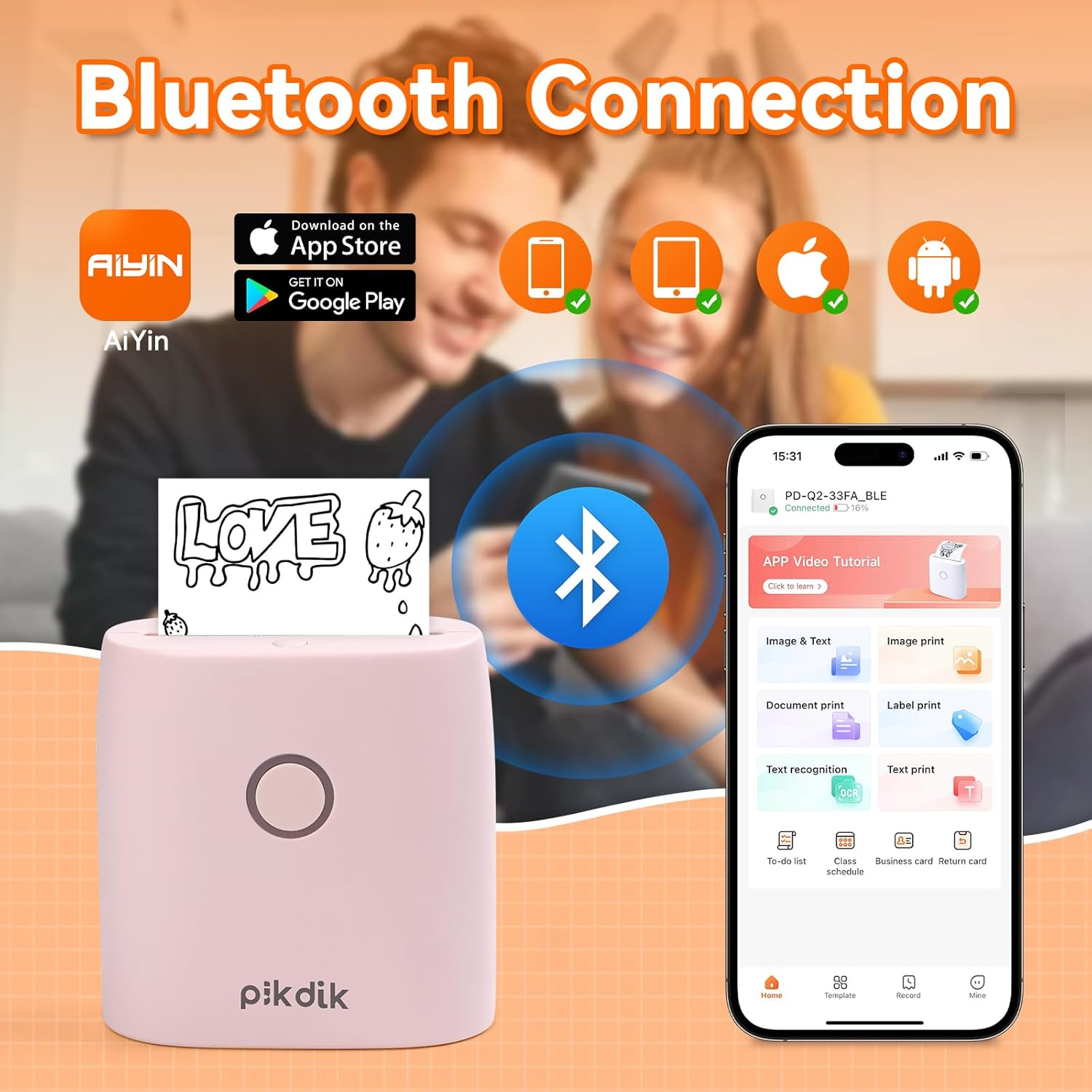
Image: The printer connects to your smartphone via Bluetooth using the Meta Print app, available on both Android and iOS.
6. Návod na obsluhu
6.1 Printing Content
Once connected to the "Meta Print" app, you can select various content types for printing:
- Image & Text: Print photos, graphics, or combine them with text.
- Tlač dokumentu: Print documents or notes.
- Label Print: Create and print custom labels.
- Rozpoznávanie textu: Convert images of text into editable text for printing.
- Šablóny: Utilize pre-designed templates for to-do lists, business cards, emojis, and more.
After selecting and editing your content within the app, tap the print button to initiate printing. The printer will output the thermal paper with your printed content.

Image: The printer is suitable for various applications such as journaling, scrapbooking, printing shopping lists, and notes.
6.2 Print Quality and Limitations
The PD-Q2 printer offers a 300 DPI resolution for clear and detailed black and white prints. As a thermal printer, it does not support color printing.
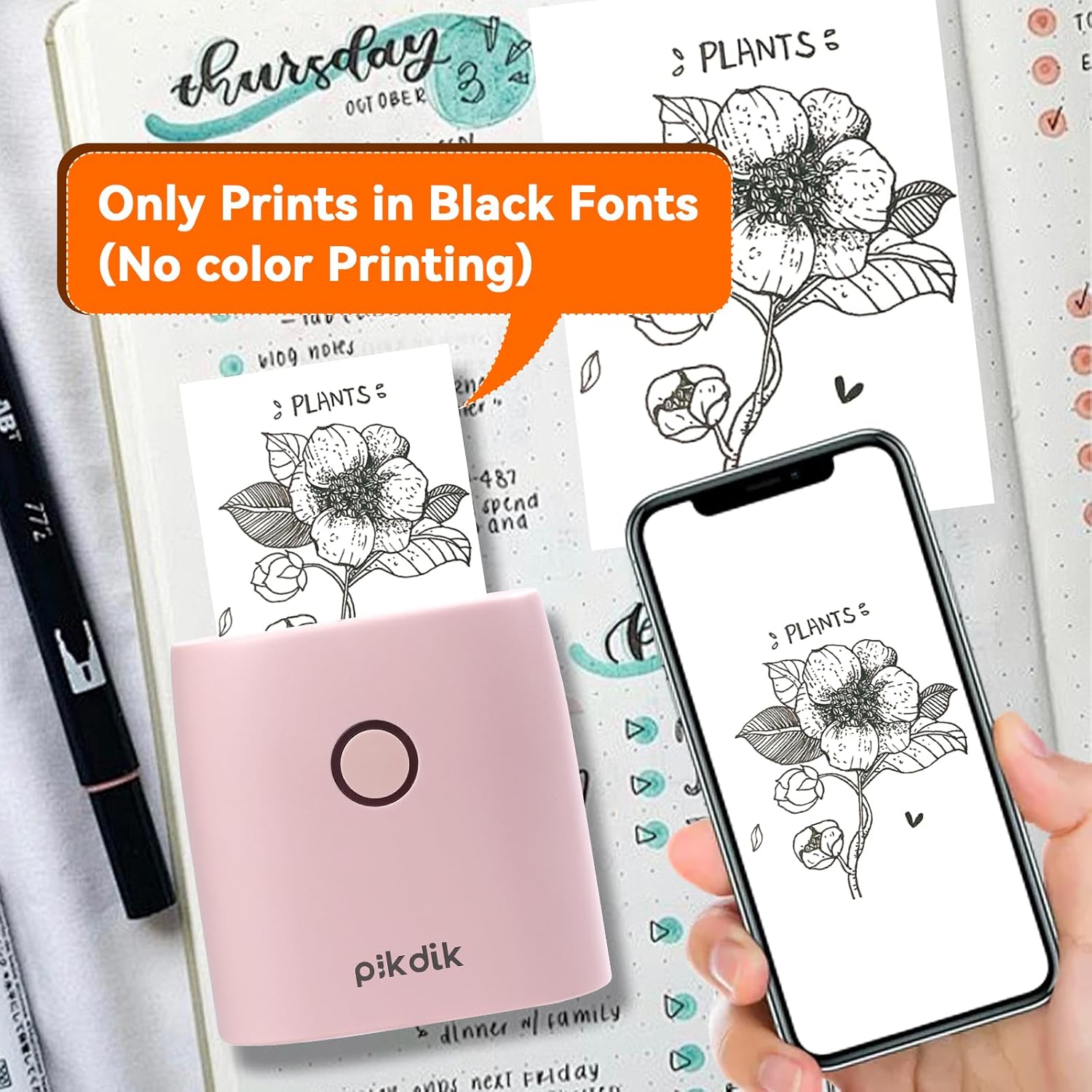
Image: The printer produces prints exclusively in black and white, as shown with a plant illustration.

Image: The 300 DPI resolution of the Q2 printer provides enhanced clarity and detail in prints compared to lower resolution alternatives.
7. Údržba
7.1 Čistenie tlačiarne
Pre udržanie optimálnej kvality tlače pravidelne čistite tlačovú hlavu. Používajte mäkkú handričku, ktorá nepúšťa vlákna, jemne osušteampnavlhčite izopropylalkoholom. Jemne utrite povrch tlačovej hlavy. Pred použitím sa uistite, že je tlačiareň vypnutá a úplne suchá.
7.2 Replacing Thermal Paper
When the paper roll is depleted, replace it by following the steps in Section 5.2. Use only thermal paper compatible with the PD-Q2 printer to ensure proper function and print quality.
8. Riešenie problémov
| Problém | Možná príčina | Riešenie |
|---|---|---|
| Tlačiareň sa nezapne | Slabá batéria; Tlačidlo napájania nie je správne stlačené | Nabite tlačiareň; Stlačte a niekoľko sekúnd podržte tlačidlo napájania. |
| Nedá sa pripojiť cez Bluetooth | Bluetooth off on phone; Printer not in pairing mode; App issue | Ensure phone Bluetooth is on; Restart printer and app; Re-pair device in app. |
| Poor print quality (faint, pixelated) | Low battery; Print head dirty; Incorrect paper type; Image resolution too low | Charge printer; Clean print head (Section 7.1); Use correct thermal paper; Use higher resolution images. |
| Zaseknutý papier | Paper not loaded correctly; Foreign object in paper path | Open cover, remove jammed paper, reload correctly; Check for obstructions. |
| Tlačiareň nereaguje | Systémová chyba | Perform a soft reset by turning the printer off and on again. If issue persists, contact support. |
9. Špecifikácie
| Funkcia | Detail |
|---|---|
| Model | Q2 |
| Rozmery (D x Š x V) | 4.1 x 8.4 x 8.4 cm (1.6 x 3.3 x 3.3 palca) |
| Hmotnosť | 0.57 libry (približne 258.55 g) |
| Technológia tlače | Termálne |
| Rozlíšenie tlače | 300 DPI (monochromatický) |
| Konektivita | Bluetooth |
| Kompatibilné zariadenia | Smartfóny, tablety (Android, iOS) |
| Maximálna veľkosť média | 2 palca |
| Zdroj napájania | Built-in Lithium Polymer Battery (Rechargeable via USB Type-C) |
| Názov aplikácie | Meta Print |
10. Záruka a podpora
For warranty information and technical support, please refer to the warranty card included with your product or contact PikDik customer service directly. Keep your purchase receipt as proof of purchase.