
1. Úvod
This manual provides detailed instructions for the setup, operation, maintenance, and troubleshooting of your Cosmic Byte ARES Wired Controller for PC. Designed for an enhanced gaming experience, this controller features Hall Effect joysticks and triggers, dual vibration, and customizable Turbo functions.
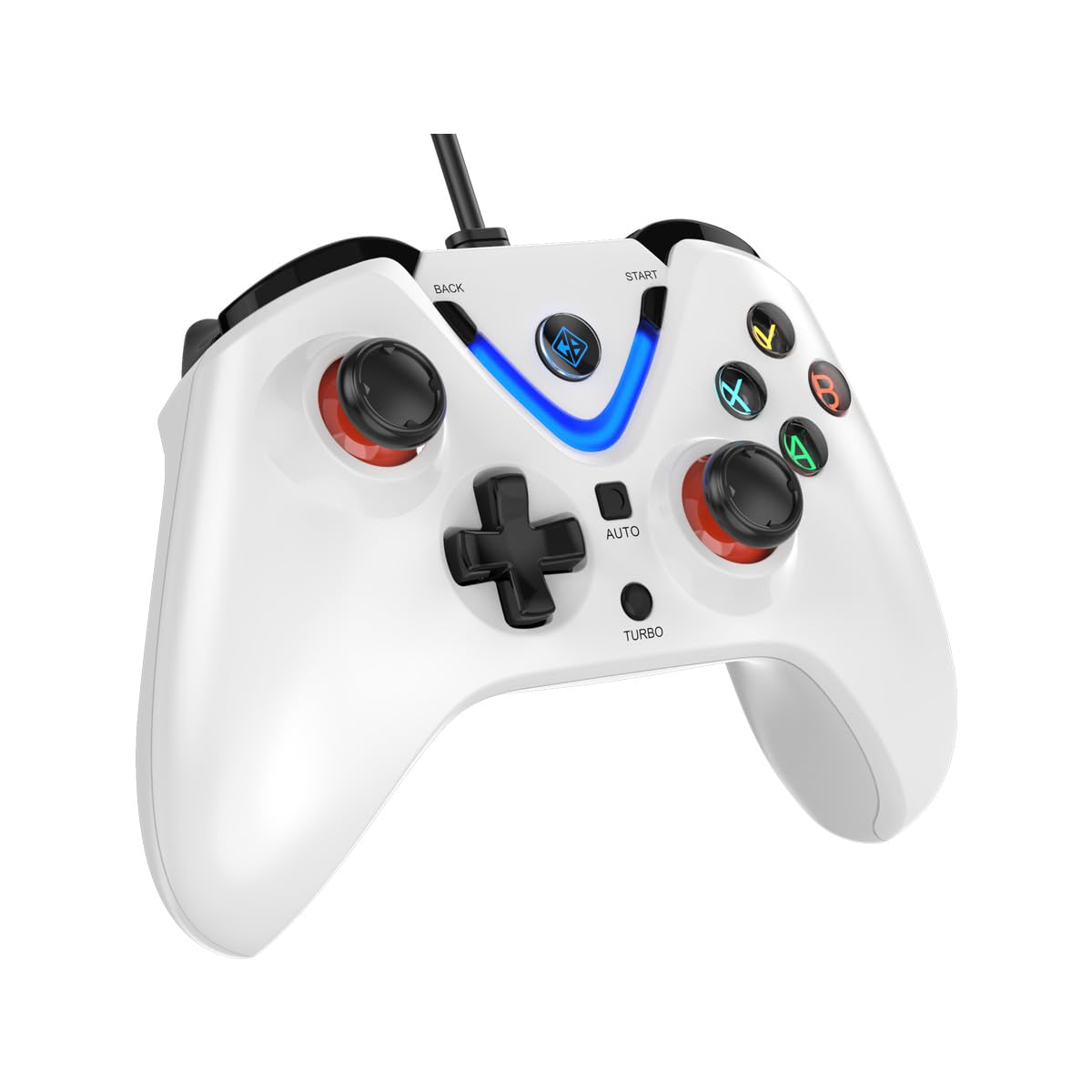
Image 1: The Cosmic Byte ARES Wired Controller in white, showcasing jeho ergonomický dizajn.
2. Pokyny na nastavenie
2.1 Pripojenie k PC
- Uistite sa, že je váš počítač zapnutý.
- Nájdite na svojom počítači voľný port USB.
- Plug the USB connector of the Cosmic Byte ARES Wired Controller into the USB port.
- Operačný systém automaticky zistí a nainštaluje potrebné ovládače. Tento proces môže chvíľu trvať.
- Once installation is complete, the controller is ready for use.

Image 2: The controller connected via its wired USB connection, ensuring fast response.
3. Návod na obsluhu
3.1 Základné ovládacie prvky
The Cosmic Byte ARES controller features standard gamepad layouts, including:
- Left and Right Analog Joysticks: Pre presný pohyb a ovládanie kamery.
- D-Pad: For directional input, often used in menus or for specific game actions.
- Akčné tlačidlá (A, B, X, Y): For primary game interactions.
- Tlačidlá na ramene (L1, R1) a spúšte (L2, R2): For various in-game functions like shooting, aiming, or accelerating.
- Tlačidlá Štart a Späť: For pausing games, accessing menus, or specific in-game commands.
- Turbo tlačidlo: For activating rapid-fire functions.
- Tlačidlo Auto: For activating automatic rapid-fire functions.
3.2 Joysticky a spúšťače s Hallovým efektom
The controller is equipped with Hall Effect joysticks and triggers, which use magnetic sensors instead of physical contacts. This technology provides:
- Vylepšená presnosť: More accurate and responsive input.
- Zvýšená odolnosť: Reduces wear and tear, preventing stick drift over time.
- Hladká prevádzka: Consistent and linear response for triggers, allowing for nuanced control in games.

Obrázok 3: Rozložený view illustrating the Hall Effect joystick mechanism and the Hall Effect triggers.
3.3 Dvojitá vibračná spätná väzba
The controller features dual vibration motors that provide tactile feedback during gameplay, enhancing immersion by simulating in-game events such as impacts, explosions, or engine rumbling.
3.4 Backlit LED Buttons
The action buttons (A, B, X, Y) and the central V-shaped indicator feature LED backlighting, providing visibility in low-light conditions and adding to the controller's aesthetic.

Image 4: The controller with its LED buttons illuminated and visual representation of vibration effects.
3.5 Turbo and Auto Turbo Functions
The Turbo and Auto Turbo functions allow for rapid, repeated input of a button press without continuously pressing the button.
- Aktivácia Turbo: Press and hold the desired action button (e.g., A) and then press the Turbo button. The button will now rapidly repeat its input as long as you hold it down.
- Activating Auto Turbo: Press and hold the desired action button (e.g., A) and then press the Auto button. The button will now rapidly repeat its input automatically without needing to be held down.
- Deactivating Turbo/Auto Turbo: To deactivate, repeat the activation steps for the specific button, or press the Jasné button (if available) or disconnect and reconnect the controller.

Image 5: Close-up of the controller showing the Turbo and Auto function buttons.
4. Údržba
- Čistenie: Na čistenie ovládača použite mäkkú, suchú handričku. Na odolné nečistoty použite mierneamp cloth can be used, ensuring no liquid enters the controller. Avoid harsh chemicals or abrasive cleaners.
- Ukladací priestor: Ovládač skladujte na chladnom a suchom mieste mimo dosahu priameho slnečného žiarenia a extrémnych teplôt. Neklaďte na ovládač ťažké predmety.
- Starostlivosť o káble: Do not sharply bend or pull the USB cable. Always grasp the plug when disconnecting from the PC.
5. Riešenie problémov
- Ovládač nebol rozpoznaný:
- Uistite sa, že kábel USB je bezpečne pripojený k ovládaču aj k počítaču.
- Skúste zapojiť ovládač do iného USB portu.
- Reštartujte počítač.
- Check Device Manager on Windows to see if the controller is listed and if there are any driver issues.
- Tlačidlá/joysticky nereagujú:
- Verify the controller is recognized by your PC (see above).
- Test the controller in a different game or a controller testing utility to rule out game-specific issues.
- Uistite sa, že žiadne iné vstupné zariadenia nerušia.
- Vibrácie nefungujú:
- Skontrolujte nastavenia v hre, či je zapnutá vibračná spätná väzba.
- Some games may not support vibration or may have limited vibration effects.
6. Špecifikácie
| Funkcia | Detail |
|---|---|
| Značka | Kozmický bajt |
| Názov modelu | Ares |
| Kompatibilné zariadenia | PC |
| Typ ovládača | Gamepad |
| Technológia pripojenia | USB |
| Vlastnosti produktu | Ergonomický |
| Množstvo tlačidiel | 16 |
| Hardvérová platforma | PC |
| Typ zdroja energie | Elektrický kábel, USB kábel |
| Hmotnosť položky | 220 gramov |
| Rozmery položky | 6 x 10 x 4 centimetrov |
| Farba | Biela |
| Krajina pôvodu | Čína |

Image 6: A comparison table highlighting features of different ARES controller models.
7. Záruka a podpora
7.1 Informácie o záruke
The Cosmic Byte ARES Wired Controller comes with a 1-ročná záruka na výrobné chyby od dátumu nákupu. Uschovajte si doklad o kúpe pre prípad uplatnenia záruky.
7.2 Kontaktné informácie výrobcu
For support, service, or warranty inquiries, please contact:
Kozmický bajtPrakash Warehousing, S. No.163, Hissa No 1-2-3-4-5A-5B/2/1,
Phursungi, Pune 412308, Maharashtra, India
For further assistance, please visit the official Cosmic Byte webalebo kontaktujte ich zákaznícky servis.