
1. Úvod
The Intelbras GX 3000 is a multifunction wireless mesh router designed to provide high-speed internet connectivity via 5G/4G networks and Wi-Fi 6. This device integrates advanced Qualcomm technology for both its 5G modem and Wi-Fi 6 solution, ensuring high performance and reliability. It supports up to 128 devices simultaneously on the Wi-Fi network and offers wired connectivity options. The GX 3000 is suitable for various environments, from home to office, providing robust network performance.
This manual provides instructions for setting up, operating, and maintaining your Intelbras GX 3000 router. Please read it carefully before use.
2. Package Contents & Device Overview
2.1. Obsah balenia
- Intelbras GX 3000 Wireless Mesh Router
- Napájací adaptér
- Sieťový kábel
- Stručný návod na obsluhu (nie je súčasťou tejto príručky)
2.2. Zariadenie sa skončiloview
Obrázok 1: Predná strana View of the GX 3000 Router
This image displays the front of the Intelbras GX 3000 router, showing its sleek white design and LED indicators for 5G, 4G, call status, Wi-Fi, and WPS button.

Figure 2: GX 3000 Router with Highlighted Indicators and Ports
This image provides a closer look at the router, emphasizing the LED indicators on the front (5G, 4G, Call, Wi-Fi, WPS) and the various ports located on the rear panel, including LAN, WAN, and TEL ports.
2.2.1. Porty na zadnom paneli

Figure 3: Rear Panel of the GX 3000 Router
This image shows the rear panel of the router, clearly displaying the LAN, WAN, and TEL ports for wired connections.
- Porty LAN: Na pripojenie káblových zariadení, ako sú počítače, inteligentné televízory alebo herné konzoly.
- WAN port: For connecting to an external modem or internet source (if not using 5G/4G).
- TEL Port: For voice services (if supported by your service provider).
- Príkon: Pripája sa k priloženému napájaciemu adaptéru.
2.2.2. Bottom Panel Features

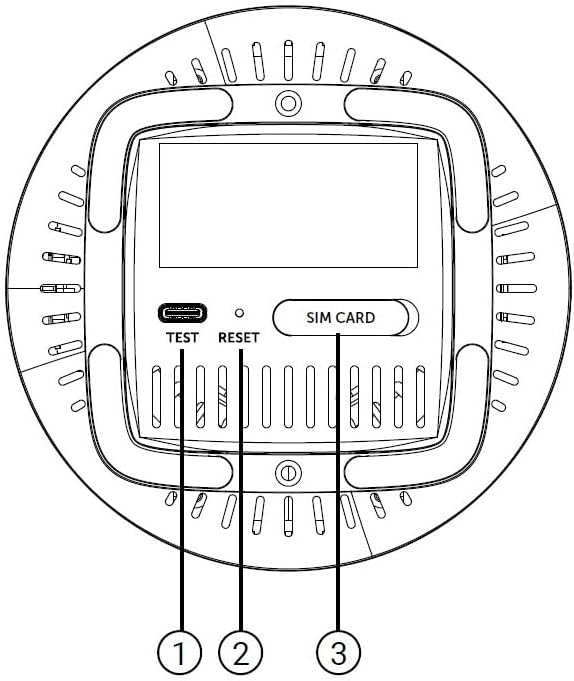
Figure 4: Bottom Panel Features of the GX 3000 Router
This diagram illustrates the bottom panel of the router, highlighting the TEST port, RESET button, and SIM CARD slot.
- TEST Port: Na diagnostické účely.
- Tlačidlo reštart: Používa sa na obnovenie továrenských nastavení. Stlačte a podržte 10 sekúnd, kým je zariadenie zapnuté.
- SIM CARD Slot: Insert your 5G/4G SIM card here for mobile broadband connectivity.
3. Nastavenie
3.1. Počiatočné umiestnenie
Place the router in a central location within your desired coverage area, away from obstructions, metal objects, and other electronic devices that may cause interference. Ensure good ventilation around the device.
3.2. Vloženie SIM karty
- Uistite sa, že je smerovač vypnutý.
- Locate the SIM CARD slot on the bottom panel of the router (refer to Figure 4).
- Insert your activated 5G/4G SIM card into the slot with the gold contacts facing down and the notched corner oriented correctly. Push until it clicks into place.
- To remove, gently push the SIM card in again until it springs out.
3.3. Pripojenie napájania
- Connect one end of the power adapter to the Power Input port on the rear of the router.
- Zapojte druhý koniec napájacieho adaptéra do štandardnej elektrickej zásuvky.
- The router will power on automatically. Wait for the LED indicators to stabilize.
3.4. Wired Connections (Optional)
If you wish to connect devices via Ethernet:
- Connect one end of the provided network cable to a LAN port on the rear of the router.
- Connect the other end of the network cable to the Ethernet port of your computer, smart TV, or other wired device.
3.5. Počiatočné pripojenie k sieti Wi-Fi
The default Wi-Fi network name (SSID) and password are usually printed on a label on the bottom of the router. Follow these steps to connect:
- Na bezdrôtovom zariadení (smartfón, notebook, tablet) otvorte nastavenia Wi-Fi.
- Scan for available networks and select the SSID corresponding to your GX 3000 router.
- Po zobrazení výzvy zadajte predvolené heslo Wi-Fi.
- Once connected, you can access the router's web interface to customize settings.
4. Návod na obsluhu
4.1. LED indikátory
LED diódy na prednom paneli poskytujú informácie o stave:
- 5G LED: Indikuje stav siete 5G.
- 4G LED: Indikuje stav siete 4G.
- Call LED: Označuje stav hlasovej služby.
- Wi-Fi LED: Indikuje aktivitu siete Wi-Fi.
- WPS LED: Indikuje stav funkcie WPS.
Refer to the full user manual (if provided separately) for detailed LED behavior (e.g., solid, blinking, color) and their meanings.
4.2. Prístup k Web Rozhranie riadenia
To configure advanced settings, manage your network, or change Wi-Fi credentials, access the router's web rozhranie:
- Ensure your device is connected to the GX 3000's Wi-Fi network or via an Ethernet cable.
- Otvorte a web prehliadač (napr. Chrome, Firefox, Edge).
- Do adresného riadku zadajte predvolenú IP adresu smerovača (zvyčajne
192.168.1.1or192.168.0.1) and press Enter. This information is usually on the label on the bottom of the router. - Enter the default username and password (also found on the router label).
- You will now be in the router's management interface, where you can customize settings such as Wi-Fi name, password, security protocols, and more.
4.3. Chránené nastavenie Wi-Fi (WPS)
WPS allows you to connect Wi-Fi devices without entering the password manually:
- Press the WPS button on the front of the GX 3000 router (refer to Figure 1). The WPS LED will start blinking.
- Within two minutes, press the WPS button on your client device (e.g., Wi-Fi adapter, printer).
- Zariadenia sa automaticky spoja.
Note: WPS is a convenient feature but may be less secure than manual password entry.
4.4. Mesh Network Expansion
The GX 3000 supports mesh networking to expand Wi-Fi coverage. You can add other compatible Intelbras Qi5 line products to create a seamless mesh network. Each additional Wi-Fi 6 router can extend coverage by up to 300 m². It is recommended to use up to 6 routers in the same mesh network for optimal performance.
Refer to the specific instructions provided with additional mesh units for pairing and configuration.
5. Údržba
5.1. Čistenie zariadenia
- Pred čistením sa uistite, že je router vypnutý a odpojený od siete.
- Na utieranie vonkajšej časti zariadenia použite mäkkú suchú handričku.
- Do not use liquid cleaners, aerosols, or solvents, as they may damage the casing alebo vnútorné komponenty.
- Udržujte vetracie otvory čisté od prachu a nečistôt.
5.2. Aktualizácie firmvéru
Periodically check the Intelbras official webstránka s aktualizáciami firmvéru. Aktualizácie firmvéru môžu zlepšiť výkon, pridať nové funkcie a zvýšiť bezpečnosť. Pozorne dodržiavajte pokyny uvedené v balíku s aktualizáciou firmvéru.
5.3. Obnovenie továrenských nastavení
If you encounter persistent issues or forget your login credentials, you can reset the router to its factory default settings:
- With the router powered on, locate the RESET button on the bottom panel (refer to Figure 4).
- Pomocou kancelárskej sponky alebo podobného špicatého predmetu stlačte a podržte tlačidlo RESET približne 10 sekúnd.
- Release the button. The router will restart with all settings restored to their original factory defaults.
- You will need to reconfigure your Wi-Fi settings and any other custom configurations after a factory reset.
6. Riešenie problémov
| Problém | Možná príčina | Riešenie |
|---|---|---|
| No power / Router not turning on | Napájací adaptér nie je pripojený alebo je chybný; Zásuvka nefunguje. |
|
| No internet connection (5G/4G) | SIM card not inserted correctly; SIM card not activated; No 5G/4G signal; Service provider issue. |
|
| Nedá sa pripojiť k sieti Wi-Fi | Incorrect Wi-Fi password; Wi-Fi disabled; Device too far from router. |
|
| Pomalá rýchlosť internetu | Network congestion; Poor signal strength; Interference; Outdated firmware. |
|
| Zabudli ste web heslo rozhrania | Password forgotten or changed. |
|
7. Špecifikácie
| Funkcia | Detail |
|---|---|
| Značka | Intelbras |
| Model | GX 3000 |
| Technológia pripojenia | 5G, 4G, Wi-Fi 6 (802.11a/b/g/n/ac/ax) |
| Trieda frekvenčného pásma | Dvojpásmový |
| Štandard bezdrôtovej komunikácie | 802.11a |
| Rýchlosť prenosu dát | Až 900 megabitov za sekundu |
| Šírka pásma LAN portu | 1000 Mbps (gigabitový ethernet) |
| Typ antény | Interné |
| Kompatibilné zariadenia | Computer, Notebook, Tablet, Smart TV |
| Špeciálne funkcie | Remote Access, Mesh Wi-Fi capability |
| Farba | Biela |
| Hmotnosť položky | 1000 gramov |
| Zahrnuté komponenty | Power supply, Network cable |
| Anatel Homologation Number | 13571-22-00180 |
8. Záruka a podpora
8.1. Informácie o záruke
Intelbras products are covered by a limited warranty. For specific warranty terms and conditions, please refer to the warranty card included with your product or visit the official Intelbras webstránky. Uschovajte si doklad o kúpe pre prípad reklamácie.
8.2. Technická podpora
If you require technical assistance or have questions not covered in this manual, please contact Intelbras customer support. You can find contact information (phone numbers, email, support portal) on the official Intelbras webmiesto:
Oficiálny Intelbras Webmiesto: www.intelbras.com.br
When contacting support, please have your product model (GX 3000) and serial number ready.