
1. Úvod
This manual provides essential instructions for the installation, operation, and maintenance of your PureLink Vuelogic VB200 Huddle Space Videobar. Please read this manual thoroughly before using the product to ensure proper functionality and to prevent damage.
The PureLink Vuelogic VB200 is an all-in-one conferencing solution designed for huddle spaces and small to medium meeting rooms. It integrates a 4K camera, multiple microphones, and stereo speakers to provide a comprehensive audio and video experience.
2. Bezpečnostné informácie
Dodržiavajte nasledujúce bezpečnostné opatrenia, aby ste predišli poškodeniu zariadenia a zaistili bezpečnosť používateľa:
- Nevystavujte zariadenie vode, vlhkosti ani extrémnym teplotám.
- Neumiestňujte zariadenie do blízkosti zdrojov tepla alebo na priame slnečné svetlo.
- Používajte iba napájací adaptér dodaný so zariadením.
- Nepokúšajte sa zariadenie otvárať ani opravovať sami. Všetky servisné práce zverte kvalifikovanému personálu.
- Počas prevádzky zabezpečte dostatočné vetranie okolo zariadenia.
3. Produkt skončilview
The PureLink Vuelogic VB200 combines a high-quality camera, microphone array, and speakers into a single, compact unit for streamlined video conferencing.
3.1. Obsah balenia
Overte, či sú v balení všetky položky:
- PureLink Vuelogic VB200 Videobar
- Napájací adaptér
- USB kábel
- Montážna konzola (ak je súčasťou balenia)
- Sprievodca rýchlym spustením

Figure 3.1: The retail packaging for the PureLink Vuelogic VB200 Videobar, indicating it is an all-in-one conferencing solution.

Obrázok 3.2: Detailný view of the product packaging, showing the model number VL-VB200 and UPC 4251364736913.
3.2. Komponenty zariadenia
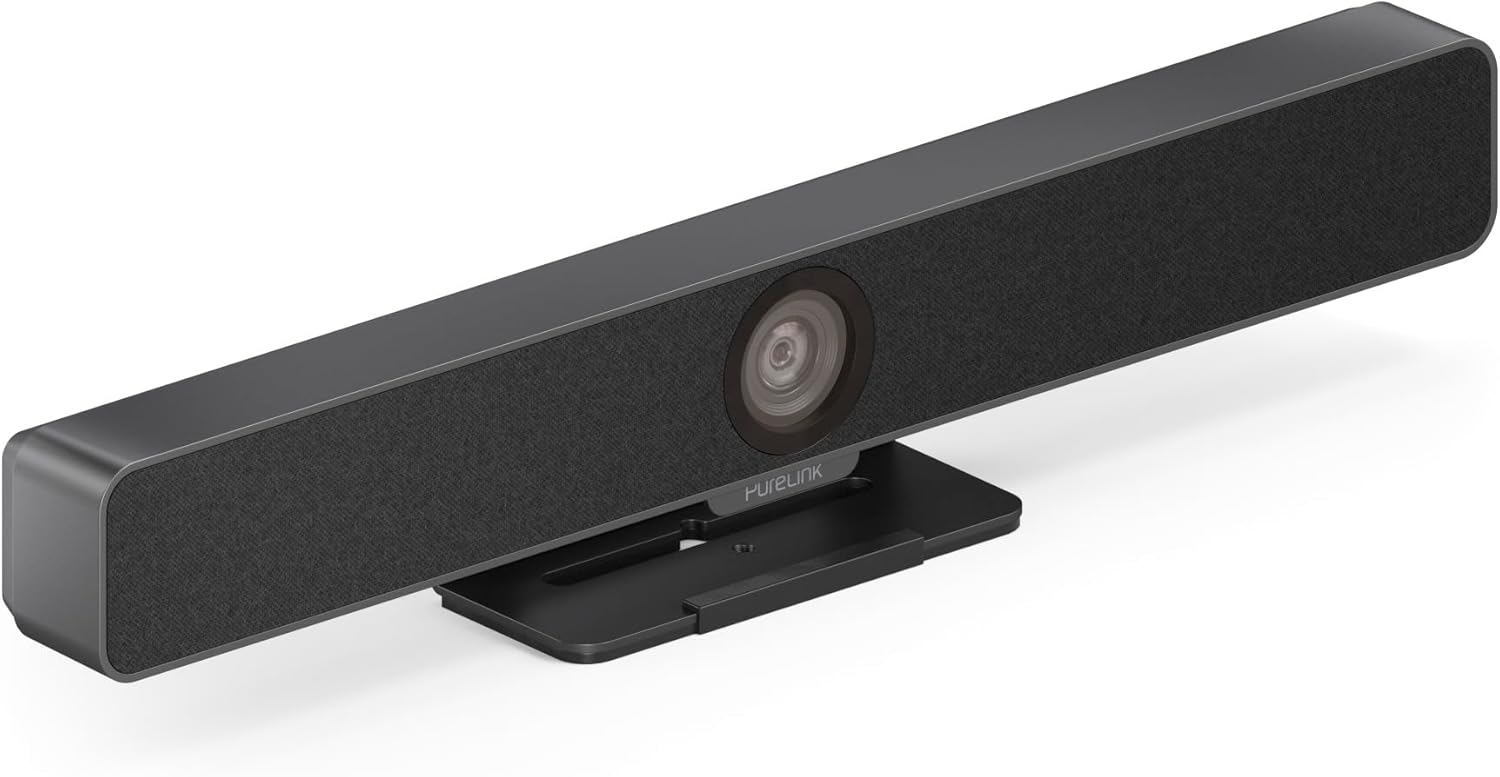
Obrázok 3.3: Predná strana view of the PureLink Vuelogic VB200 Huddle Space Videobar, showcasing the integrated camera and speaker grille.

Obrázok 3.4: Predná a zadná časť views of the videobar. The rear view displays the power input, USB-C port, and other connectivity options.
- Predná časť: Integrated 4K camera, speaker grille, PureLink branding.
- zadná časť: Power input, USB-C port for data and power, HDMI output (if applicable), mounting points.
4. Nastavenie
Follow these steps to set up your PureLink Vuelogic VB200 Videobar:
- umiestnenie: Position the videobar on a stable surface, such as a table or monitor, ensuring the camera has a clear view of the meeting participants. The integrated stand allows for flexible placement.
- Napájanie: Connect the provided power adapter to the videobar's power input and then to a wall outlet.
- USB pripojenie: Connect the videobar to your computer using the supplied USB-C cable. The device is plug-and-play and should be recognized automatically by your operating system.
- Voliteľné pripojenie HDMI: If your setup requires video output to a display, connect an HDMI cable from the videobar's HDMI output (if available) to your display.
- Rozpoznávanie softvéru: Once connected, your computer's operating system (Windows, macOS, etc.) should detect the device. You may need to select the "PureLink Vuelogic VB200" as your preferred camera, microphone, and speaker in your video conferencing application settings (e.g., Zoom, Microsoft Teams, WebPríklad).

Figure 4.1: The videobar positioned on a surface, demonstrating its flexible mounting options for various work environments.
5. Návod na obsluhu
The PureLink Vuelogic VB200 is designed for ease of use with popular video conferencing platforms.
5.1. Začatie stretnutia
- Ensure the videobar is connected and powered on.
- Open your preferred video conferencing application (e.g., Zoom, Microsoft Teams, WebEx, Google Meet, Skype, Slack, GoToMeeting).
- In the application's audio and video settings, select "PureLink Vuelogic VB200" as your camera, microphone, and speaker device.
- Start or join your meeting.

Figure 5.1: The videobar is compatible with leading communication platforms such as Zoom, Slack, GoToMeeting, Google Hangouts, Skype, Microsoft Teams, and Google Meet.
5.2. Kľúčové vlastnosti
- Kvalita videa v rozlíšení 4K: The 120° wide-angle lens captures sharp, high-resolution video, suitable for small to medium rooms.
- Intelligent Auto Framing and Tracking: The camera automatically adjusts its frame to keep all participants visible and can track the active speaker, ensuring optimal framing during dynamic meetings.
- High-Quality Audio Capture: Equipped with 4 MEMS digital microphone arrays, offering a 3-5m range and 180° coverage. Features like Acoustic Echo Cancellation (AEC), Automatic Gain Control (AGC), and Automatic Noise Suppression (ANS) ensure clear communication.
- Hi-Fi Stereo Speakers: Two 3W stereo speakers with bass boost provide clear and powerful audio output for an immersive sound experience.
6. Údržba
To ensure the longevity and optimal performance of your videobar:
- Čistenie: Use a soft, dry cloth to clean the exterior of the device. For the camera lens, use a lens cleaning cloth and solution specifically designed for optics. Do not use abrasive cleaners or solvents.
- Ukladací priestor: Ak zariadenie dlhší čas nepoužívate, skladujte ho na chladnom a suchom mieste mimo dosahu priameho slnečného žiarenia.
- Aktualizácie firmvéru: Periodically check the PureLink website for any available firmware updates to ensure your device has the latest features and performance enhancements.
7. Riešenie problémov
If you encounter issues with your PureLink Vuelogic VB200, refer to the following common problems and solutions:
| Problém | Možná príčina | Riešenie |
|---|---|---|
| No video output / Camera not detected | Loose USB connection, incorrect software settings, driver issue. |
|
| No audio from speakers / Microphone not working | Incorrect audio settings, muted device. |
|
| Auto-framing not functioning correctly | Poor lighting, obstruction, software glitch. |
|
8. Špecifikácie
| Funkcia | Detail |
|---|---|
| Značka | PureLink |
| Číslo modelu | VL-VB200 |
| Rozmery | 20.47 x 7.87 x 5.12 palca |
| Hmotnosť | 2.2 libry |
| Farba | Čierna |
| Rozlíšenie snímania videa | 4K |
| Optický zoom | 5x |
| Technológia fotografického snímača | CMOS |
| Špeciálne funkcie | Auto Framing and Tracking |
| Typ mikrofónu | 4 MEMS Digital Microphone Arrays |
| Rozsah mikrofónu | 3-5m, 180° coverage |
| Zvukové funkcie | AEC, AGC, ANS |
| Reproduktory | Two 3W Stereo Speakers with Bass Boost |
| Technológia pripojenia | HDMI, USB |
| Podporovaný formát zvuku | AAC, MP3 |
| Podporovaný formát videa | MP4 |
| Kompatibilita | Windows, macOS, Zoom, WebEx, Tencent Meeting, Teams, etc. |
9. Záruka a podpora
PureLink products are designed for reliability and performance. For specific warranty information, please refer to the warranty card included with your product or visit the official PureLink webstránky.
For technical support, troubleshooting assistance, or to inquire about service, please contact PureLink customer support through their official channels. Keep your purchase receipt and product model number (VL-VB200) handy when contacting support.
Official PureLink Webmiesto: www.purelink.de