
Úvod
This manual provides essential information for the setup, operation, maintenance, and troubleshooting of your Blaupunkt CyberSound G2 Series 43-inch Full HD LED Smart Android TV. Please read this manual thoroughly before using your television to ensure proper and safe operation.
Čo je v krabici
Opatrne vybaľte krabicu a uistite sa, že sú v nej všetky nasledujúce položky:
- 1N LED televízor
- Diaľkové ovládanie 1N
- Používateľská príručka 1N (tento dokument)
- 2N AAA Batteries (for remote)
- 1N Wall Mounting Bracket (Fixed)
- Base Stands (2 units)
- Stand Screws (4 units)
- Napájací kábel
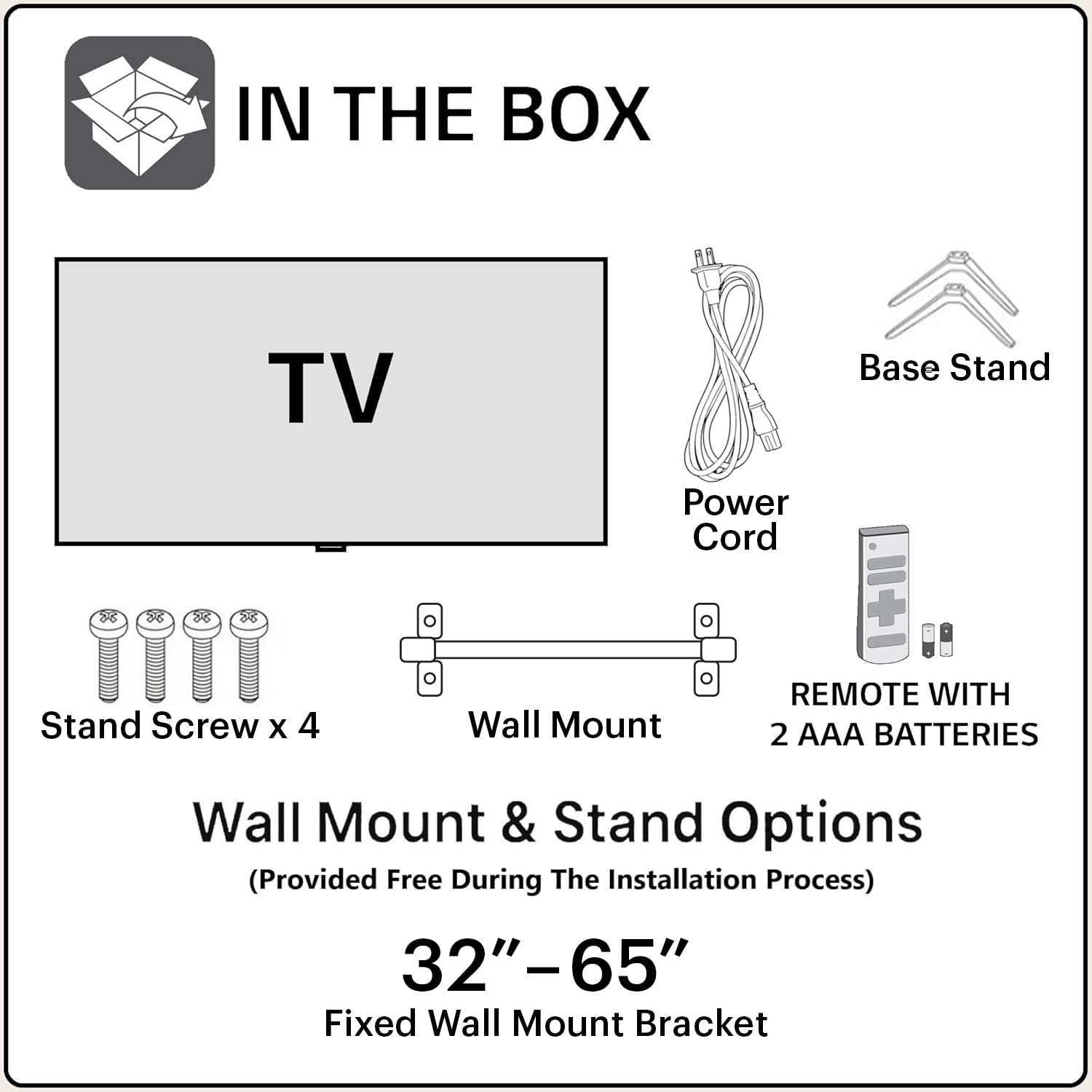
Image: Contents of the TV packaging, showing the television, remote control, power cord, base stands, stand screws, and wall mount bracket.
Nastavenie
1. Pripevnenie stojana alebo nástenného držiaka
You can either place the TV on a flat surface using the provided base stands or mount it on a wall. Ensure the TV is placed on a stable surface or securely mounted to prevent accidental falls.
- Pre inštaláciu stojana:
- Opatrne položte televízor obrazovkou nadol na mäkký, čistý povrch, aby ste predišli poškodeniu obrazovky.
- Align the base stands with the corresponding screw holes on the bottom of the TV.
- Každý stojan upevnite dodanými skrutkami.

Obrázok: Predná strana view of the Blaupunkt TV with its base stands installed.
- Pre montáž na stenu:
- Refer to the instructions provided with the wall mounting bracket.
- Uistite sa, že stena unesie hmotnosť televízora a držiaka.
- The VESA mount standard for this TV is 200 x 200 mm.
2. Pripojenie periférií
Pripojte externé zariadenia k televízoru pomocou dostupných portov.

Image: Back panel of the TV displaying HDMI, USB, and other connectivity ports.
- HDMI: Connect gaming consoles, set-top boxes, or Blu-ray players to the 3 HDMI ports.
- USB: Connect hard drives or other USB devices to the 2 USB ports.
- Ethernet: Pre káblové internetové pripojenie.
- Výkon: Pripojte napájací kábel k televízoru a potom do elektrickej zásuvky.
3. Počiatočné zapnutie a nastavenie
After connecting all necessary cables, plug the TV into a power source and press the power button on the remote control or TV. Follow the on-screen instructions for initial setup, including language selection, network connection, and Google account login.
Obsluha TV
Funkcie diaľkového ovládania
The provided remote control allows you to navigate the TV's features. Insert the two AAA batteries into the remote, ensuring correct polarity.

Image: The TV remote control, highlighting buttons for power, home, back, navigation, volume, Google Assistant, Netflix, Prime Video, YouTube, and Google Play.
- Tlačidlo napájania: Zapína alebo vypína televízor.
- Navigačný panel (tlačidlo OK): Používa sa na navigáciu v menu a potvrdzovanie výberov.
- Tlačidlá hlasitosti (+/-): Upravuje úroveň hlasitosti.
- Tlačidlo Asistenta Google: Aktivuje hlasové ovládanie pre príkazy a vyhľadávania.
- Vyhradené tlačidlá aplikácií: Rýchly prístup k Netflixu, Prime Video, YouTube a Google Play.
- Domovské tlačidlo: Návrat na hlavnú domovskú obrazovku Android TV.
- Tlačidlo Späť: Návrat na predchádzajúcu obrazovku alebo ponuku.
Smart TV Features (Android 11 OS)
Your TV runs on Android 11 OS, providing access to a wide range of smart features:
- Vstavané Wi-Fi: Pripojte sa k domácej bezdrôtovej sieti pre prístup na internet.
- Zrkadlenie obrazovky: Prenášajte obsah z mobilných zariadení do televízora.
- Podporované aplikácie: Access popular streaming services like Netflix, Prime Video, YouTube, Disney+Hotstar, Apple TV, and more.
- Asistent Google: Use voice commands for hands-free control, search, and information.
- Vstavaný Chromecast: Stream content directly from compatible apps on your phone or tablet.

Image: An astronaut holding the TV remote, demonstrating voice command functionality with Google Assistant.

Image: A visual representation of the TV's seamless connectivity, showing content mirrored from a laptop and a smartphone to the television screen.
Nastavenia displeja a zvuku
Pre prispôsobenie nastavení televízora prejdite do ponuky nastavení televízora. viewzážitok z počúvania.
- Režimy obrazu: Adjust brightness, contrast, color, and sharpness.
- Zvukové režimy: Select from various audio presets or customize equalizer settings. The TV features 48 Watts output with Dolby Digital Plus and DTS TruSurround for enhanced audio.
Údržba
Čistenie televízora
- Pred čistením vždy odpojte televízor zo siete.
- Na jemné utrenie obrazovky a skrinky použite mäkkú, suchú handričku, ktorá nepúšťa vlákna.
- Na odolné škvrny jemneamphandričku vodou alebo jemným, neabrazívnym čistiacim prostriedkom na obrazovky. Nestriekajte čistiaci prostriedok priamo na obrazovku.
- Nepoužívajte agresívne chemikálie, abrazívne podložky alebo rozpúšťadlá, pretože môžu poškodiť povrch televízora.
Aktualizácie softvéru
Your Android TV may receive software updates periodically. It is recommended to keep your TV connected to the internet to receive these updates, which can improve performance and add new features. You can usually check for updates in the TV's settings menu.
Riešenie problémov
Ak sa vyskytnú problémy s televízorom, pred kontaktovaním podpory si pozrite nasledujúce bežné riešenia.
| Problém | Možné riešenie |
|---|---|
| Žiadna sila | Uistite sa, že napájací kábel je bezpečne zapojený do televízora aj do funkčnej elektrickej zásuvky. Skontrolujte, či je elektrická zásuvka aktívna. |
| Žiadny obraz, ale zvuk je prítomný | Check the input source. Ensure the connected device (e.g., set-top box) is powered on and functioning correctly. Try a different HDMI cable. |
| Žiadny zvuk, ale obraz je prítomný | Check the volume level and ensure the TV is not muted. Verify audio settings and external audio device connections if applicable. |
| Diaľkové ovládanie nereaguje | Vymeňte batérie v diaľkovom ovládači. Uistite sa, že medzi diaľkovým ovládačom a infračerveným senzorom televízora nie sú žiadne prekážky. |
| Nedá sa pripojiť k sieti Wi-Fi | Uistite sa, že váš Wi-Fi router je zapnutý a funguje. Znova zadajte heslo Wi-Fi. Skúste reštartovať televízor aj router. |
| Picture Quality Issues (e.g., Mura, light bleeding) | Minor light bleeding and Mura issues on certain grey scales are considered acceptable as per industry standards and are not covered under warranty as panel defects. |
Špecifikácie
| Funkcia | Detail |
|---|---|
| Názov modelu | CyberSound G2 |
| Číslo modelu | 43CSG7105 |
| Veľkosť obrazovky | 43 palca (108 cm) |
| Technológia displeja | LED |
| Rozlíšenie | Full HD (1920 x 1080) |
| Obnovovacia frekvencia | 60 Hz |
| Zvukový výstup | 48 wattov |
| Technológia zvuku | Dolby Digital Plus, DTS TruSurround |
| Operačný systém | OS Android 11 |
| Konektivita | Dual Band Wi-Fi, 3 HDMI ports, 2 USB ports, Ethernet, Bluetooth |
| Špeciálne funkcie | Google Assistant, Chromecast built-in, Screen Mirroring, 10000+ Apps & Games |
| Kapacita pamäte | 8 GB |
| Spotreba energie | 150 wattov |
| Ročná spotreba energie | 65 kWh |
| Rozmery produktu (D x Š x V) | 12 H x 97 Š x 57 V centimetrov |
| Štandard uchytenia VESA | 200 x 200 mm |

Image: Dimensional drawing of the 43-inch TV, indicating width, height, and depth measurements.
Záruka a podpora
Informácie o záruke
Tento produkt je dodávaný s a 1-ročná záruka na produkte a 6 months on remote accessories, provided by the manufacturer from the date of purchase. To avail warranty service, please retain your purchase invoice.
Výnimky zo záruky: Light bleeding and dot issues (Mura issues) occurring on a certain Grey scale are considered acceptable as per the Mura Inspection standard and are not considered a panel defect. As per ND (Neutral Density) Filter 2% guideline, these are not covered.
Zákaznícka podpora
For assistance, technical support, or warranty claims, please contact Blaupunkt customer care:
- Bezplatné číslo: 1800-274-4342
- ID e-mailu: consumercare@blaupunkttv.in
- When contacting support, please provide the product's model name (43CSG7105) and seller's details mentioned on your invoice.
Manufacturer/Packer/Importer Address: B-29,30,31, Phase-II, Noida, Gautam Buddha Nagar, Uttar Pradesh, 201301, India.