
1. Úvod
This manual provides essential information for the safe and efficient operation of your Evolve III X4-32E2U 31.5-inch UHD 60Hz Android Smart Monitor. Please read this manual thoroughly before using the product and retain it for future reference. This monitor integrates a high-resolution display with an Android operating system, offering smart TV functionalities, a built-in camera, and a microphone array for enhanced communication and entertainment.
2. Bezpečnostné informácie
Dodržiavajte nasledujúce bezpečnostné opatrenia, aby ste predišli poškodeniu monitora a zaistili bezpečnosť používateľa:
- Nevystavujte monitor dažďu, vlhkosti ani extrémnym teplotám.
- Zaistite správne vetranie okolo monitora, aby ste predišli prehriatiu.
- Používajte iba napájací adaptér dodaný s monitorom.
- Neklaďte ťažké predmety na napájací kábel ani na samotný monitor.
- Nepokúšajte sa monitor otvárať ani opravovať sami. Všetky servisné práce zverte kvalifikovanému personálu.
- Monitor uchovávajte mimo dosahu silných magnetických polí.
- Počas búrok s bleskami alebo ak ho dlhší čas nepoužívate, odpojte monitor zo zásuvky.
3. Obsah balenia
Overte, či sú v balení všetky položky:
- Evolve III X4-32E2U Smart Monitor
- Stojan na monitor
- Napájací adaptér
- Diaľkové ovládanie (s batériami)
- Sprievodca rýchlym spustením
4. Produkt skončilview
4.1 Predné View
The front of the monitor features the 31.5-inch display, an integrated camera, and a microphone array.

Obrázok 4.1: Predné view of the Evolve III X4-32E2U Smart Monitor, showcasing the display with the Android operating system interface, including icons for YouTube, Netflix, Prime Video, Disney+, and other applications. Key specifications like 3840*2160 resolution, 60Hz refresh rate, and 31.5-inch screen size are overlaid on the screen.
4.2 Vzadu View a prístavy
The rear of the monitor houses the stand attachment point and various input/output ports for connectivity.

Obrázok 4.2: Zadné view of the Evolve III X4-32E2U Smart Monitor, illustrating the central stand attachment and the recessed area containing various connectivity ports. The overall design is sleek with a dark finish and a distinctive gold ring accent around the stand's base.
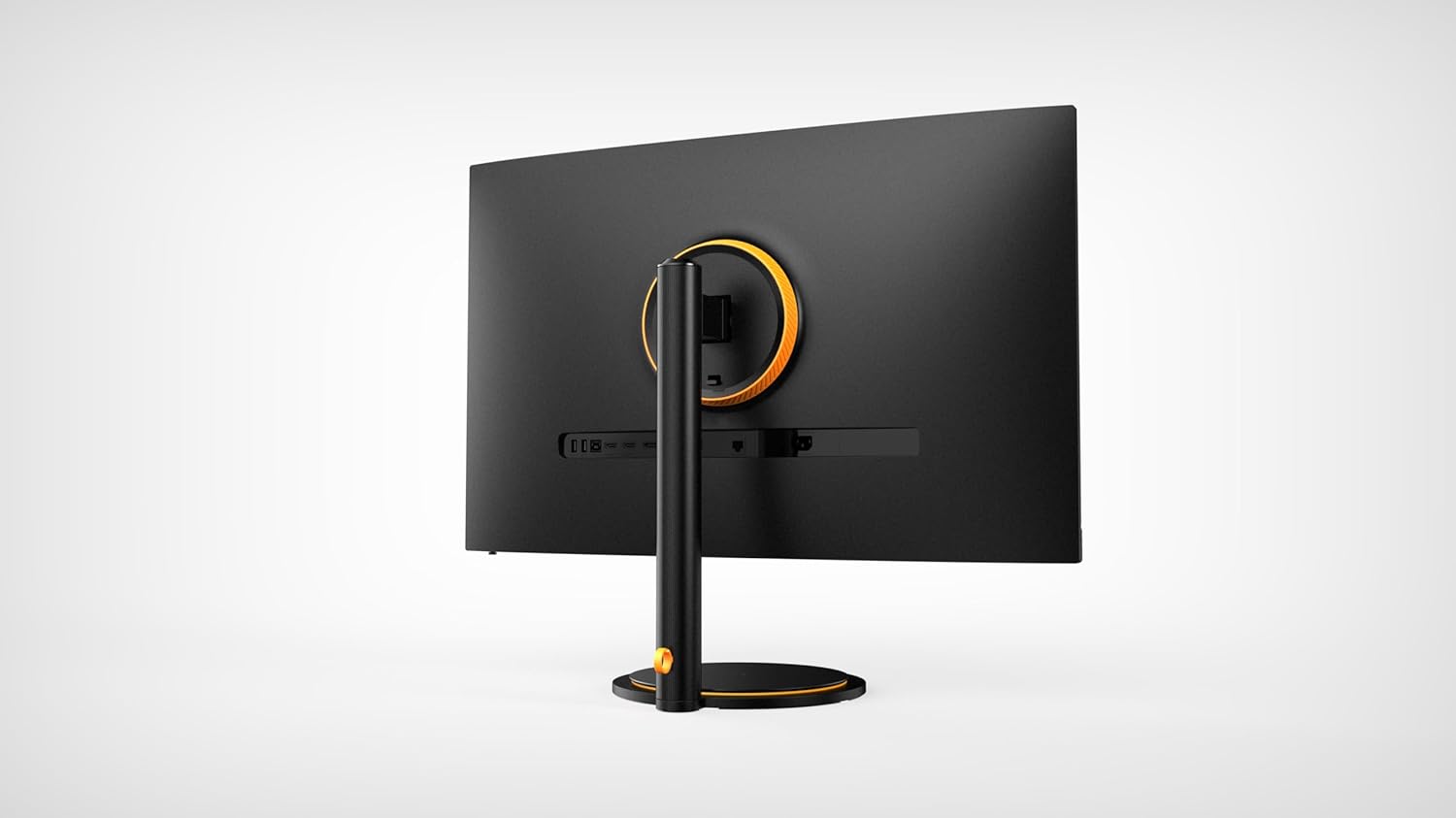
Obrázok 4.3: Šikmá zadná časť view of the Evolve III X4-32E2U Smart Monitor, providing a clearer perspective of the input/output ports located on the back panel. These ports typically include HDMI, USB, and power input.
4.3 Strana View
Vedľajší profíkfile demonstrates the monitor's slim design and the sturdy stand.
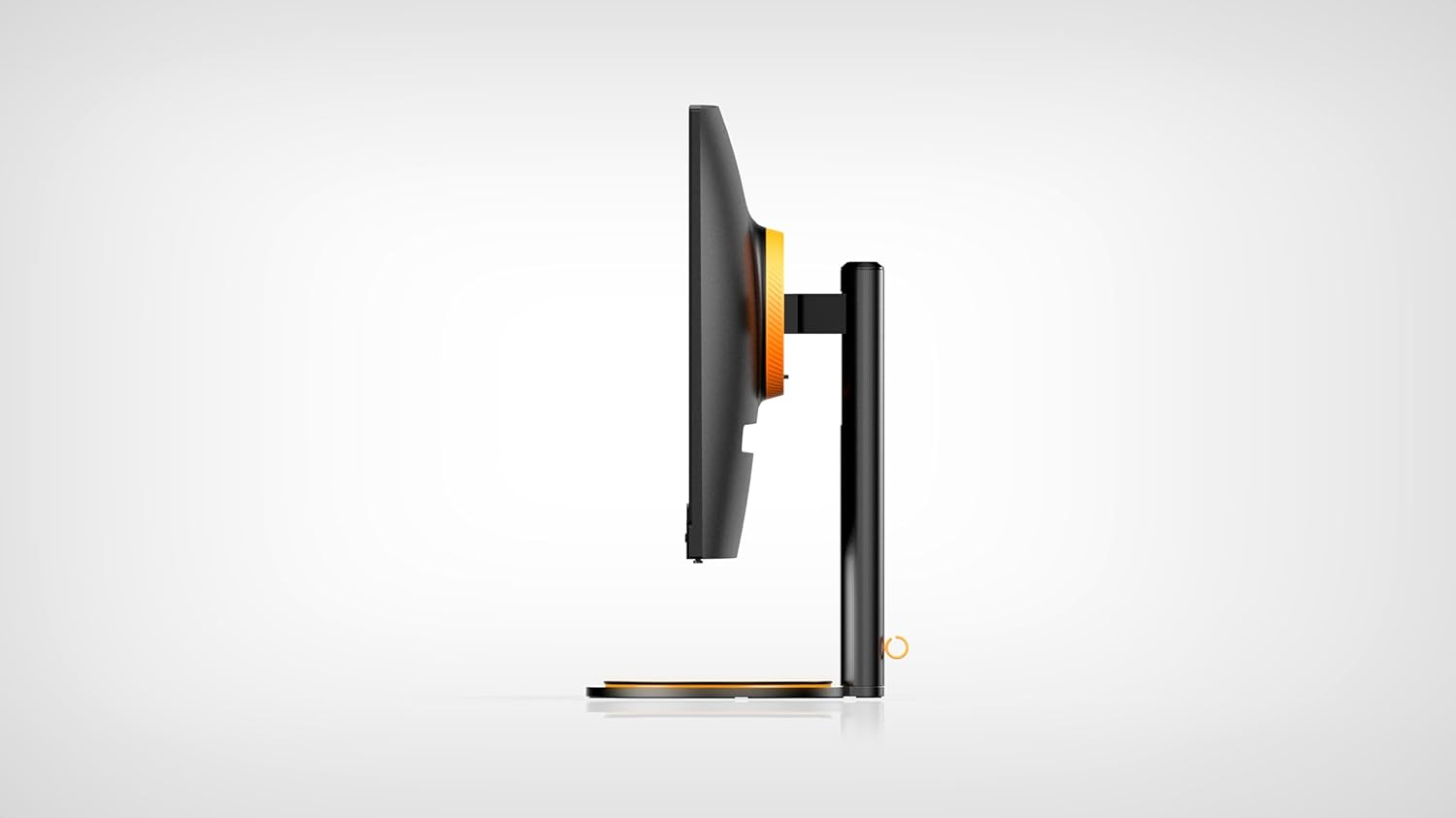
Obrázok 4.4: Side view of the Evolve III X4-32E2U Smart Monitor, emphasizing its thin display panel and the robust, minimalist design of the stand.
5. Nastavenie
5.1 Montáž stojana
- Opatrne vyberte komponenty monitora a stojana z obalu.
- Pripevnite základňu stojana k hrdlu stojana pomocou dodaných skrutiek.
- Zarovnajte zostavený stojan s montážnymi bodmi na zadnej strane monitora.
- Secure the stand to the monitor using the designated screws. Ensure all connections are firm.
5.2 Pripojenie napájania
- Connect the power adapter cable to the DC IN port on the back of the monitor.
- Zapojte napájací adaptér do elektrickej zásuvky.
5.3 Pripojenie externých zariadení
Use the available ports on the rear of the monitor to connect external devices:
- HDMI porty: Connect gaming consoles, Blu-ray players, or other computers.
- USB porty: Connect USB storage devices, keyboards, or mice.
- Ethernetový port: Pre káblové pripojenie na internet (voliteľné, k dispozícii je aj Wi-Fi).
6. Návod na obsluhu
6.1 Zapnutie/vypnutie
- Zapnutie: Press the power button on the monitor or the remote control.
- Vypnúť: Press the power button on the remote control once to enter standby mode. Press and hold the power button on the remote or monitor for a few seconds to fully power off.
6.2 Počiatočné nastavenie (operačný systém Android)
Upon first power-on, the monitor will guide you through the Android OS setup process:
- Vyberte preferovaný jazyk.
- Pripojte sa k sieti Wi-Fi alebo použite káblové ethernetové pripojenie.
- Sign in with your Google account to access the Google Play Store and other services.
- Follow on-screen prompts to complete the setup, including privacy settings and app installations.
6.3 Navigácia v operačnom systéme Android
Use the provided remote control to navigate the Android interface:
- Smerová podložka: Move between menu items and options.
- Tlačidlo OK: Vyberte položku alebo potvrďte akciu.
- Tlačidlo Späť: Návrat na predchádzajúcu obrazovku.
- Domovské tlačidlo: Go directly to the Android home screen.
- Tlačidlo hlasového asistenta: Activate the built-in voice assistant for commands and searches.
6.4 Using the Built-in Camera and Microphone
The monitor features an 8-megapixel camera and a 4-array microphone for video calls and voice commands:
- Videohovory: Install compatible video conferencing applications from the Google Play Store (e.g., Google Meet, Zoom). The camera and microphone will be automatically detected by these applications.
- Hlasové príkazy: Use the voice assistant button on your remote to issue commands or search for content using your voice.
6.5 Nastavenia displeja
Access the settings menu to adjust display parameters:
- Režim obrazu: Vyberte si z rôznych predvolieb (napr. Štandardné, Živé, Film, Hra) alebo prispôsobte jas, kontrast, farbu a ostrosť.
- Rozlíšenie: The monitor supports up to 3840x2160 (UHD) resolution. Ensure your connected devices are configured to output at this resolution for optimal clarity.
- HDR Settings: The monitor supports HDR400. Ensure HDR content is enabled in your source device settings for enhanced dynamic range.
7. Údržba
7.1 Čistenie obrazovky
Obrazovku jemne utrite mäkkou handričkou, ktorá nepúšťa vlákna. V prípade odolných škvŕn ju jemne utriteamphandričku vodou alebo čistiacim roztokom určeným na obrazovky. Nestriekajte tekutinu priamo na obrazovku.
7.2 Všeobecná starostlivosť
- Monitor uchovávajte v čistom a suchom prostredí.
- Nevystavujte monitor priamemu slnečnému žiareniu alebo zdrojom tepla.
- Neblokujte vetracie otvory na zadnej strane monitora.
8. Riešenie problémov
Ak sa vyskytnú problémy s monitorom, pozrite si nasledujúce bežné problémy a riešenia:
- Bez napájania: Ensure the power cable is securely connected to both the monitor and the power outlet. Check if the outlet is functioning.
- Žiadny obrázok: Verify that the correct input source is selected (e.g., HDMI 1, HDMI 2). Check the cable connections between the monitor and the source device.
- Slabá kvalita obrazu: Adjust display settings (brightness, contrast, sharpness). Ensure the source device is outputting at the optimal resolution (3840x2160).
- Nefunguje diaľkové ovládanie: Skontrolujte batérie v diaľkovom ovládači. Uistite sa, že medzi diaľkovým ovládačom a infračerveným prijímačom monitora nie sú žiadne prekážky.
- Problémy s pripojením na internet: Check your Wi-Fi router or Ethernet cable connection. Restart the monitor and your network equipment.
- Camera/Microphone Not Working: Ensure privacy settings in the Android OS allow applications to access the camera and microphone. Check app-specific permissions.
If the problem persists, contact Evolve III customer support.
9. Špecifikácie
| Funkcia | Špecifikácia |
|---|---|
| Značka | Evolve III |
| Číslo modelu | X4-32E2U |
| Veľkosť obrazovky | 31.5 palca |
| Rozlíšenie | 3840 x 2160 pixelov (UHD 4K) |
| Obnovovacia frekvencia | 60 Hz |
| Typ panelu | VA |
| Pomer strán | 1.78:1 |
| Jas obrázka | 400 Candela (HDR400 Support) |
| Operačný systém | Android |
| Vstavaná kamera | 8 miliónov pixelov |
| Vstavaný mikrofón | 4-Array Microphone Setup |
| Rozmery produktu | 31.5 x 7.1 x 21.6 palca |
| Hmotnosť položky | 28.4 libry |
| Výrobca | Evolve III USA LLC |
| ASIN | B0D2D72GVC |
10. Záruka a podpora
For warranty information, please refer to the warranty card included with your product or visit the official Evolve III website. For technical support, troubleshooting assistance, or service inquiries, please contact Evolve III customer support through their official channels.