
Úvod
This manual provides essential instructions for setting up, operating, and maintaining your Plimpton PlimPad Kids20 tablet. This device is designed for children, featuring Android 14, an Octa-core processor, 8GB RAM (expandable), 64GB ROM (expandable to 1TB), and a durable EVA shockproof case. It includes pre-installed Google Kids Space and parental control features to ensure a safe and educational experience.
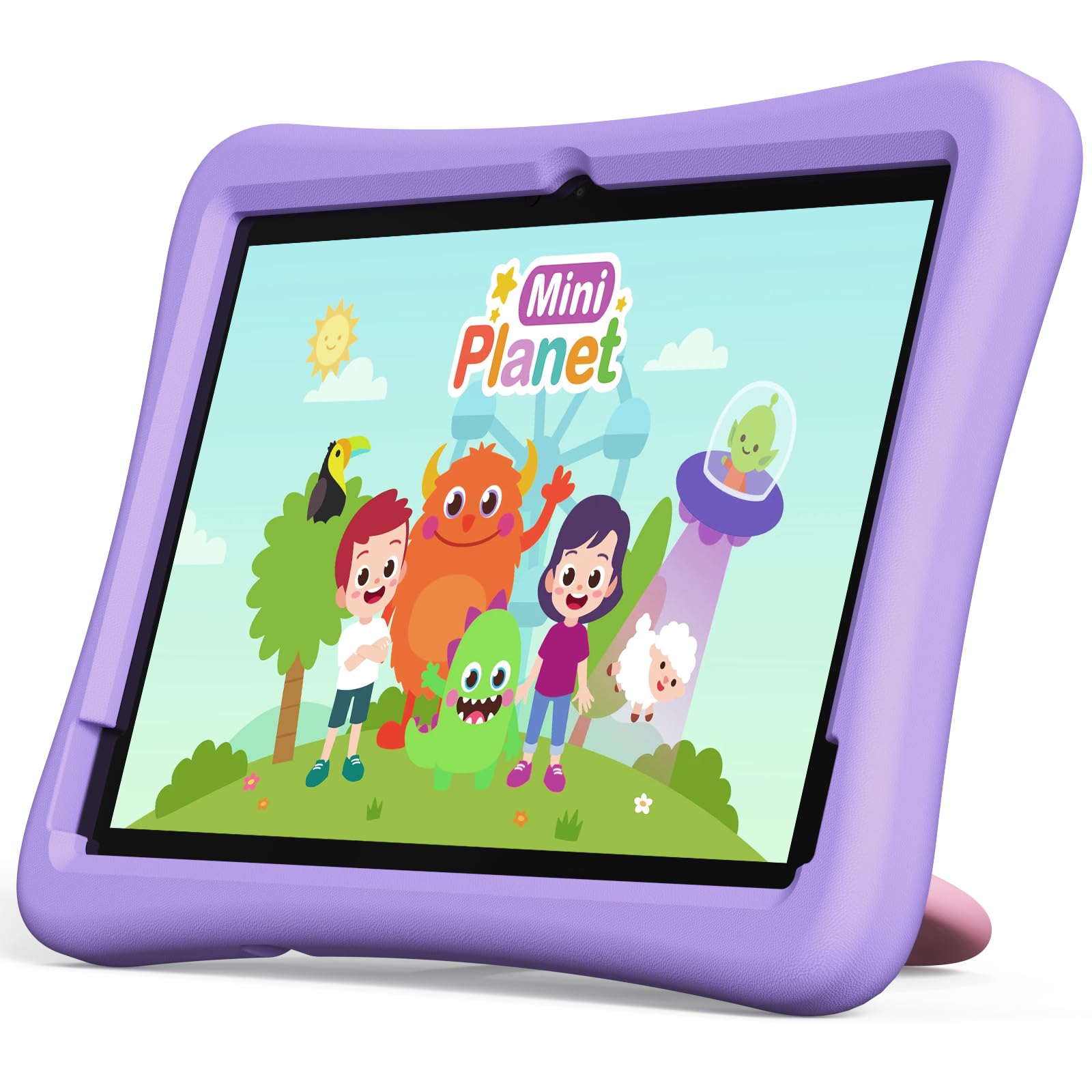
Image: The Plimpton PlimPad Kids20 tablet in its violet shockproof EVA case.
Čo je v krabici
Pred pokračovaním v inštalácii skontrolujte, či sú v balení všetky položky.
- 1x Plimpton PlimPad Kids20 Tablet
- 1x USB adaptér
- 1x 1.8m Charging Cable
- 1x Návod na použitie
Nastavenie
1. Nabíjanie tabletu
Pred prvým použitím tablet úplne nabite.
- Connect the USB charging cable to the tablet's USB Type-C port.
- Zapojte adaptér USB do elektrickej zásuvky.
- Rozsvieti sa indikátor nabíjania. Úplné nabitie môže trvať niekoľko hodín.
2. Zapnutie/vypnutie
- Zapnutie: Stlačte a podržte tlačidlo napájania, kým sa nerozsvieti obrazovka.
- Vypnutie: Stlačte a podržte tlačidlo napájania a potom z možností na obrazovke vyberte možnosť „Vypnúť“.
- Ak chcete reštartovať: Stlačte a podržte tlačidlo napájania a potom z možností vyberte možnosť „Reštartovať“.
3. Úvodné nastavenie
Upon first power-on, follow the on-screen prompts to configure your tablet. This typically includes:
- Výber jazyka.
- Connecting to a Wi-Fi network (supports Wi-Fi 6, 2.4GHz + 5.0GHz).
- Setting up a Google account. This is crucial for accessing Google Kids Space and downloading apps.
- Configuring date and time.
4. Vloženie karty Micro SD
Tablet podporuje karty Micro SD s kapacitou až 1 TB pre rozšírenie úložiska.
- Nájdite slot pre kartu Micro SD na boku tabletu.
- Opatrne vložte kartu Micro SD do slotu, kým nezacvakne na miesto.
- The tablet will detect the new storage. You may be prompted to format it for use as portable or internal storage.
Obsluha tabletu
1. Základná navigácia
The PlimPad Kids20 uses a capacitive touchscreen for interaction.
- Klepnite na: Vyberte položku alebo otvorte aplikáciu.
- Klikni a podrž: Prístup k kontextovým ponukám alebo presun ikon.
- Potiahnutie prstom: Navigate through screens or scroll within applications.
- Priblíženie štipnutím prstov: Enlarge or reduce content (e.g., photos, web stránky).
2. Google Kids Space
The tablet comes with Google Kids Space pre-installed, offering a curated selection of educational and entertaining content.

Image: A child and adult interacting with the tablet, showing the Google Kids Space interface.
- Access Kids Space from the home screen or app drawer.
- Content includes interactive educational apps, books, games, and videos.
- Content is teacher-approved and designed to promote learning and creativity.
3. Parental Controls (Google Family Link)
Manage your child's tablet usage and ensure a safe online environment using Google Family Link.

Image: A child using the tablet, with an overlay indicating Google Family Link for parental control.
- Download the Google Family Link app on your own device.
- Link your child's Google account on the tablet to your Family Link account.
- Through Family Link, you can:
- Nastavte si limity času stráveného pred obrazovkou.
- Approve or block app downloads.
- Spravovať webprístup na stránku.
- Track device location.
4. Konektivita
- Wi-Fi: Connect to wireless networks via Settings > Network & internet > Wi-Fi. The tablet supports dual-band Wi-Fi (2.4/5 GHz) for fast and stable connections.
- Bluetooth 5.3: Spárujte so zariadeniami Bluetooth, ako sú slúchadlá alebo reproduktory, cez Nastavenia > Pripojené zariadenia > Bluetooth.
5. Používanie fotoaparátu
Tablet je vybavený zadným fotoaparátom s rozlíšením 5 MP a predným fotoaparátom s rozlíšením 2 MP.
- Otvorte aplikáciu Fotoaparát z domovskej obrazovky alebo zo zásuvky aplikácií.
- Podľa potreby prepínajte medzi predným a zadným fotoaparátom.
- Klepnutím na tlačidlo spúšte môžete fotografovať alebo nahrávať videá.
Údržba
1. Čistenie tabletu
- Na čistenie obrazovky a tela použite mäkkú handričku, ktorá nepúšťa vlákna.
- Na odolné šmuhy mierneamphandričku vodou alebo čistiacim prostriedkom na obrazovky.
- Vyhýbajte sa agresívnym chemikáliám alebo abrazívnym materiálom.
2. Aktualizácie softvéru
Pravidelne kontrolujte a inštalujte aktualizácie softvéru, aby ste zabezpečili optimálny výkon a bezpečnosť.
- Prejdite do časti Nastavenia > Systém > Aktualizácia systému.
- Postupujte podľa pokynov na obrazovke a stiahnite a nainštalujte všetky dostupné aktualizácie.
3. Správa úložiska
To maintain performance, periodically manage the tablet's storage.
- Prejdite do časti Nastavenia > Úložisko view využitie úložiska.
- Odinštalujte nepoužívané aplikácie.
- Nepotrebné vymazať files, photos, or videos.
- Presunúť veľké files to an inserted Micro SD card.
Riešenie problémov
If you encounter issues, try the following solutions before contacting support.
| Problém | Riešenie |
|---|---|
| Tablet sa nezapne. | Ensure the tablet is fully charged. Connect it to the charger for at least 30 minutes, then try powering on again. |
| Problémy s pripojením k Wi-Fi. | Restart the tablet and your Wi-Fi router. Check Wi-Fi settings to ensure the correct network is selected and the password is entered correctly. |
| Aplikácie padajú alebo zamrzajú. | Close and reopen the app. Clear the app's cache (Settings > Apps > [App Name] > Storage & cache > Clear cache). If the problem persists, uninstall and reinstall the app. |
| Pomalý výkon. | Zatvorte nepoužívané aplikácie. Vymažte vyrovnávaciu pamäť a dočasné files. Consider uninstalling large, unused applications or moving data to an SD card. Restart the tablet. |
| Obrazovka nereaguje. | Perform a forced restart by holding the Power button for approximately 10-15 seconds until the tablet restarts. |
Špecifikácie
Key technical specifications for the Plimpton PlimPad Kids20 tablet.
| Funkcia | Detail |
|---|---|
| Názov modelu | Plimpad Kids20 |
| Operačný systém | Android 14 |
| Procesor | Allwinner A523 Octa-core (up to 2.0 GHz) |
| RAM | 8 GB (4 GB + 4 GB extended virtual memory) |
| Interné úložisko (ROM) | 64 GB |
| Rozšíriteľné úložisko | Až 1 TB cez kartu Micro SD |
| Veľkosť obrazovky | 10.1 palca |
| Rozlíšenie displeja | 1280 x 800 pixelov (HD IPS) |
| Typ zobrazenia | LCD, G+G wear-resistant glass |
| Kapacita batérie | 6000 mAh Lithium-ion (22.8 Wh) |
| Zadná kamera | 5 megapixelov |
| Predná kamera | 2 megapixelov |
| Wi-Fi | Wi-Fi 6 (802.11ax), Dual-band (2.4 GHz + 5.0 GHz) |
| Bluetooth | Bluetooth 5.3 |
| Porty | USB Type-C, 3.5mm Headphone Jack, Micro SD slot |
| Špeciálne funkcie | Stereo Speakers, USB OTG support, Eye-care screen, EVA shockproof case with 360-degree rotating handle |
| Rozmery | 24 d x 16.1 š x 0.9 v cm |
Záruka a podpora
The Plimpton PlimPad Kids20 tablet comes with a 2-ročná bezplatná záruka na výmenu.
For any issues, including screen damage or operational problems, please contact our professional after-sales customer service. Refer to the contact information provided with your purchase or on the official Plimpton webstránky.
Dôležité: Do not attempt to repair the device yourself, as this may void your warranty.