
1. Úvod
This user manual provides comprehensive instructions for the setup, operation, maintenance, and troubleshooting of your Thomson 27-inch QHD Gaming Monitor (Model: M27QG5Y14). This monitor is designed to deliver a superior visual experience with its QHD resolution, 180Hz refresh rate, and IPS panel technology, making it ideal for gaming and multimedia applications.

Obrázok 1.1: Predná strana view of the Thomson 27-inch QHD Gaming Monitor, showcasinjeho elegantný dizajn a zobrazovacia plocha.
2. Bezpečnostné informácie
Pred použitím monitora si pozorne prečítajte všetky bezpečnostné pokyny. Uschovajte si tento návod pre budúce použitie.
- Zdroj napájania: Používajte iba napájací adaptér dodaný s monitorom. Uistite sa, že elektrická zásuvka je správne uzemnená.
- Vetranie: Neblokujte vetracie otvory. Okolo monitora nechajte dostatočný priestor pre správne prúdenie vzduchu, aby ste predišli prehriatiu.
- Kvapalina a vlhkosť: Chráňte monitor pred vodou, dažďom alebo nadmernou vlhkosťou. Na monitor neklaďte predmety naplnené tekutinami.
- Čistenie: Disconnect the power cable before cleaning. Use a soft, dry cloth. Do not use liquid cleaners or aerosol cleaners.
- umiestnenie: Monitor umiestnite na stabilný, rovný povrch. Neumiestňujte ho na priame slnečné svetlo ani do blízkosti zdrojov tepla.
- Manipulácia: S monitorom manipulujte opatrne. Nespúšťajte ho ani ho nevystavujte silným nárazom.
- servis: Nepokúšajte sa monitor opravovať sami. Všetky opravy zverte kvalifikovanému servisnému personálu.
3. Obsah balenia
Overte, či sú v balení všetky položky. Ak niektoré položky chýbajú alebo sú poškodené, kontaktujte svojho predajcu.
- Thomson 27-inch QHD Gaming Monitor
- Stojan na monitor (základňa a krk)
- Napájací adaptér a napájací kábel
- HDMI kábel
- DisplayPort (DP) Cable (may vary by region)
- Kábel USB-B na USB-A (pre funkciu rozbočovača USB)
- Používateľská príručka (tento dokument)
- Skrutky na montáž stojana
4. Nastavenie
4.1. Montáž stojana monitora
- Opatrne vyberte monitor z obalu a položte ho obrazovkou nadol na mäkký, čistý povrch, aby ste predišli poškriabaniu.
- Pripevnite hrdlo stojana k panelu monitora pomocou dodaných skrutiek.
- Attach the stand base to the stand neck and secure it with the designated screw.
- Once assembled, carefully lift the monitor and place it on a stable desk or table.

Image 4.1: Monitor dimensions and stand assembly overview. The monitor measures approximately 61 cm wide, 54 cm high (with stand), and 24 cm deep (with stand).
4.2. Pripojenie monitora
Pripojte potrebné káble k vstupným portom monitora. Umiestnenie portov je znázornené na obrázku nižšie.
- Napájanie: Connect the power adapter to the "DC IN" port on the monitor, then plug the power cable into a power outlet.
- Video vstup:
- Connect an HDMI cable from your computer's graphics card to an "HDMI 2.1" port on the monitor.
- Alternatively, connect a DisplayPort (DP) cable from your computer's graphics card to a "DP 1.2" port on the monitor.
- USB Hub: To enable the monitor's USB 3.0 ports, connect a USB-B cable from the "USB 3.0 B" port on the monitor to a USB-A port on your computer.
- Zvukový výstup: Connect headphones or external speakers to the "Earphone Plug" (3.5mm audio jack) for audio output.

Image 4.2: Rear panel of the monitor displaying the various input and output ports for connectivity.
4.3. Ergonomické nastavenia
Stojan monitora umožňuje rôzne nastavenia pre optimalizáciu vášho viewpohodlie:
- tilt: Adjust the screen's vertical angle (up or down).
- Otočný: Otočte obrazovku horizontálne (doľava alebo doprava).
- Pivot: Otočte obrazovku o 90 stupňov pre režim na výšku viewing.
- Výškové nastavenie: Zdvihnite alebo znížte monitor do požadovanej úrovne očí.
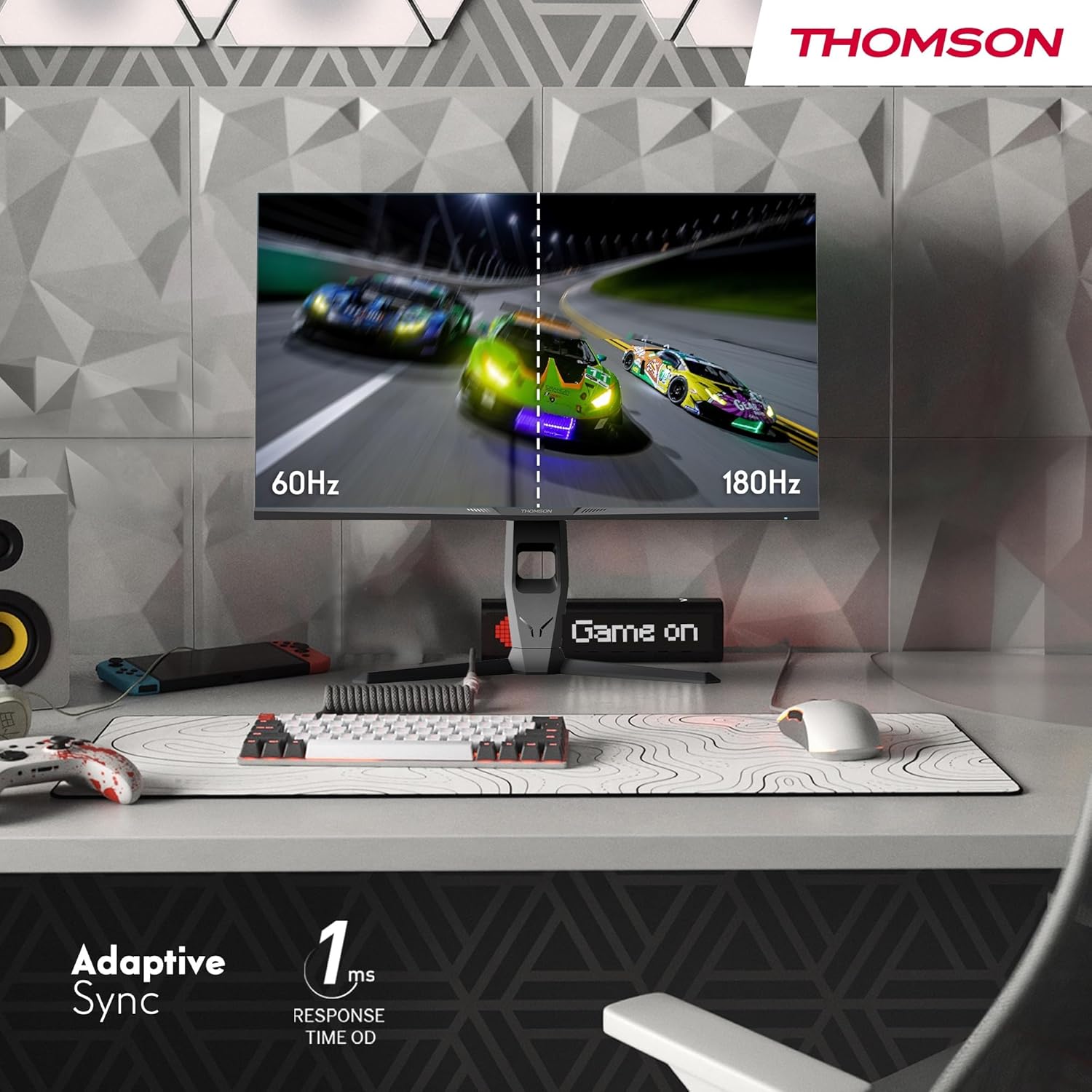
Image 4.3: Demonstrations of the monitor's ergonomic capabilities, including tilt, swivel, and pivot for optimal viewing uhly.
4.4. Montáž VESA
The monitor is compatible with VESA 100x100mm mounting standards. To mount the monitor on a wall or an alternative stand, remove the original stand and attach the VESA-compatible mount (sold separately) using appropriate screws.
5. Návod na obsluhu
5.1. Zapnutie/vypnutie
Stlačením tlačidla napájania, ktoré sa zvyčajne nachádza na zadnej alebo spodnej strane monitora, ho zapnete alebo vypnete. Kontrolka napájania sa rozsvieti, keď je monitor zapnutý.
5.2. Ponuka na obrazovke (OSD).
The OSD menu allows you to adjust various monitor settings. Use the joystick or buttons (location may vary) on the monitor to navigate the menu.
- Nastavenia obrazu: Upravte jas, kontrast, ostrosť, teplotu farieb a gamu.
- Nastavenia farieb: Fine-tune RGB levels, saturation, and hue.
- Výber vstupu: Manuálne prepínanie medzi vstupmi HDMI a DisplayPort.
- Zvuk: Adjust volume for built-in speakers or headphone output.
- Nastavenia OSD: Zmeňte jazyk, priehľadnosť a časový limit OSD.
- Herné nastavenia: Access features like Adaptive Sync, response time (OD), and crosshair overlays.
5.3. Herné funkcie
- Obnovovacia frekvencia 180 Hz: Provides smoother motion and reduced input lag, especially beneficial for fast-paced games. Ensure your graphics card and cable support this refresh rate.
- Doba odozvy 1 ms (OD): Minimizes motion blur and ghosting for clear, crisp images during rapid movements.
- Adaptívna synchronizácia: Synchronizes the monitor's refresh rate with your graphics card's frame rate, eliminating screen tearing and stuttering. Enable this feature in the OSD menu and your graphics card control panel.

Image 5.1: Visual comparison illustrating the difference between 60Hz and 180Hz refresh rates, highlighting the smoother motion provided by the higher refresh rate, alongside the Adaptive Sync feature.
5.4. Funkcie starostlivosti o zrak
- Technológia proti blikaniu: Znižuje blikanie obrazovky, ktoré môže pri dlhodobom používaní spôsobovať namáhanie očí.
- Režim slabého modrého svetla: Filters out harmful blue light emissions to protect your eyes and reduce fatigue. This mode can be activated through the OSD menu.
- Antireflexná obrazovka: The matte screen surface minimizes reflections from ambient light, providing clear visuals without distraction.

Image 5.2: Depiction of the monitor's eye comfort features, including an anti-glare screen and technologies like Anti-Flicker and Low Blue Light for reduced eye strain.
5.5. RGB Ambient Lighting
The monitor features integrated RGB ambient lighting on the rear. This lighting can be customized via the OSD menu to enhance your gaming environment or match your setup's aesthetics.
6. Údržba
6.1. Čistenie monitora
- Obrazovka: Obrazovku jemne utrite mäkkou handričkou, ktorá nepúšťa vlákna. V prípade odolných škvŕn ju jemne utriteampen the cloth with water or a specialized screen cleaner (ensure it's safe for LCD/IPS panels) and wipe gently. Never spray liquid directly onto the screen.
- Casing: Na utretie monitora použite mäkkú, suchú handričku casing. Nepoužívajte abrazívne čistiace prostriedky alebo rozpúšťadlá.
- Pred čistením vždy odpojte napájací kábel.
6.2. Skladovanie
Ak monitor skladujete dlhší čas, odpojte všetky káble, zabaľte ho do originálneho balenia (ak je k dispozícii) a uskladnite ho na chladnom a suchom mieste mimo dosahu priameho slnečného žiarenia a extrémnych teplôt.
7. Riešenie problémov
Táto časť sa zaoberá bežnými problémami, s ktorými sa môžete stretnúť. Ak problém pretrváva, kontaktujte zákaznícku podporu.
| Problém | Možná príčina | Riešenie |
|---|---|---|
| Žiadna sila | Napájací kábel nie je pripojený; Zásuvka je chybná; Monitor je vypnutý. | Uistite sa, že napájací kábel je bezpečne pripojený. Otestujte elektrickú zásuvku. Stlačte tlačidlo napájania na monitore. |
| Žiadny signál / Prázdna obrazovka | Video cable not connected; Incorrect input selected; Computer not outputting signal. | Check HDMI/DP cable connections. Select the correct input source via OSD. Ensure computer is on and outputting video. |
| Distorted image / Flickering | Incorrect resolution/refresh rate; Faulty cable; Graphics driver issue. | Set display resolution to 2560x1440 and refresh rate to 180Hz. Try a different video cable. Update graphics drivers. |
| Žiadny zvuk z reproduktorov/slúchadiel | Príliš nízka hlasitosť; Nie je pripojený audio kábel; Na PC je zvolený nesprávny audio výstup. | Increase monitor volume via OSD. Ensure headphones/speakers are connected. Select monitor as audio output device in PC settings. |
8. Špecifikácie
Detailed technical specifications for the Thomson M27QG5Y14 monitor.
| Funkcia | Špecifikácia |
|---|---|
| Značka | Thomson |
| Model | M27QG5Y14 |
| Veľkosť obrazovky | 27 palca |
| Typ panelu | IPS |
| Rozlíšenie | 2560 x 1440 (QHD) |
| Obnovovacia frekvencia | 180 Hz |
| Čas odozvy | 1 Millisecond (OD) / 5 Milliseconds (GtG) |
| Jas | 350 nitov |
| Kontrastný pomer | 1200:1 |
| Viewing uhol | 178 stupňov (horizontálne/vertikálne) |
| Farebný gamut | 120% sRGB |
| Podpora HDR | HDR10 (10-bit) |
| Adaptívna synchronizácia | áno |
| Konektivita | 2x HDMI 2.1, 1x DisplayPort 1.2, 1x USB 3.0 Type-B (upstream), 3x USB 3.0 Type-A (downstream), 1x Earphone Plug (3.5mm) |
| Vstavané reproduktory | Áno (2x2W) |
| Kompatibilita s montážou VESA | 100 x 100 mm |
| Rozmery produktu (so stojanom) | 61 x 54 x 24 cm (Š x V x H) |
| Hmotnosť (so stojanom) | 7.3 kg |
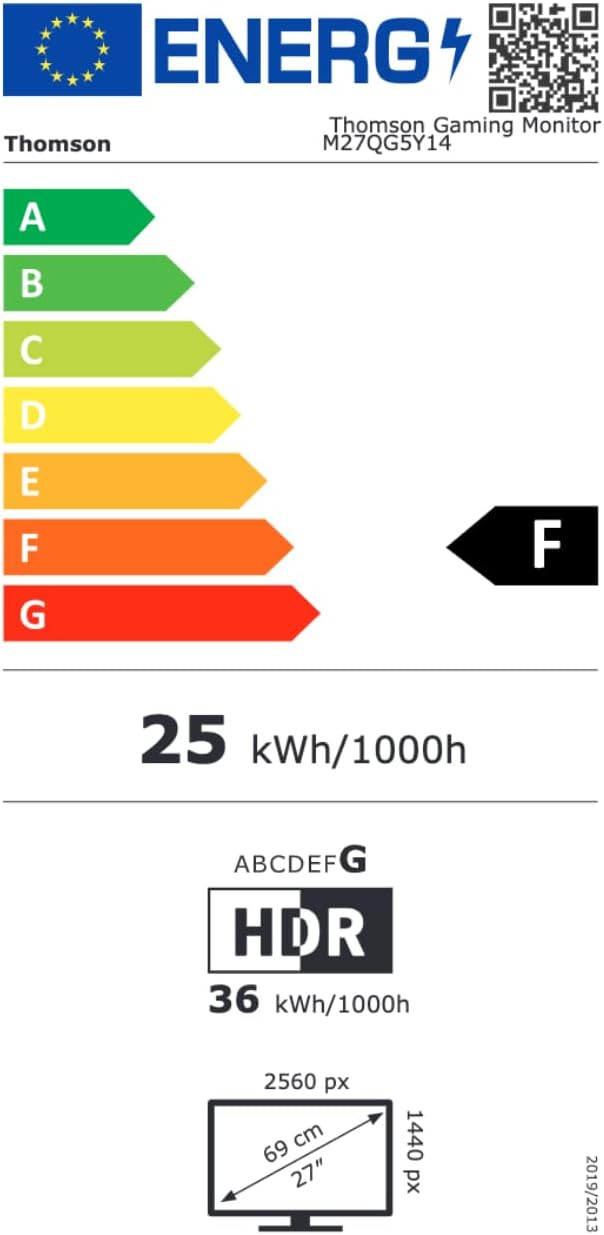
Image 8.1: EU Energy Label for the Thomson M27QG5Y14 monitor. For more details, visit the Databáza EPREL.
9. Záruka a podpora
Thomson products are designed for reliability and performance. This monitor typically comes with a 3-ročná záruka od dátumu nákupu, ktorá pokrýva výrobné chyby. Uschovajte si doklad o kúpe pre prípad uplatnenia záruky.
For technical assistance, troubleshooting beyond this manual, or warranty inquiries, please contact Thomson customer support or your local retailer. Refer to the official Thomson webkonkrétne kontaktné údaje nájdete na webovej stránke alebo na obale vášho produktu.
You can also visit the official Thomson store on Amazon for more information: Thomson Store.