
1. Úvod
This manual provides essential information for the proper installation, operation, and maintenance of your GAMEON Pro Series 27-inch Fast IPS Gaming Monitor (Model: GOAE27QHD165IPS). Please read this manual thoroughly before using the product to ensure optimal performance and safety. Keep this manual for future reference.

Obrázok 1.1: Predná strana view of the GAMEON Pro Series 27-inch Fast IPS Gaming Monitor, showcasinjeho tenké rámy a stojan.
The GAMEON Pro Series 27-inch Fast IPS Gaming Monitor features a QHD 2K (2560x1440p) resolution, a 165Hz refresh rate, and a 0.5ms MPRT response time. It supports Adaptive-Sync and Variable Refresh Rate (VRR) technologies for smooth, tear-free gameplay. Connectivity options include dual HDMI 2.1 ports and dual DisplayPort 1.4 ports, along with an audio-out jack and integrated speakers. This monitor is compatible with various gaming consoles and PCs, including PS5.
2. Obsah balenia
Po vybalení skontrolujte obsah balenia. Ak niektoré položky chýbajú alebo sú poškodené, kontaktujte svojho predajcu.
- GAMEON Pro Series 27-inch Fast IPS Gaming Monitor
- Stojan na monitor (základňa a krk)
- Napájací adaptér a napájací kábel
- HDMI kábel
- Kábel DisplayPort
- Používateľská príručka
3. Nastavenie
3.1 Zostavenie monitora
- Opatrne vyberte monitor z obalu a chráňte obrazovku.
- Pripevnite hrdlo stojana k panelu monitora. Uistite sa, že bezpečne zacvakne na miesto alebo je upevnený skrutkami, ak sú súčasťou balenia.
- Pripevnite základňu stojana k hrdlu stojana a utiahnite skrutku v spodnej časti základne.
- Zostavený monitor umiestnite na stabilný, rovný povrch.
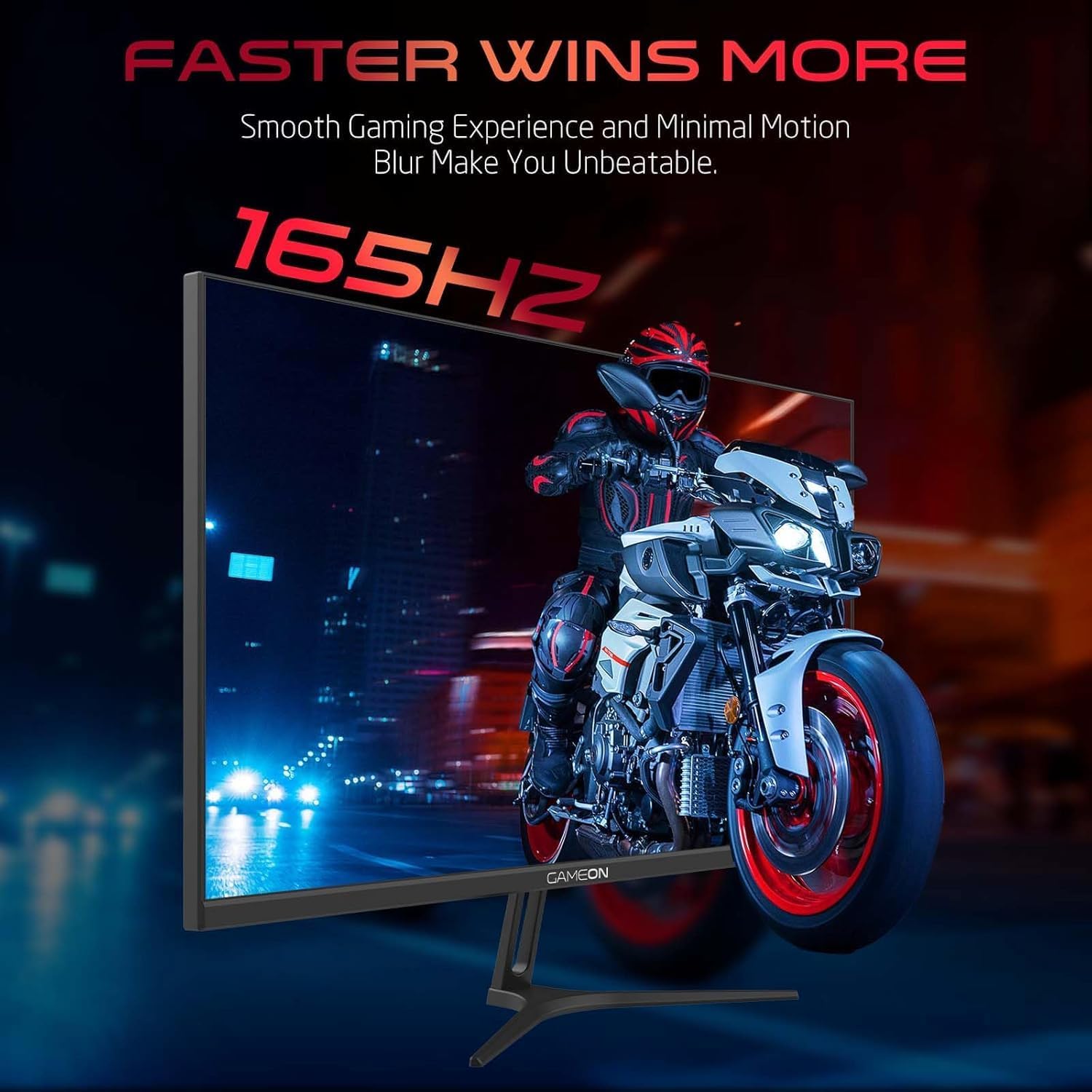
Image 3.1: Illustration of the monitor with its stand, ready for assembly.
3.2 Pripojenie k zariadeniam
The monitor offers multiple input options. Choose the appropriate cable for your device (PC, gaming console, etc.).

Obrázok 3.2: Zadná časť view of the monitor, highlighting the input ports and VESA mounting points.

Image 3.3: Detailed diagram illustrating the various input/output ports and their corresponding devices.
- HDMI pripojenie: Connect one end of the HDMI cable to the HDMI output port of your device (PC, PS5, Xbox, TV box) and the other end to one of the HDMI 2.1 ports on the monitor.
- Pripojenie DisplayPort: Connect one end of the DisplayPort cable to the DisplayPort output of your PC and the other end to one of the DisplayPort 1.4 ports on the monitor.
- Zvukový výstup: For external audio, connect headphones or external speakers to the 3.5mm audio-out jack on the monitor.
3.3 Pripojenie napájania
- Pripojte napájací adaptér k portu DC IN na monitore.
- Plug the power cable into the power adapter, then plug the other end of the power cable into a power outlet.
4. Návod na obsluhu
4.1 Zapnutie/vypnutie
Stlačením tlačidla napájania umiestneného na monitore ho zapnete alebo vypnete. Kontrolka napájania sa rozsvieti, keď je monitor zapnutý.
4.2 Ponuka na obrazovke (OSD).
The monitor features a menu button (often a joystick or a series of buttons) usually located on the back or bottom right of the monitor. Use this to navigate the OSD menu and adjust settings.
- Press the menu button to open the OSD menu.
- Na pohyb medzi možnosťami ponuky použite navigačné ovládacie prvky.
- Press the menu button again (or a designated 'Enter' button) to select an option.
- Use the navigation controls to adjust values or select sub-menus.
- Select 'Exit' or press the menu button repeatedly to close the OSD menu.
4.3 Bežné nastavenia OSD
- Nastavenia obrazu: Upravte jas, kontrast, ostrosť, gamu a teplotu farieb.
- Nastavenia farieb: Jemné doladenie hodnôt RGB, odtieňa a sýtosti.
- Vstupný zdroj: Ručne vyberte medzi HDMI 1, HDMI 2, DisplayPort 1 alebo DisplayPort 2.
- Zvuk: Upravte hlasitosť vstavaných reproduktorov alebo pripojených slúchadiel.
- Herné vlastnosti: Enable/disable Adaptive-Sync/FreeSync, adjust overdrive settings, and activate crosshair overlays if available.
4.4 PS5 120Hz Setup Guide
To enable 120Hz output on your PlayStation 5 with this monitor, follow these steps:

Image 4.1: Visual guide for configuring 120Hz refresh rate on a PlayStation 5 console.
- Enable 120Hz from PS5 Settings:
- Prejsť na Nastavenia > Screen and Video > Video výstup.
- Set Enable 120Hz Output do Automaticky.
- Set Rozlíšenie do 1080p or Automaticky. (Note: While the monitor supports 1440p, some PS5 games may require 1080p for 120Hz output.)
- Enable Performance Mode for Gamers:
- Prejsť na Nastavenia > Save Data and Game App Settings > Predvoľby hry.
- Set Režim výkonu ako predvolená.
- Check In-Game Settings:
- Go to the specific game's Nastavenia hry > Nastavenia videa a vyberte 120 snímok za sekundu or Režim výkonu.
5. Údržba
5.1 Čistenie obrazovky
- Vypnite monitor a odpojte napájací kábel.
- Jemne používajte mäkkú handričku, ktorá nepúšťa vlákna dampvodou alebo špeciálnym čistiacim prostriedkom na obrazovky.
- Wipe the screen gently. Do not press hard or use abrasive materials.
- Avoid using alcohol, ammonia, or benzene-based cleaners, as they may damage the screen surface.
5.2 Čistenie Casing
- Na utretie monitora použite mäkkú, suchú handričku casing.
- Na odolné škvrny jemne damphandričku vodou a jemným čistiacim prostriedkom a potom utrite dosucha.
6. Riešenie problémov
Ak sa vyskytnú problémy s monitorom, pozrite si nasledujúceho sprievodcu riešením problémov:
| Problém | Možná príčina | Riešenie |
|---|---|---|
| Na obrazovke nie je žiadny obraz | Žiadne napájanie; Nesprávny vstupný zdroj; Uvoľnený video kábel | Ensure power cable is securely connected and power outlet is active. Press power button. Check OSD menu to select correct input source (HDMI/DP). Reconnect video cable firmly. |
| Obraz je rozmazaný alebo skreslený | Incorrect resolution; Video cable issue | Set display resolution to 2560x1440p in your device's display settings. Try a different video cable. |
| Žiadny zvuk | Volume too low; Incorrect audio output selected; Loose audio cable | Adjust monitor volume via OSD. Ensure monitor is selected as the audio output device on your PC/console. Check external audio cable connection if using headphones/speakers. |
| Blikanie obrazovky | Refresh rate mismatch; Adaptive-Sync/VRR issue | Ensure your device's refresh rate is set to 165Hz. If flickering persists with Adaptive-Sync/VRR enabled, try disabling it in the OSD or your graphics card settings. |
| Monitor not detected by PC/console | Video cable issue; Driver issue | Try a different video cable or port. Update your graphics card drivers. Restart your PC/console. |
7. Špecifikácie
Below are the technical specifications for the GAMEON Pro Series 27-inch Fast IPS Gaming Monitor (GOAE27QHD165IPS):
| Funkcia | Špecifikácia |
|---|---|
| Veľkosť displeja | 27 palca |
| Typ panelu | Takmer IPS |
| Rozlíšenie | QHD 2K (2560x1440p) |
| Obnovovacia frekvencia | 165 Hz |
| Čas odozvy | 0.5 ms MPRT |
| Kontrastný pomer | 1000:1 |
| Jas | 280 (±30) nits typical |
| Viewing uhly | Široký viewing angles (IPS technology) |
| Technológia adaptívnej synchronizácie | Adaptive-Sync, FreeSync, VRR Compatible |
| Konektivita | 2x HDMI 2.1, 2x DisplayPort 1.4, 1x Audio Out (3.5mm) |
| Zvuk | Built-in 4Ω2W speakers |
| Kompatibilita s montážou VESA | 100 x 100 mm |
| Príkon | Externý adaptér DC 12V 4A |
| Maximálna spotreba energie | 48 W |
| Rozmery produktu (so stojanom) | 16.2 x 61.4 x 45.3 cm |
| Hmotnosť produktu | 5.84 kg |
| Číslo modelu | GOAE27QHD165IPS |
8. Záruka a podpora
The GAMEON Pro Series 27-inch Fast IPS Gaming Monitor comes with a 2-ročná záruka od dátumu nákupu. Táto záruka sa vzťahuje na výrobné chyby pri bežnom používaní. Pre prípad reklamácie si uschovajte doklad o kúpe.
For technical support, warranty inquiries, or service requests, please contact GAMEON customer service through their official website or the retailer where the product was purchased. Provide your monitor's model number (GOAE27QHD165IPS) and a detailed description of the issue to expedite assistance.