
1. Úvod
This manual provides essential information for the safe and efficient operation of your Next YE-65GFSG8-QLED 65-inch UHD 4K Google QLED TV. Please read this manual thoroughly before using the television and retain it for future reference. Your new television combines QLED display technology with the Google TV operating system, offering a high-quality viewing experience and smart features.
2. Dôležité bezpečnostné informácie
Always follow these basic safety precautions when operating your television:
- Zdroj napájania: Uistite sa, že televízor je pripojený k zdroju napájania v rámci špecifikovaného objemutage rozsah.
- Vetranie: Neblokujte vetracie otvory. Okolo televízora nechajte dostatočný priestor pre správne prúdenie vzduchu.
- Voda a vlhkosť: Nevystavujte televízor dažďu ani vlhkosti. Neumiestňujte na televízor predmety naplnené tekutinami, ako napríklad vázy.
- Čistenie: Pred čistením odpojte televízor od elektrickej zásuvky. Použite mäkkú, suchú handričku. Nepoužívajte tekuté ani aerosólové čistiace prostriedky.
- umiestnenie: Televízor umiestnite na stabilný a rovný povrch. Neumiestňujte ho na priame slnečné svetlo ani do blízkosti zdrojov tepla.
- Blesk: During lightning storms or when unused for long periods, unplug the TV from the power outlet and disconnect the antenna.
- servis: Nepokúšajte sa opravovať tento výrobok sami. Všetky opravy zverte kvalifikovanému servisnému personálu.
3. Obsah balenia
Verify that all items are present in your TV package:
- Next YE-65GFSG8-QLED 65-inch UHD 4K Google QLED TV
- Diaľkové ovládanie
- Napájací kábel
- TV stojan (2 kusy) a skrutky
- Používateľská príručka (tento dokument)
- Sprievodca rýchlym spustením
4. Nastavenie
4.1 Fyzická inštalácia
You can install your TV on a stand or mount it on a wall. Ensure the TV is placed on a stable surface or securely mounted.

Obrázok: TV Dimensions. This image illustrates the physical dimensions of the 65-inch television, including its width, height, and diagonal screen size of 164 cm (65 inches).
Inštalácia stojana:
- Televízor opatrne položte obrazovkou nadol na mäkký, rovný povrch, aby ste predišli poškodeniu obrazovky.
- Attach the two stand pieces to the designated slots on the bottom of the TV.
- Stojany upevnite dodanými skrutkami.
- Opatrne zdvihnite televízor do zvislej polohy na stabilnom povrchu.
Montáž na stenu:
For wall mounting, use a VESA-compatible wall mount kit (sold separately) that matches the TV's VESA pattern. Follow the instructions provided with your wall mount kit. It is recommended to have professional assistance for wall mounting.
4.2 Pripojenie periférnych zariadení
Connect your external devices to the appropriate ports on the back of your TV.
Obrázok: Rear Panel Connections. This image displays the various input and output ports located on the back of the television, including HDMI, USB, DVB-S, DVB-T, CI Module, Mini AV-IN, Optical Out, and Ethernet.
- HDMI (ARC): Connect Blu-ray players, game consoles, or other HDMI devices. HDMI 1 supports Audio Return Channel (ARC).
- USB (2x): Pripojte úložné zariadenia USB na prehrávanie médií.
- DVB-S / DVB-T: Connect satellite (DVB-S) or terrestrial (DVB-T) antenna cables.
- CI Module: Insert a Common Interface (CI) module for encrypted digital channels.
- Mini AV-IN: Connect older devices using an AV adapter cable.
- Optický výstup: Connect to an external audio system for digital audio output.
- Ethernet: Pripojte ethernetový kábel pre káblové internetové pripojenie.
- Výkon: Pripojte napájací kábel k televízoru a potom do elektrickej zásuvky.
4.3 Počiatočné zapnutie a prvé nastavenie
- After connecting all cables, plug the power cord into an electrical outlet.
- Stlačte tlačidlo napájania na diaľkovom ovládači alebo na televízore.
- The TV will guide you through the initial setup process, which includes:
- Výber jazyka
- Pripojenie k sieti Wi-Fi alebo Ethernet
- Signing in with your Google Account (required for Google TV features)
- Prijatie zmluvných podmienok
- Channel scanning (for DVB-S/T)
- Dokončite nastavenie podľa pokynov na obrazovke.
5. Obsluha vášho televízora
5.1 Funkcie diaľkového ovládača
The remote control allows you to navigate the TV's features. Familiarize yourself with its buttons:
- Výkon: Zapína alebo vypína televízor.
- Asistent Google: Aktivuje hlasové povely.
- Navigačný ovládač (hore/dole/vľavo/vpravo/OK): Navigácia v menu a výber možností.
- Späť: Návrat na predchádzajúcu obrazovku.
- domov: Prístup na domovskú obrazovku služby Google TV.
- Hlasitosť +/-: Upravuje úroveň hlasitosti.
- Kanál +/-: Mení televízne kanály.
- Vstup: Výber vstupných zdrojov (HDMI, AV atď.).
- Tlačidlá aplikácie: Priamy prístup k populárnym streamovacím aplikáciám.
5.2 Navigating Google TV Interface
Google TV organizes your entertainment with a personalized home screen. Content from your apps is brought together and organized for easy discovery.

Obrázok: Google TV Interface. This image shows the main Google TV home screen with various streaming app icons and content recommendations, demonstrating the user interface.
- Domovská obrazovka: Zobrazuje prispôsobené odporúčania, nainštalované aplikácie a rýchly prístup k obsahu.
- Karta Pre vás: Provides tailored content suggestions based on your viewnávyky.
- Živá karta: Accesses live TV channels from integrated services.
- Karta Aplikácie: Shows all installed applications. You can download more from the Google Play Store.
- Karta Knižnica: Accesses your purchased or rented content from Google Play.
5.3 Nastavenia obrazu a zvuku
Ak chcete upraviť nastavenia obrazu a zvuku:
- Stlačte tlačidlo Nastavenia button (usually a gear icon) on your remote.
- Prejdite na Displej a zvuk.
- Nastavenia obrazu: Adjust brightness, contrast, color, sharpness, and select picture modes (e.g., Standard, Vivid, Movie, Game). Your QLED TV offers enhanced color saturation.
- Nastavenia zvuku: Adjust bass, treble, balance, and select sound modes (e.g., Standard, Music, Movie, Speech).

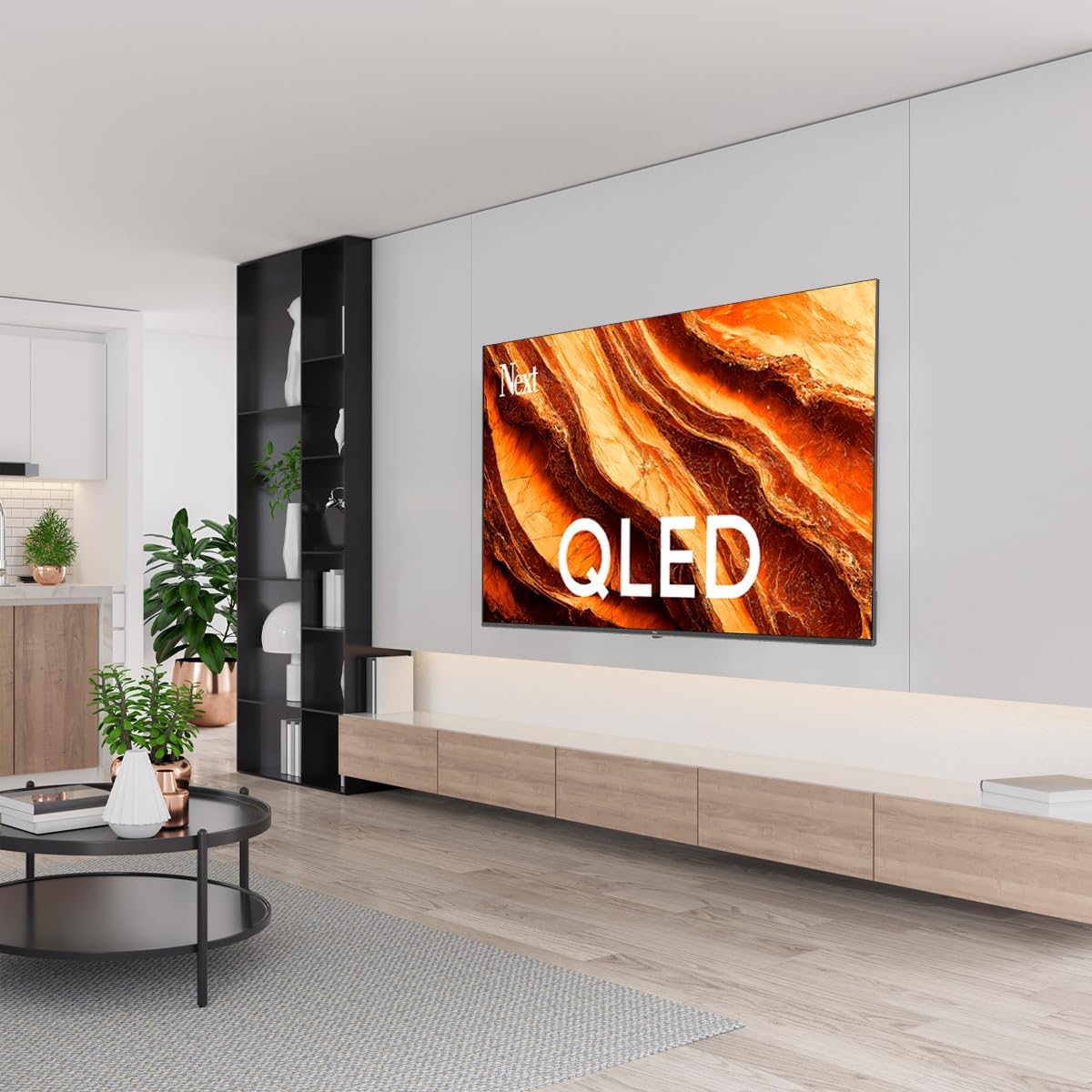
Obrázok: QLED Color Saturation. This image visually demonstrates the high color saturation achieved with QLED technology, showing a vibrant and rich color display.

Obrázok: HDR (High Dynamic Range). This image illustrates the visual impact of HDR, showcasing improved contrast and color detail in a scene when HDR is enabled versus when it is off.
5.4 Nastavenia siete
Ak chcete pripojiť televízor k internetu:
- Stlačte tlačidlo Nastavenia tlačidlo na diaľkovom ovládači.
- Prejdite na Sieť a internet.
- Vyberte Wi-Fi to connect to a wireless network or ensure Ethernet is connected for a wired connection.
- V prípade siete Wi-Fi vyberte svoju sieť zo zoznamu a zadajte heslo.
6. Údržba
6.1 Čistenie televízora
- Pred čistením vždy odpojte televízor zo siete.
- Na jemné utrenie obrazovky a tela televízora použite mäkkú, suchú handričku, ktorá nepúšťa vlákna.
- Na odolné škvrny jemneampen the cloth with water or a specialized screen cleaner (ensure it's safe for TV screens). Never spray cleaner directly onto the screen.
- Nepoužívajte abrazívne čistiace prostriedky, vosky alebo rozpúšťadlá.
6.2 Aktualizácie softvéru
Your TV may receive software updates to improve performance and add new features. It is recommended to keep your TV's software updated.
- Uistite sa, že váš televízor je pripojený k internetu.
- Stlačte tlačidlo Nastavenia tlačidlo na diaľkovom ovládači.
- Prejdite na Systém > O > Aktualizácia systému.
- Vyberte Skontrolujte dostupnosť aktualizácie.
- Postupujte podľa pokynov na obrazovke a stiahnite a nainštalujte všetky dostupné aktualizácie.
7. Riešenie problémov
Ak sa vyskytnú problémy s televízorom, pozrite si nasledujúce bežné problémy a riešenia:
| Problém | Možná príčina/Riešenie |
|---|---|
| Žiadna sila | Check if the power cord is securely plugged into the TV and the wall outlet. Ensure the outlet is working. |
| Žiadny obraz, ale zvuk je prítomný | Check the input source. Ensure the connected device is turned on and functioning correctly. |
| Žiadny zvuk, ale obraz je prítomný | Check the volume level and mute status. Verify audio cable connections for external devices. Check TV sound settings. |
| Diaľkové ovládanie nefunguje | Vymeňte batérie. Uistite sa, že medzi diaľkovým ovládačom a infračerveným senzorom televízora nie sú žiadne prekážky. |
| Nedá sa pripojiť k sieti Wi-Fi | Ensure your Wi-Fi router is on and within range. Re-enter the Wi-Fi password carefully. Try restarting the TV and router. |
| Aplikácie sú pomalé alebo zamrzajú | Close unused apps. Clear app cache (Settings > Apps > See all apps > [App Name] > Clear cache). Ensure a stable internet connection. |
Ak problém pretrváva aj po vyskúšaní týchto riešení, kontaktujte zákaznícku podporu.
8. Špecifikácie
Technical specifications for the Next YE-65GFSG8-QLED 65-inch UHD 4K Google QLED TV:
- Značka: Ďalej
- Modelový rok: 2025
- Rozlíšenie: 4K (3840x2160)
- Technológia displeja: QLED
- Veľkosť obrazovky: 65 palce (165 cm)
- Pomer strán: 16:9
- Obnovovacia frekvencia: 60 Hz
- Kľúčové vlastnosti: Bezrámový dizajn
- Pripojenie: Bluetooth, Ethernet, HDMI (ARC), USB (2x), Wi-Fi
- Rozmery produktu: 27.8H x 144.6Š x 88.9V cm
- Hmotnosť: 16.3 kg
- Operačný systém: Google TV
- Zahrnuté komponenty: Diaľkové ovládanie
- Krajina pôvodu: Turecko
9. Záruka a podpora
Your Next YE-65GFSG8-QLED TV comes with a manufacturer's warranty. Please refer to the warranty card included in your package for specific terms and conditions, including the warranty period and coverage details.
For technical support, service requests, or further assistance, please contact Next customer service. Contact information can typically be found on the manufacturer's webna stránke alebo v záručnej dokumentácii.
- Online podpora: Visit the official Next website for FAQs, troubleshooting guides, and support contact details.
- Servisné strediská: For hardware issues, locate an authorized service center near you.