
1. Úvod
Táto príručka poskytuje základné informácie o nastavení, prevádzke, údržbe a riešení problémov vášho ViewSonic IFP55G1 55-inch 4K UHD ViewBoard Interactive Display. Please read this manual thoroughly before using the product to ensure proper and safe operation.
The ViewSonic IFP55G1 is a 55-inch 4K Ultra HD (3840x2160p) interactive display designed for educational and business environments. It features multi-point touch recognition, an OPS slot for external PCs, 10W dual speakers, and versatile connectivity options including HDMI, VGA, USB Hub, and USB-C inputs. Its OS-free design allows flexibility with various computing solutions.
Kľúčové vlastnosti:
- Ultra HD Resolution: 55 Inch 4K Ultra HD (3840x2160p) interactive display for crisp visuals.
- Advanced Multi-Touch: Allows multiple users to write and interact simultaneously with fingers and passive pens.
- Flexibilné pripojenie: Equipped with a powerful quad-core processor and versatile ports including HDMI, VGA, RJ45, and USB.
- OS-Free Design: Provides enhanced security and flexibility to integrate with your preferred operating system via external PC or OPS device.
- Write-Away Technology: Enables instant writing with the stylus without extended setup.
2. Čo je v krabici
Overte si, či sú všetky nižšie uvedené položky súčasťou balenia. Ak niektoré položky chýbajú alebo sú poškodené, ihneď kontaktujte svojho predajcu.
- ViewSonic IFP55G1 Interactive Display
- 3m USB 2.0 touch cable x 1
- Touch pen (Passive pen) x 2 (VB-PEN-002)
- 3m napájací kábel
- HDMI 2.0 cable 3m x 1
- Príručka pre rýchly štart + vyhlásenie o súlade
- Adaptér RS232
- Screw (wall mount 4)
- Doska na fotoaparát
- Remote control with AAA battery (Optional)
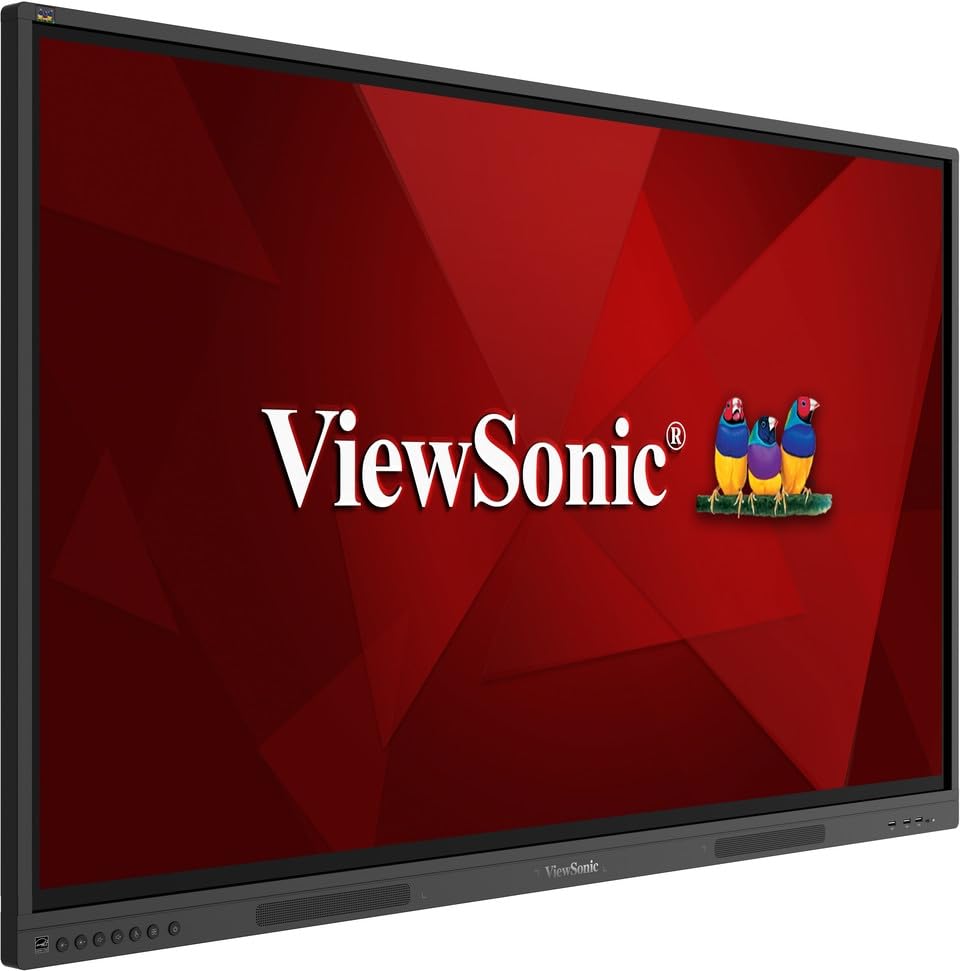
Obrázok: ViewSonic IFP55G1 55-inch ViewBoard Interactive Display, front view.
3. Pokyny na nastavenie
3.1 Montáž displeja
The IFP55G1 can be wall-mounted or installed on a compatible mobile cart (sold separately). Ensure the mounting solution supports the display's weight (approximately 59.3 lbs / 26.9 kg) and dimensions (3.37 x 49.7 x 30.3 inches).
- For wall mounting, use the provided wall mount screws and ensure the wall structure is robust enough.
- Follow the instructions provided with your specific wall mount or mobile cart.
3.2 Pripojenie periférnych zariadení
The display offers various ports for connecting external devices. Refer to the image below for port locations.

Obrázok: Bočný view z ViewSonic IFP55G1 interactive display showing various input ports including HDMI, VGA, and USB.
- Napájanie: Connect the 3m power cable to the display and a grounded power outlet.
- Video vstup: Connect your external PC or media player to the display using an HDMI 2.0 cable (provided), VGA cable, or USB-C cable. The display has 3 HDMI ports, 1 VGA port, and USB-C connectivity.
- Dotykové funkcie: For interactive touch features with an external PC, connect the 3m USB 2.0 touch cable from the display's USB-B (Touch) port to a USB-A port on your PC.
- OPS slot: If using an optional ViewSonic Slot-in PC (OPS device), insert it into the dedicated OPS slot on the rear of the display. This provides an integrated computing solution.
- Sieť: Pre káblový prístup k sieti pripojte ethernetový kábel k portu RJ45.
- Zariadenia USB: Use the available USB-A ports to connect USB drives, keyboards, mice, or other peripherals.

Obrázok: The ViewSonic IFP55G1 display demonstrating connectivity with various external devices, including laptops and mini PCs, highlighting its 'Bring Your Own Devices' capability.
4. Návod na obsluhu
4.1 Zapnutie/vypnutie
- Zapnutie: Press the power button located on the display's front or side panel, or use the remote control. The display will power on and show the input source.
- Vypnúť: Press the power button again. A confirmation message may appear; select 'Power Off'. For complete power disconnection, unplug the power cable.
4.2 Výber vstupného zdroja
Use the 'Source' button on the display or remote control to cycle through available input sources (HDMI 1, HDMI 2, HDMI 3, VGA, USB-C, OPS).
4.3 Using Touch Functionality
Once the USB touch cable is connected to your external PC, the display will function as a multi-touch input device. You can use your fingers or the provided passive pens for interaction.
- Dotyk prsta: Use gestures similar to a tablet or smartphone for navigation, zooming, and drawing.
- Passive Pens: The two included passive pens (VB-PEN-002) allow for precise writing and drawing on the screen. The display's Write-Away technology enables instant use of the pens.

Image: A group of individuals collaborating around a ViewSonic IFP55G1 interactive display in a modern meeting room, demonstrating its multi-touch capabilities for instantaneous collaboration.
4.4 Ovládanie zvuku
The display features integrated 10W dual speakers. Adjust volume using the remote control or the buttons on the display panel.
5. Údržba
5.1 Čistenie displeja
- Obrazovka: Obrazovku jemne utrite mäkkou handričkou, ktorá nepúšťa vlákna. V prípade odolných škvŕn ju jemne utriteampen the cloth with water or a non-abrasive, ammonia-free screen cleaner. Do not spray cleaner directly onto the screen.
- Casing: Utrite casinmäkkou, suchou handričkou. Nepoužívajte agresívne chemikálie alebo abrazívne materiály.
5.2 Všeobecná starostlivosť
- Neklaďte na displej ťažké predmety.
- Do not block ventilation openings on the rear of the display.
- Keep the display away from direct sunlight, heat sources, and excessive moisture.
6. Riešenie problémov
Ak narazíte na problémy s vaším ViewSonic IFP55G1, refer to the following common problems and solutions.
6.1 No Display / Black Screen
- Uistite sa, že napájací kábel je bezpečne pripojený k displeju aj k funkčnej elektrickej zásuvke.
- Verify that the display is powered on (power indicator light should be active).
- Check that the video cable (HDMI, VGA, USB-C) is securely connected to both the display and the source device (PC, OPS).
- Select the correct input source using the 'Source' button on the display or remote control.
- Ensure the source device (PC, OPS) is powered on and outputting a video signal.
6.2 Dotyková funkcia nefunguje
- Confirm the USB touch cable is securely connected from the display's USB-B (Touch) port to a USB-A port on your external PC.
- Ensure your external PC's operating system has the necessary drivers installed for touch input.
- Restart both the display and the connected PC.
6.3 Žiadny zvuk
- Check the volume level on the display and the connected source device.
- Ensure the audio output from your source device is routed correctly to the display (e.g., via HDMI).
- If using an external audio system, ensure it is properly connected and powered on.
7. Špecifikácie
Nižšie sú uvedené technické špecifikácie pre ViewSonic IFP55G1 interactive display.
| Funkcia | Špecifikácia |
|---|---|
| Značka | ViewSonic |
| Názov modelu | IFP55G1 |
| Veľkosť obrazovky | 55 palca |
| Maximálne rozlíšenie displeja | 3840 x 2160 pixelov (4K UHD) |
| Natívne rozlíšenie | 3840 x 2160 |
| Typ zobrazenia | LCD |
| Pomer strán | 16:9 |
| Vstup ľudského rozhrania | Dotykový displej |
| Technológia pripojenia | Ethernet, HDMI, USB Type C, VGA |
| Celkový počet portov HDMI | 3 |
| Celkový počet portov USB | 9 |
| Rozhranie výstupu videa | DisplayPort |
| Zvukový výstup | Integrated 10W Dual Speakers |
| Rozmery položky (DxŠxV) | 3.37 x 49.7 x 30.3 palca |
| Hmotnosť položky | 59.3 libier |
| Farba | Čierna |
| Špeciálne funkcie | All-in-one USB port, Anti Glare Display, Light Sensor, Speakers, Touchscreen |
| Kompatibilné zariadenia | Desktop, laptop |
| UPC | 766907024654 |
8. Záruka a podpora
8.1 Informácie o záruke
The ViewSonic IFP55G1 interactive display comes with an industry-leading 3-ročná obmedzená záruka on parts, labor, and backlight. Onsite warranty service may also be available. Please refer to the warranty card included in your package or visit the official ViewSonic website for detailed terms and conditions, and information on optional warranty extensions.
8.2 Zákaznícka podpora
For technical assistance, product inquiries, or warranty claims, please contact ViewSonic's award-winning customer service team. Contact information can be found on the official ViewSonic webalebo v Stručnej úvodnej príručke dodanej s vaším produktom.