
1. Úvod
Thank you for choosing the PRIXTON Prado XL 15.6-inch Digital Photo Frame. This manual provides essential information for setting up, operating, and maintaining your device. Please read it carefully before use to ensure optimal performance and longevity of your digital photo frame.
The PRIXTON Prado XL features a vibrant 15.6-inch Full HD IPS touchscreen display, offering clear and vivid image reproduction. With built-in Wi-Fi, 32GB of internal memory, and support for both photos and videos, it allows you to easily share and display your cherished memories. The frame also includes integrated speakers and multiple input options, including USB Type-C, USB-A, and an SD card slot, providing versatile ways to manage your content.
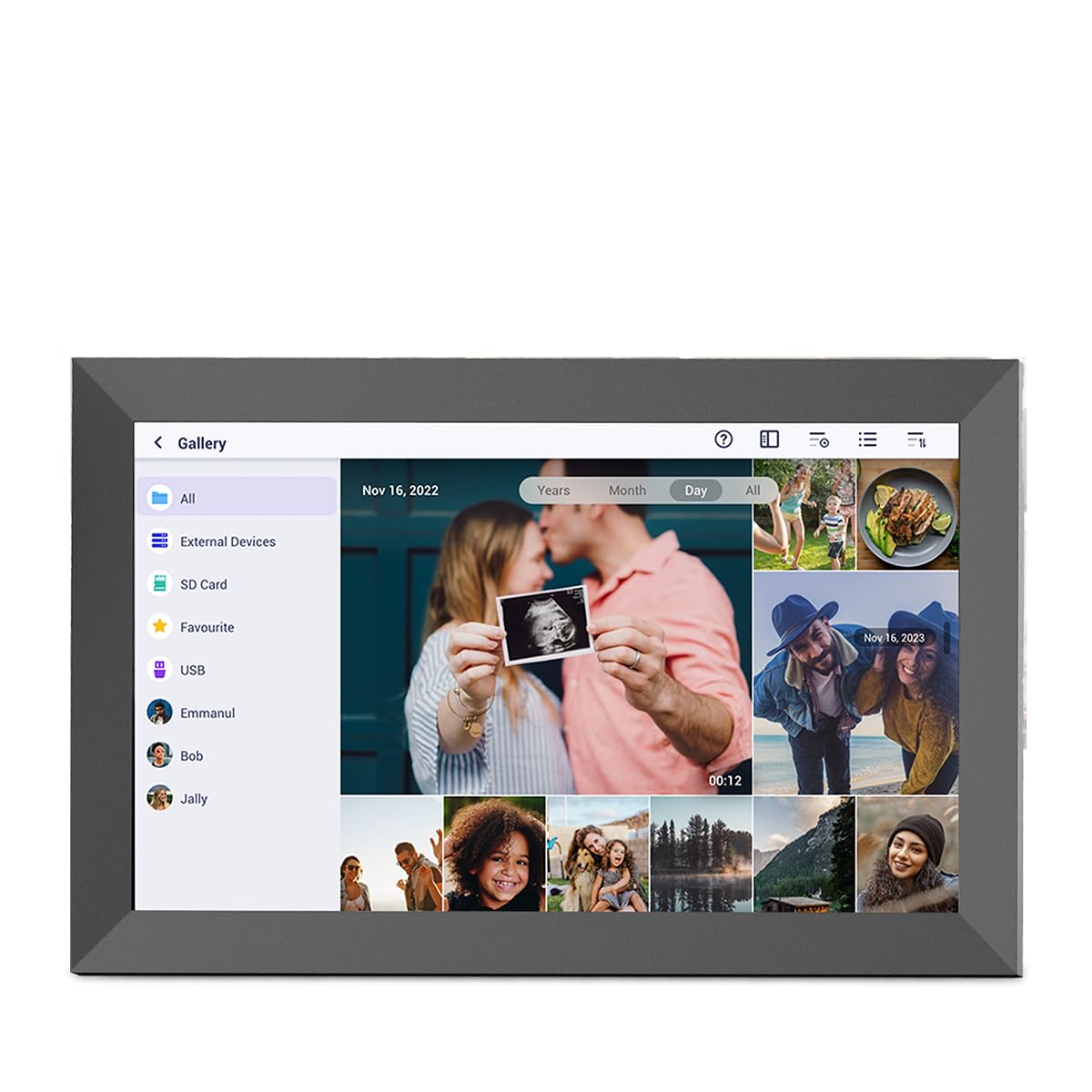
Image: The PRIXTON Prado XL digital photo frame showcasing a family picture.
2. Obsah balenia
Zaškrtnite políčko pri nasledujúcich položkách:
- PRIXTON Prado XL 15.6-inch Digital Photo Frame
- Napájací adaptér
- Používateľská príručka (tento dokument)
3. Produkt skončilview
Familiarize yourself with the various ports and controls on your digital photo frame.

Image: Back panel of the frame, highlighting the power button, USB-A, USB-C, SD card slot, and headphone jack.
Kľúčové komponenty:
- Tlačidlo napájania: Located on the back, used to turn the frame on/off or put it into sleep mode.
- Port USB-A: For connecting USB flash drives to transfer photos and videos.
- Port USB Type-C: For connecting compatible devices or for data transfer.
- Slot na SD kartu: For inserting SD cards to display or transfer media.
- Jack pre slúchadlá: Na pripojenie externých audio zariadení.
- Vstup jednosmerného prúdu: Na pripojenie napájacieho adaptéra.
- Otvory pre montáž na stenu: Na montáž rámu na stenu.
4. Nastavenie
4.1 Zapnutie
- Connect the power adapter to the DC Power Input port on the back of the frame.
- Zapojte napájací adaptér do elektrickej zásuvky.
- The frame will automatically power on. If not, press and hold the Power Button for a few seconds.
4.2 Počiatočná konfigurácia
Upon first startup, you will be guided through the initial setup process:
- Zvoľ jazyk: Vyberte si zo zoznamu preferovaný jazyk.
- Pripojte sa k sieti Wi-Fi: Select your Wi-Fi network and enter the password. A stable internet connection is required for app functionality and software updates.
- Nastaviť dátum a čas: Configure the correct date, time, and time zone.
4.3 Connecting with the Uhale App
The Uhale app allows you to easily send photos and videos directly to your frame from your smartphone.
- Stiahnite si aplikáciu: Hľadať "Uhale" in your smartphone's app store (iOS or Android) and install it.
- Vytvoriť účet: Open the Uhale app and follow the instructions to create a new user account.
- Spárovanie rámu: On your digital photo frame, navigate to the "Settings" menu and find the "Bind Device" or "Add Device" option. This will display a unique code or QR code.
- Enter Code/Scan QR: In the Uhale app, select "Add Device" and either manually enter the code displayed on your frame or use your phone's camera to scan the QR code.
- Po spárovaní môžete začať odosielať fotografie a videá do rámika.

Image: A smartphone screen showing the Uhale app interface next to the digital photo frame.
5. Obsluha rámu
5.1 Navigácia na dotykovej obrazovke
The Prado XL features a responsive touchscreen for easy navigation:
- Klepnite na: Select an item or open a menu.
- Potiahnutie prstom: Navigate through photos, menus, or lists.
- Priblíženie štipnutím prstov: Zoom in or out on photos (if supported by software).
5.2 Pridávanie fotografií a videí
There are several ways to add media to your frame:
5.2.1 Via Uhale App
- Open the Uhale app on your paired smartphone.
- Vyberte fotografie alebo videá, ktoré chcete odoslať.
- Tap the "Send" or "Share" button to transfer them to your frame.
- The media will appear on your frame shortly, provided it is connected to Wi-Fi.
5.2.2 Via USB Drive or SD Card
- Insert a USB flash drive into the USB-A port or an SD card into the SD card slot.
- The frame will detect the external storage. Navigate to the "Gallery" or "Files" section.
- Select the desired photos or videos and choose to copy them to the frame's internal memory.

Image: User interacting with the Uhale app to send content to the digital photo frame.
5.3 Managing Content and Slideshows
- Galéria: Access all your stored photos and videos. You can view them individually or start a slideshow.
- Odstrániť: Select unwanted media and choose the delete option.
- Nastavenia prezentácie: Customize slideshow duration, transition effects, and playback order in the settings menu.

Image: The digital photo frame displaying a lively birthday party scene.
6. Ponuka nastavení
Access the settings menu by tapping the gear icon on the home screen. Here you can configure various aspects of your frame:
- Displej: Adjust brightness, screen sleep time, and display mode.
- Wi-Fi: Spravujte svoje sieťové pripojenia.
- Dátum a čas: Manually set or synchronize date and time.
- Ukladací priestor: View internal storage usage and manage external storage devices.
- O: View device information, including software version and model number.
7. Údržba
7.1 Čistenie obrazovky
Dotykovú obrazovku jemne utrite mäkkou handričkou, ktorá nepúšťa vlákna. V prípade odolných škvŕn ju jemne utriteamphandričku vodou alebo čistiacim roztokom vhodným na čistenie obrazoviek. Nepoužívajte agresívne chemikálie ani abrazívne materiály.
7.2 Aktualizácie softvéru
Ensure your frame is connected to Wi-Fi to receive automatic software updates. Updates provide new features, performance improvements, and bug fixes. You can manually check for updates in the "Settings" > "About" menu.
8. Riešenie problémov
| Vydanie | Možné riešenie |
|---|---|
| Rám sa nezapne. | Uistite sa, že napájací adaptér je bezpečne pripojený k rámu aj k funkčnej elektrickej zásuvke. Skúste inú zásuvku. |
| Nedá sa pripojiť k sieti Wi-Fi. | Check if your Wi-Fi router is on and working. Re-enter the Wi-Fi password carefully. Move the frame closer to the router. |
| Fotografie/videá sa nezobrazujú. | Verify that the media has been successfully uploaded via the app or copied from USB/SD. Check file formats for compatibility. Ensure the frame is connected to Wi-Fi if using the app. |
| Dotyková obrazovka nereaguje. | Restart the frame by holding the power button. Ensure the screen is clean and free of debris. |
| Frame is slow or freezes. | Restart the frame. Clear some internal storage if it is nearly full. |
9. Špecifikácie
| Funkcia | Detail |
|---|---|
| Číslo modelu | 10006183 |
| Veľkosť displeja | 15.6 palca |
| Typ zobrazenia | IPS dotykový displej |
| Rozlíšenie | 1920 x 1080 Full HD |
| Vnútorná pamäť | 32 GB Flash |
| RAM | 1 GB |
| Konektivita | Wi-Fi |
| Porty | USB Type-C, USB-A, SD Card Slot, Headphone Jack |
| Zvuk | Integrované reproduktory |
| Rozmery (D x Š x V) | 14 x 21 x 2.51 cm |
10. Záruka a podpora
PRIXTON products are designed and manufactured to the highest quality standards. For information regarding warranty coverage, please refer to the warranty card included with your product or visit the official PRIXTON webstránky.
If you encounter any issues or have questions not covered in this manual, please contact PRIXTON customer support for assistance. You can find contact details on the PRIXTON webstránky alebo prostredníctvom vašej nákupnej platformy.
Online podpora: Visit the PRIXTON Store on Amazon