
1. Úvod
Thank you for choosing the iPazzPort Mini Wireless Keyboard. This compact device offers dual-mode connectivity (2.4G wireless and Bluetooth), a precision touchpad, 3-color backlighting, and an IR learning remote function. It is designed for versatile use with Smart TVs, Android TV Boxes, PCs, Laptops, Projectors, PS5, Xbox, and other compatible devices. This manual provides detailed instructions for setup, operation, maintenance, and troubleshooting to ensure optimal performance.
2. Obsah balenia
Skontrolujte, prosím, balenie, či neobsahuje nasledujúce položky:
- 1 x iPazzPort Mini Wireless Keyboard
- 1 x USB Dongle (2.4G receiver)
- 1 x USB nabíjací kábel
- 1 x Návod na použitie
- 1 x Lithium Polymer Battery (pre-installed or separate)
3. Produkt skončilview
The iPazzPort Mini Wireless Keyboard combines multiple functionalities into a single, portable unit. Key features include:
- Dvojrežimové pripojenie: Seamlessly switch between 2.4G wireless (via USB dongle) and Bluetooth connections.
- Presný dotykový panel: High-sensitivity multi-touch trackpad with gesture support for easy navigation.
- IR Learning Remote: 8 programmable keys to learn functions from your existing TV or projector remote.
- 3-farebné podsvietenie: Adjustable red, green, and blue backlighting for visibility in low-light conditions.
- Nabíjateľná batéria: Built-in lithium battery, rechargeable via USB.
- Kompaktný dizajn: Pocket-sized for portability and convenience.

Image: The iPazzPort Mini Wireless Keyboard, showcasing its compact design and layout.
4. Nastavenie
4.1 Nabíjanie klávesnice
- Pripojte dodaný nabíjací kábel USB k nabíjaciemu portu klávesnice.
- Druhý koniec kábla pripojte k zdroju napájania USB (napr. k portu USB počítača, adaptéru USB do steny).
- Rozsvieti sa kontrolka nabíjania. Po úplnom nabití zhasne alebo zmení farbu.
4.2 Bezdrôtové pripojenie 2.4G
This mode uses the included USB dongle for a stable wireless connection up to 10 meters.
- Insert the USB dongle into an available USB port on your device (Smart TV, PC, Projector, etc.).
- Turn on the keyboard by sliding the power switch to the 'ON' position.
- The keyboard should automatically connect to the dongle. The indicator light may flash briefly and then turn off, indicating a successful connection.

Image: The iPazzPort keyboard demonstrating its universal compatibility with various devices like laptops, tablets, and smart TVs.
4.3 Pripojenie Bluetooth
This mode allows connection to Bluetooth-enabled devices without a dongle.
- Uistite sa, že je klávesnica nabitá a zapnutá.
- Stlačte a podržte Fn kľúč a Bluetooth icon key (usually F1 or a dedicated Bluetooth key) simultaneously for 3-5 seconds until the Bluetooth indicator light starts flashing rapidly. This puts the keyboard into pairing mode.
- Na zariadení prejdite do nastavení Bluetooth a vyhľadajte nové zariadenia.
- Select "iPazzPort Keyboard" or a similar name from the list of available devices.
- If prompted, enter the pairing code displayed on your device using the iPazzPort keyboard and press Enter.
- Once paired, the Bluetooth indicator light on the keyboard will stop flashing and turn off.
4.4 IR Learning Function Setup
The keyboard can learn up to 8 infrared (IR) functions from your existing TV or projector remote.
- Place the iPazzPort keyboard and your original remote control head-to-head, approximately 1-3 cm apart.
- Stlačte a podržte SET button on the iPazzPort keyboard for 3-5 seconds until the IR indicator light starts flashing slowly. This indicates learning mode.
- Press the button on the iPazzPort keyboard that you wish to program (e.g., Power button). The IR indicator light will flash rapidly.
- Press the corresponding button on your original remote control (e.g., Power button). The IR indicator light on the iPazzPort keyboard will flash three times and then remain solid, indicating successful learning.
- Repeat steps 3 and 4 for the other 7 programmable IR keys.
- After programming all desired keys, press the SET button again to exit learning mode. The IR indicator light will turn off.

Image: Diagram illustrating the IR learning process, showing the iPazzPort keyboard and an original remote facing each other, with programmable buttons highlighted.
5. Návod na obsluhu
5.1 Základné funkcie klávesnice
- písanie: Use the QWERTY layout for text input.
- Funkčné klávesy: Stlačte tlačidlo Fn key simultaneously with the F1-F12 keys (or other marked function keys) to access their secondary functions (e.g., volume control, media playback).
- Špeciálne znaky: Použite Shift or Fn in combination with other keys for special characters.
5.2 Gestá na touchpade
The touchpad supports various gestures for navigation:
- Ťuknutie jedným prstom: Ľavý klik.
- Klepnutie dvoma prstami: Kliknite pravým tlačidlom myši.
- Ťahanie jedným prstom: Presunúť kurzor.
- Posúvanie dvoma prstami: Posúvanie hore/dole alebo doľava/doprava.
- Priblíženie štipkou prstov: (If supported by device) Use two fingers to zoom in/out.

Image: The iPazzPort keyboard with a hand demonstrating touchpad usage for precise control and navigation.
5.3 Ovládanie podsvietenia
To adjust the backlight:
- Stlačte tlačidlo Fn kľúč a F2 key (or the dedicated backlight key) simultaneously to cycle through red, green, blue, and off.

Obrázok: Štyri views of the iPazzPort keyboard, demonstrating the red, green, and blue backlight options, as well as the unlit state.
5.4 Správa napájania
- Automatický spánok: The keyboard will enter sleep mode after a period of inactivity to conserve battery. Press any key to wake it up.
- Vypnúť: Slide the power switch to 'OFF' when not in use for extended periods.
6. Údržba
6.1 Čistenie
- Pred čistením klávesnicu vypnite.
- Na utretie povrchu použite mäkkú, suchú handričku. Na odolnú špinu použite mierneamp handričkou a potom suchou handričkou.
- Vyhnite sa používaniu agresívnych chemikálií, rozpúšťadiel alebo abrazívnych čistiacich prostriedkov.
6.2 Starostlivosť o batérie
- Charge the keyboard regularly, especially if it has not been used for a long time.
- Vyhnite sa častému úplnému vybíjaniu batérie, pretože to môže skrátiť jej životnosť.
- Do not expose the keyboard to extreme temperatures (hot or cold).
7. Riešenie problémov
| Problém | Možná príčina | Riešenie |
|---|---|---|
| Keyboard not responding (2.4G) | Low battery; Dongle not properly inserted; Out of range; Driver issue. | Charge keyboard; Re-insert dongle; Move closer to device; Try on another USB port/device. |
| Klávesnica nereaguje (Bluetooth) | Low battery; Not paired; Bluetooth off on device; Out of range. | Charge keyboard; Re-pair the keyboard; Enable Bluetooth on device; Move closer to device. |
| IR learning fails | Remotes too far apart; Incorrect button press; Original remote battery low. | Ensure remotes are 1-3 cm apart; Press buttons firmly; Replace original remote battery. |
| Podsvietenie nefunguje | Podsvietenie vypnuté; Slabá batéria. | Press Fn+F2 to cycle backlight; Charge keyboard. |
| Touchpad erratic | Dirty touchpad; Interference; Software issue on device. | Clean touchpad; Move away from other wireless devices; Restart device. |
8. Špecifikácie
| Funkcia | Detail |
|---|---|
| Číslo modelu | 61SM |
| Konektivita | 2.4G RF, Bluetooth |
| Prevádzkový rozsah | Až 10 33 metrov (XNUMX XNUMX stôp) |
| Farby podsvietenia | Červená, zelená, modrá (RGB) |
| Typ batérie | Nabíjateľný lítiový polymér |
| Nabíjací port | USB |
| Počet kľúčov | 92 |
| Hmotnosť | 100 gramov |
| Materiál | Polymér |
| Kompatibilné zariadenia | Gaming Console, Laptop, PC, Television |
| Rozloženie klávesnice | QWERTY |
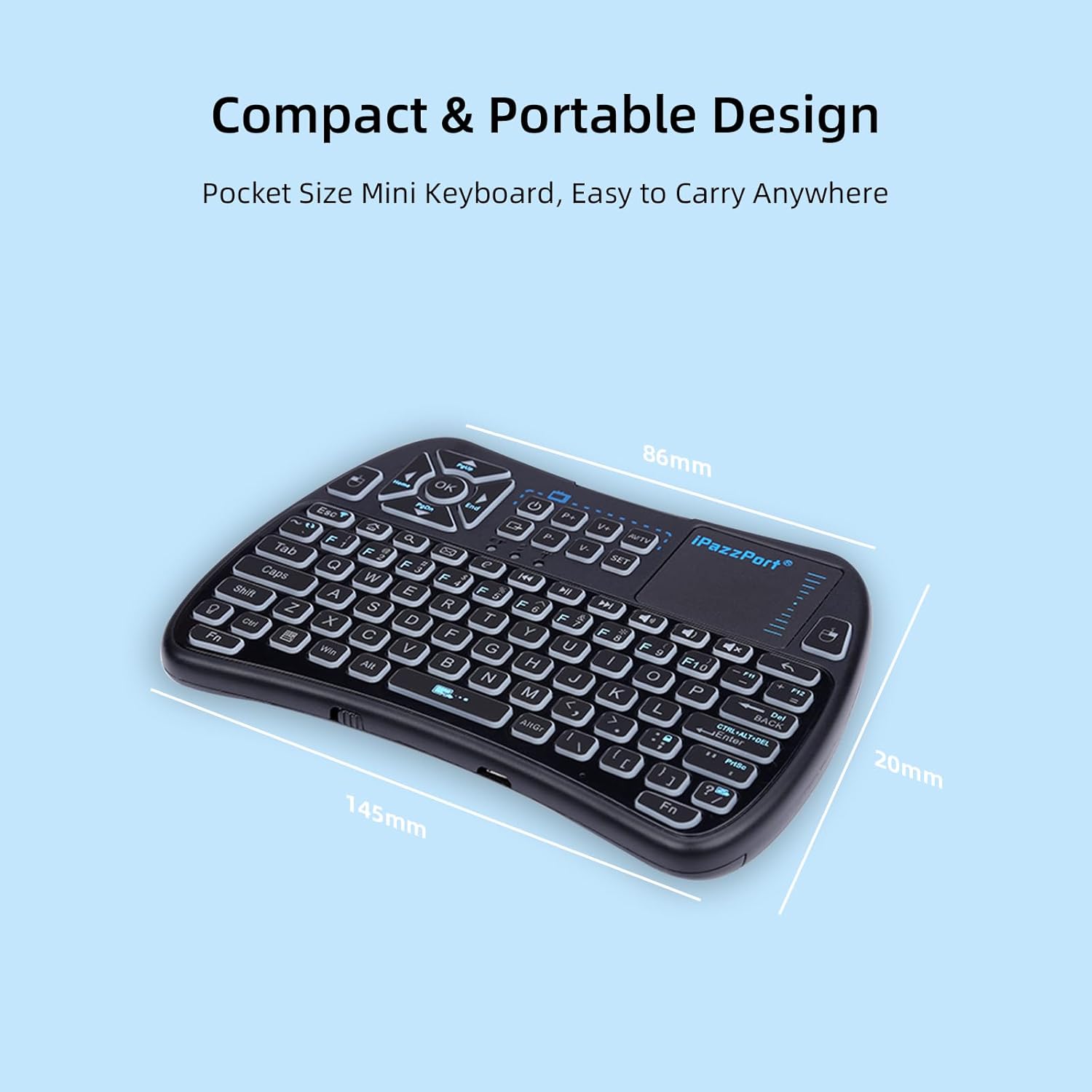
Image: The iPazzPort keyboard with dimensions (145mm x 86mm x 20mm) highlighting its compact and portable design.
9. Informácie o záruke
This iPazzPort product comes with a 1-ročná záruka výrobcu from the date of purchase. The warranty covers defects in materials and workmanship under normal use. It does not cover damage caused by misuse, accidents, unauthorized modifications, or external causes. Please retain your proof of purchase for warranty claims.
10. Podpora
For technical support, warranty claims, or further assistance, please contact iPazzPort customer service through the retailer's platform or visit the official iPazzPort website. Please have your model number (61SM) and purchase details ready when contacting support.