
Úvod
This manual provides detailed instructions for the setup, operation, and maintenance of your Doohoeek Keyboard Folio with Status Screen. This accessory is designed to enhance the functionality of your Samsung Galaxy Tab S11 11 inch 2025, transforming it into a versatile workstation with a comfortable typing experience and integrated protection.
Kompatibilita
This keyboard folio is exclusively compatible with the Samsung Galaxy Tab S11 11-inch 2025 (model numbers: SM-X730 a SM-X736B).
To verify your tablet's model number, navigate to Settings > About tablet on your device, or check the back of your tablet for the printed model information.

Image: Illustration showing the keyboard folio's compatibility with the Samsung Galaxy Tab S11 2025 11-inch tablet.
Kľúčové vlastnosti
- Obrazovka zobrazenia stavu: Provides real-time information on battery level, connection status, and charging status.
- Podsvietené klávesy: Features 7 adjustable colors and 3 brightness levels for comfortable typing in various lighting conditions.
- Integrovaný trackpad: Supports multi-touch gestures and palm-rejection technology for precise navigation.
- Any-Angle Kickstand: Allows for smooth adjustment of viewing angles in both horizontal and vertical orientations.
- Removable Magnetic Keyboard: The keyboard can be easily detached from the folio for flexible use.
- S-Pen Holder: A dedicated cutout in the case securely holds and provides easy access to your S-Pen.
- Nabíjateľná batéria: Vstavaná batéria s kapacitou 650 mAh pre dlhšiu výdrž.
- Klávesy nožnicového prepínača: Provides a tactile and responsive typing experience.
- Bluetooth pripojenie: Ensures a stable wireless connection to your tablet.

Obrázok: Detailný záber view of the keyboard's status display screen, showing indicators for pairing, wireless connection, and battery level.

Obrázok: Dva views of the keyboard folio, highlighting the 7-color backlit keys and 3 brightness levels.

Obrázok: Podrobný view of the keyboard folio showing the exact cutout for the S-Pen, the rechargeable battery, and the scissor-switch key mechanism.
Nastavenie
1. Inserting the Tablet
- Gently align your Samsung Galaxy Tab S11 11-inch 2025 with the case's frame.
- Press the tablet firmly into the case until it is securely seated. Ensure all edges are properly covered by the protective frame.
2. Nabíjanie klávesnice
- Locate the charging port on the keyboard (typically USB-C).
- Connect the provided charging cable to the keyboard and a suitable USB power adapter.
- The status display screen will indicate charging status. A full charge typically takes approximately 2-3 hours.
3. Párovanie pomocou Bluetooth
- Uistite sa, že klávesnica je nabitá a zapnutá.
- Na klávesnici stlačte a podržte kláves Fn+C keys simultaneously for 1 second. The status display screen will show "Pairing..." and the Bluetooth indicator will flash.
- On your Samsung Galaxy Tab S11, go to Nastavenia > Pripojené zariadenia > Bluetooth.
- Zapnite Bluetooth a vyhľadajte dostupné zariadenia.
- Select "Doohoeek Keyboard" (or similar name) from the list of devices.
- Follow any on-screen prompts to complete the pairing process. The status display screen will show "Wireless Keyboard Connected" once pairing is successful.

Image: Illustration demonstrating the pairing process, showing the keyboard's status display screen indicating "Pairing..." and "Wireless Keyboard Connected".
Návod na obsluhu
1. Používanie klávesnice a trackpadu
- písanie: The QWERTY layout with scissor-switch keys provides a familiar and comfortable typing experience.
- Trackpad: Use the integrated trackpad for precise cursor control. It supports standard multi-touch gestures for scrolling, zooming, and other functions. Palm-rejection technology helps prevent accidental inputs.

Image: Illustration demonstrating the multi-touch trackpad and palm-rejection feature, showing hands interacting with the trackpad.
2. Nastavenie podsvietenia
- Ak chcete zmeniť farby podsvietenia, stlačte tlačidlo Fn + Light bulb icon key. Cycle through the 7 available colors.
- To adjust backlight brightness, press the Fn + Up/Down arrow keys (or specific brightness keys if available). There are 3 brightness levels.
3. Using the Any-Angle Stand
- The integrated kickstand on the back of the folio allows you to prop up your tablet.
- Adjust the stand to achieve your desired viewing angle for both horizontal (landscape) and vertical (portrait) orientations.

Image: Illustration showing the keyboard folio with the tablet in various viewing angles, demonstrating the versatility of the any-angle stand for both horizontal and vertical use.
4. Odpojenie klávesnice
- The keyboard is held in place by strong magnets. To detach, simply pull the keyboard away from the folio.
- This allows for lighter tablet use when typing is not required, or for more flexible positioning of the keyboard.
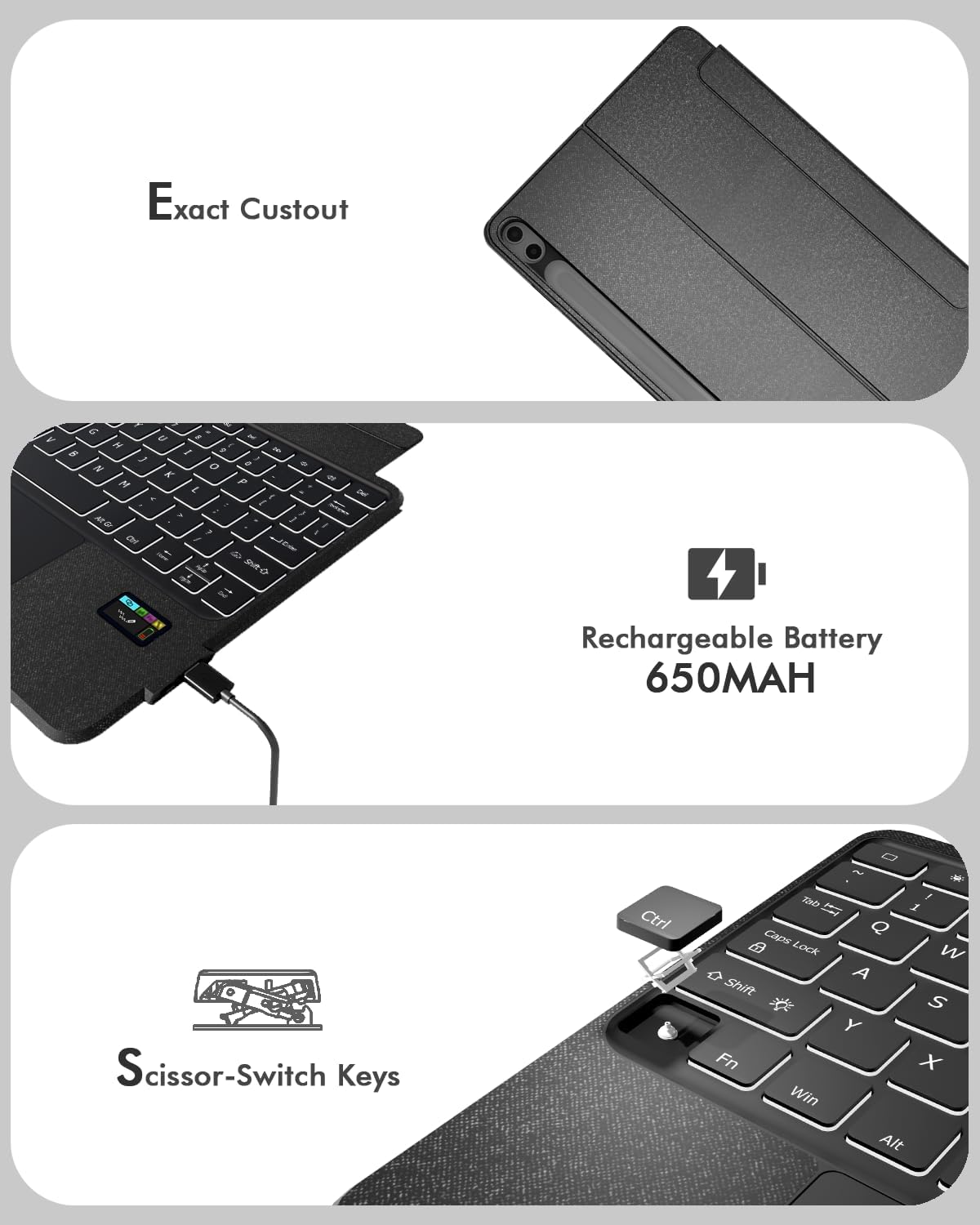
Image: The keyboard folio with the keyboard detached, showcasing the tablet propped up by the kickstand and the separate keyboard unit.
5. S-Pen Access
- The case features a dedicated cutout on the back for storing your S-Pen.
- To retrieve the S-Pen, gently push it through the cutout from the back of the case.
Image: Illustration showing the S-Pen being stored and retrieved from the dedicated holder on the tablet case.
Údržba
Upratovanie
- Na čistenie klávesnice a puzdra použite mäkkúamp plátno.
- Avoid using harsh chemicals or abrasive cleaners, as these can damage the surface.
- Ensure the keyboard is powered off and disconnected from any power source before cleaning.
Starostlivosť o batérie
- For optimal battery life, avoid fully discharging the keyboard frequently.
- Ak klávesnicu dlhší čas nepoužívate, skladujte ju na chladnom a suchom mieste.
Riešenie problémov
Keyboard Not Connecting/Responding
- Skontrolujte batériu: Ensure the keyboard has sufficient charge. Refer to the status display screen.
- Opätovné spárovanie Bluetooth: If the connection is lost, try re-pairing the keyboard with your tablet following the "Bluetooth Pairing" steps in the Setup section.
- Reštartujte zariadenia: Turn off and on both your tablet and the keyboard, then attempt to reconnect.
Keyboard Entering Sleep Mode Too Quickly
- The keyboard is designed to enter a power-saving sleep mode after a period of inactivity.
- To wake it up, simply press any key. There might be a slight delay for the first few keystrokes as it reconnects.
Nefunguje podsvietenie
- Skontrolujte batériu: Slabá batéria môže ovplyvniť funkčnosť podsvietenia. Nabite klávesnicu.
- Upraviť nastavenia: Ensure the backlight is turned on and brightness is set to a visible level using the Fn key combinations.
Špecifikácie
| Značka | Doohoeek |
| Kompatibilné zariadenia | Samsung Galaxy Tab S11 11-inch 2025 (SM-X730/SM-X736B) |
| Technológia pripojenia | Bluetooth |
| Popis klávesnice | Keyboard Folio with Status Screen |
| Špeciálne funkcie | Backlit, Built-In Screen, Integrated Stand, Trackpad, Removable Keyboard |
| Materiál | Plastové |
| Zdroj napájania | Nabíjateľná batéria (650 mAh) |
| Typ prepínača | Mechanical (Scissor-Switch) |
| Rozloženie klávesnice | QWERTY |
| Počet kľúčov | 84 |
Záruka
This Doohoeek Keyboard Folio comes with a 1-ročná záruka od dátumu nákupu. Táto záruka sa vzťahuje na výrobné chyby a chyby spracovania pri bežnom používaní. Nevzťahuje sa na škody spôsobené nesprávnym použitím, nehodami, neoprávnenými úpravami alebo bežným opotrebením.
Uschovajte si doklad o kúpe pre uplatnenie záruky.
Podpora
For technical assistance, troubleshooting beyond this manual, or warranty inquiries, please contact Doohoeek customer support through the retailer where the product was purchased or visit the official Doohoeek webkontaktné informácie.