
Úvod
This manual provides essential information for setting up, operating, maintaining, and troubleshooting your Apple Watch Series 11 GPS + Cellular 42mm. Please read it thoroughly to ensure proper use and to maximize your device's capabilities.
- Know Your Sleep Score: Track and understand your sleep quality for improved rest.
- Zdravotné poznatky: Take ECGs, receive notifications for heart rate irregularities, and monitor blood oxygen levels with the Vitals app.
- Dizajn: The thin and lightweight design ensures comfort for continuous wear, including during exercise and sleep.
- Fitness partner: Utilize advanced metrics for workouts, including Pacer, Heart Rate Zones, training load, and Workout Buddy powered by Apple Intelligence (requires nearby iPhone).
- Životnosť batérie: Enjoy up to 24 hours of normal use, with fast charging providing up to 8 hours of use in just 15 minutes.

Obrázok: Cezview of Apple Watch Series 11 features including health insights, battery life, sleep score, and 5G connectivity.
Čo je v krabici
Skontrolujte, či sú v balení všetky komponenty:
- Puzdro na Apple Watch
- Sport Band (M/L size for 160–210mm wrists)
- 1m magnetický nabíjací kábel

Image: The Apple Watch Series 11 packaging contents, showing the watch case, sport band, and USB-C magnetic fast charging cable.
Nastavenie
1. Pripevnenie remienka
Zasuňte remienok do otvorov na hornej a dolnej strane puzdra Apple Watch, kým nepocítite a nebudete počuť cvaknutie. Pred nasadením sa uistite, že je remienok bezpečne upevnený.
2. Nabíjanie hodiniek Apple Watch
Connect the 1m Magnetic Charging Cable to a USB-C power adapter (sold separately) and plug it into a power outlet. Place the back of your Apple Watch on the magnetic charger. The watch will display a charging indicator. Allow the watch to charge fully before initial use.
3. Párovanie s iPhonom
- Uistite sa, že váš iPhone je aktualizovaný na najnovšiu verziu systému iOS a má zapnuté funkcie Bluetooth a Wi-Fi.
- Zapnite hodinky Apple Watch stlačením a podržaním bočného tlačidla, kým sa nezobrazí logo Apple.
- Bring your iPhone near your Apple Watch. A pairing animation will appear on your iPhone. Tap 'Continue'.
- Umiestnite iPhone tak, aby sa vaše Apple Watch zobrazovali v viewvyhľadávač v aplikácii Apple Watch.
- Follow the on-screen instructions on both devices to complete the pairing process, including setting up cellular service if desired.
Návod na obsluhu
Základná navigácia
- Digitálna koruna: Otočením môžete posúvať, približovať alebo upravovať hodnoty. Jedným stlačením prejdete na ciferník hodiniek alebo zoznam aplikácií. Dvojitým stlačením prepínate medzi poslednými dvoma aplikáciami. Stlačením a podržaním aktivujete Siri.
- Bočné tlačidlo: Press once to open the Dock (recent apps). Double-press for Apple Pay. Press and hold for emergency services or to power off.
- Dotykový displej: Tap to select, swipe to navigate, force touch for additional options (if available).
Monitorovanie zdravia
The Apple Watch Series 11 offers advanced health features:
- Aplikácia EKG: Take an electrocardiogram to record your heart's electrical activity. Open the ECG app and follow the on-screen instructions.
- Monitorovanie srdcovej frekvencie: The watch continuously monitors your heart rate. You will receive notifications for unusually high or low heart rates, and irregular rhythms.
- Aplikácia na meranie kyslíka v krvi: Measure your blood oxygen saturation on demand.
- Sledovanie spánku: Noste si hodinky do postele a sledujte si spánoktages and receive a sleep score in the Vitals app.
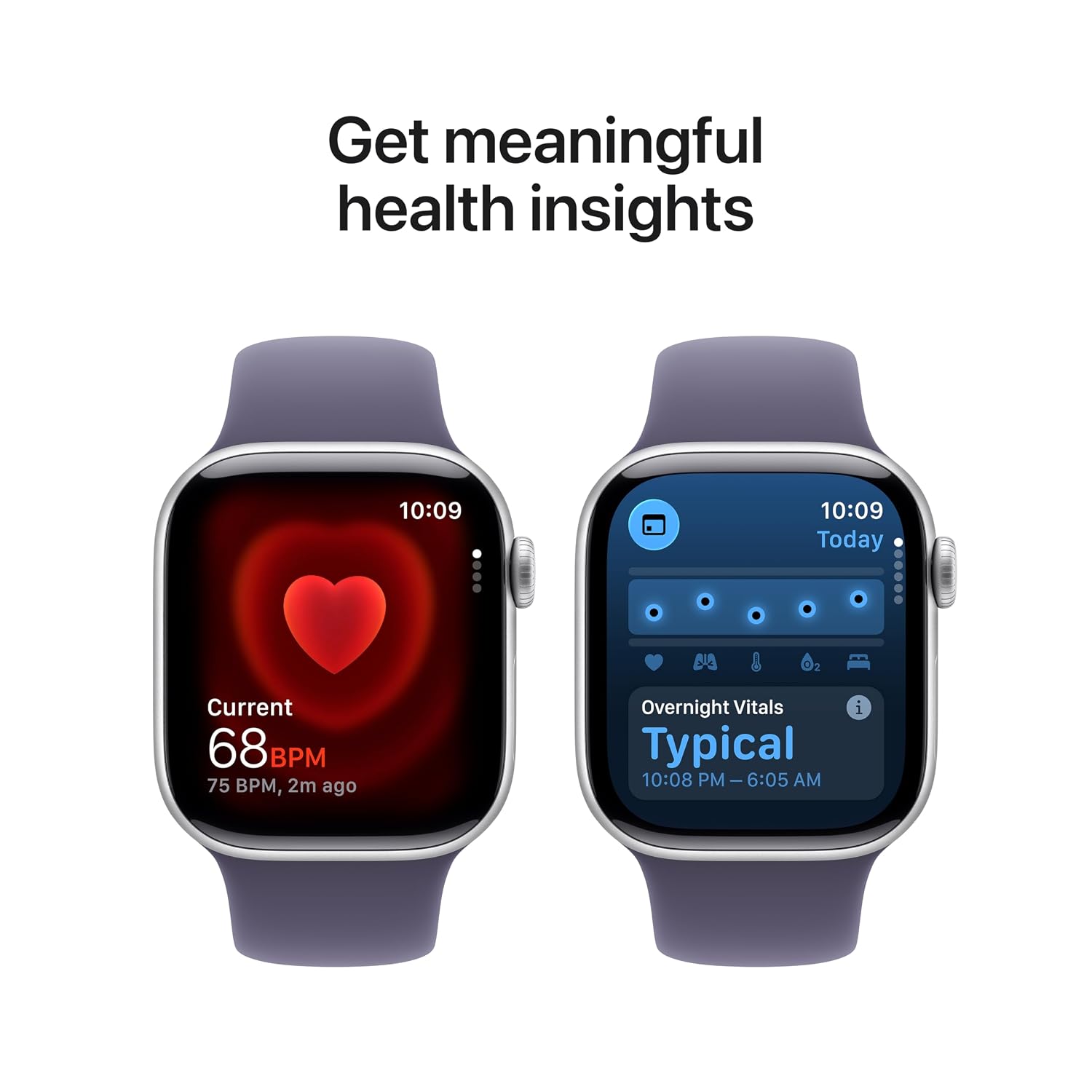
Image: The Apple Watch Series 11 showing current heart rate and overnight vitals within the Vitals app.
Sledovanie kondície
Sledujte svoju dennú aktivitu a tréningy s presnosťou:
- Aktivitné krúžky: Monitor your Move, Exercise, and Stand goals throughout the day.
- Aplikácia na cvičenie: Select from various workout types, including running, cycling, swimming, and more. The watch provides advanced metrics like Pacer, Heart Rate Zones, and training load.
- Kamarát na cvičenie: Utilize Apple Intelligence features from your nearby iPhone for enhanced workout guidance.

Image: The Apple Watch Series 11 showing activity rings on one screen and the interface for an Outdoor Run workout on another.
Mobilná konektivita
With GPS + Cellular, your Apple Watch can make calls, send messages, and stream music even when your iPhone is not nearby, provided you have an active cellular plan with a compatible carrier.

Image: A person wearing an Apple Watch Series 11, highlighting its 5G connectivity for independent use.
Údržba
Čistenie hodiniek Apple Watch
- Vypnite hodinky Apple Watch a odpojte ich od nabíjačky.
- Hodinky utrite neabrazívnou handričkou, ktorá nepúšťa vlákna. V prípade potreby ich jemne očistite.ampsk handričkou čerstvou vodou.
- Pri čistení remienka postupujte podľa špecifických pokynov na základe jeho materiálu (napr. silikónové remienky je možné utrieť čistiacim prostriedkom).amp cloth and mild soap).
- Nepoužívajte agresívne chemikálie alebo abrazívne materiály.
Odolnosť voči vode
The Apple Watch Series 11 is water resistant, but not waterproof. It can be used for shallow-water activities like swimming in a pool or ocean. It should not be used for scuba diving, waterskiing, or other activities involving high-velocity water or submersion below shallow depths. Water resistance may decrease over time. Avoid exposing the watch to soap, shampoo, conditioner, lotions, perfumes, solvents, detergent, acids, acidic foods, insect repellent, sunscreen, oil, or hair dye, as these can negatively affect water seals and acoustic membranes.
Aktualizácie softvéru
Keep your Apple Watch software updated to ensure optimal performance and access to the latest features and security enhancements. Updates are managed through the Apple Watch app on your paired iPhone.
Riešenie problémov
Bežné problémy a riešenia
- Hodinky sa nezapínajú: Ensure the watch is charged. Place it on the magnetic charging cable for at least 30 minutes. If it still doesn't turn on, force restart it by holding both the side button and Digital Crown for at least 10 seconds until you see the Apple logo.
- Problémy s párovaním: Ensure your iPhone's Bluetooth is on and both devices are close to each other. Restart both your iPhone and Apple Watch. If issues persist, unpair the watch from your iPhone (if previously paired) and attempt to pair again.
- Slabá výdrž batérie: Check for background app refresh settings. Reduce screen brightness. Disable 'Always On Display' if not needed. Ensure software is up to date.
- Aplikácie nereagujú: Force quit the app by pressing the side button, then swipe left on the app and tap the 'X' button. Reopen the app. If the issue continues, restart your Apple Watch.
- Cellular Connectivity Problems: Verify your cellular plan is active and compatible with Apple Watch. Check your carrier's coverage in your area. Ensure cellular data is enabled on your watch.
Kontaktovanie podpory
If you encounter issues that cannot be resolved using this guide, please visit the official Apple Support website or contact Apple customer service for further assistance.
Špecifikácie
| Funkcia | Detail |
|---|---|
| Číslo modelu | MF8J4HN/A |
| Operačný systém | WatchOS |
| Kapacita pamäte | 64 GB |
| Špeciálne funkcie | Activity Tracker, Alarm Clock, Always On Display, Fall Detection, GPS |
| Kapacita batérie | 0.1 milamp Hours (up to 24 hours normal use) |
| Technológia pripojenia | Bluetooth, mobilné pripojenie |
| Hmotnosť položky | 29.6 g |
| Výrobca | Apple |
| Krajina pôvodu | Čína |
Záruka a podpora
Informácie o záruke
Your Apple Watch Series 11 is covered by Apple's standard limited warranty. For detailed terms and conditions, please refer to the warranty documentation included with your product or visit the official Apple website. Extended coverage, such as '1 Year Protect+ with AppleCare Service', may be available for purchase separately.
Zákaznícka podpora
For technical assistance, service, or to find authorized service providers, please visit the official Apple Support webstránka (support.apple.com) or contact Apple customer service directly. Have your device's serial number ready when contacting support.