
1. Úvod
Thank you for choosing the Pisichen 27-inch 4K UHD Touchscreen Monitor with Webcam. This manual provides essential information for the safe and efficient operation of your new monitor. Please read it thoroughly before use and retain it for future reference.
2. Bezpečnostné informácie
- Zdroj napájania: Use only the power adapter supplied with the monitor. Ensure the power outlet meets the voltage požiadavky.
- Vetranie: Neblokujte vetracie otvory. Okolo monitora nechajte dostatočný priestor pre správne prúdenie vzduchu.
- Expozícia kvapalín: Monitor chráňte pred tekutinami. Nevystavujte ho dažďu ani vlhkosti.
- Čistenie: Disconnect the power cable before cleaning. Use a soft, dry cloth. Avoid abrasive cleaners.
- umiestnenie: Monitor umiestnite na stabilný, rovný povrch, aby ste predišli jeho pádu.
- servis: Nepokúšajte sa monitor opravovať sami. Všetky opravy zverte kvalifikovanému personálu.
3. Obsah balenia
Po vybalení skontrolujte obsah balenia. Ak niektoré položky chýbajú alebo sú poškodené, kontaktujte svojho predajcu.
- Pisichen 27-inch 4K UHD Touchscreen Monitor
- Stojan na monitor (základňa a rameno)
- Napájací adaptér
- HDMI kábel
- USB-B to USB-A Cable (for Touch Function)
- Používateľská príručka
4. Produkt skončilview
4.1 Kľúčové vlastnosti
- Ultra HD 4K Touchscreen Display: 27-inch 4K Ultra HD screen with vibrant colors, sharp details, and wide viewing angles. Features a responsive 10-point touchscreen for intuitive control.
- Built-in High-Definition Webkamera: Integrovaný webcam for video calls, online meetings, and streaming, reducing desk clutter.
- Všestranná konektivita: Multiple ports including HDMI, DisplayPort, and USB-C for easy connections to various devices. Supports both touch and traditional input.
- Optimized for Productivity and Creativity: Large 4K touch display for precise control and streamlined workflows, ideal for graphic designers, content creators, and multitasking.
- Sleek and Functional Design: Modern design with an adjustable stand for optimal viewing angles and comfort during extended use.
4.2 Monitorovacie porty
The monitor features various ports for connecting to your devices. Refer to the image below for port identification.
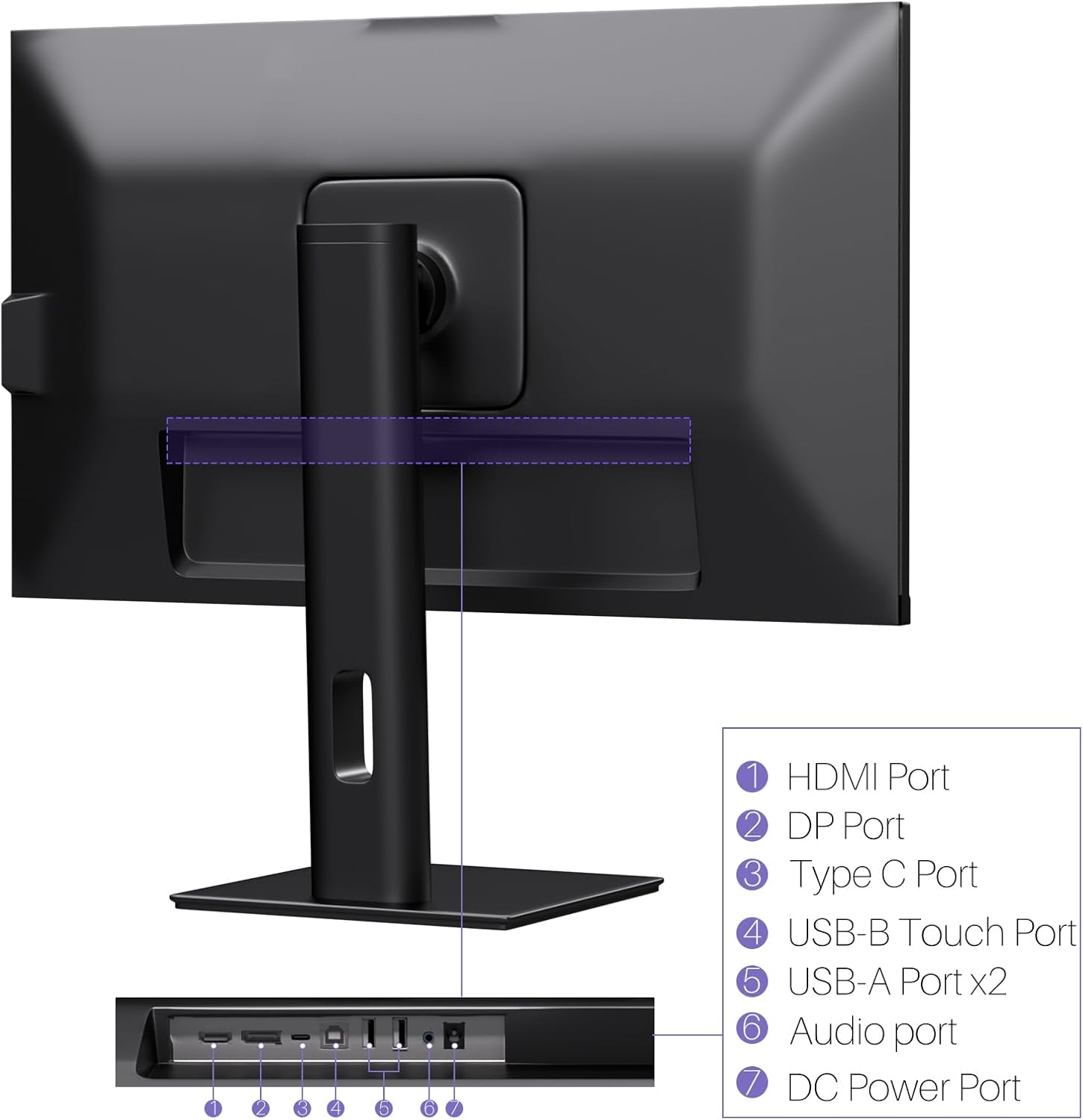
Obrázok: Zadná strana view of the monitor displaying the HDMI, DP, Type-C, USB-B Touch, USB-A, Audio, and DC Power ports.
- Port HDMI: Connects to devices via HDMI cable for video and audio input.
- DP port: Connects to devices via DisplayPort cable for video and audio input.
- Port typu C: Connects to devices via USB-C cable for video, audio, and power delivery. (Requires USB-C port on signal device to support DisplayPort Alternate Mode for touch functionality).
- USB-B Touch Port: Connects to your computer via USB-B to USB-A cable to enable touchscreen functionality.
- Port USB-A (x2): Na pripojenie periférnych zariadení USB.
- Zvukový port: Na pripojenie externých audio zariadení.
- DC napájací port: Pripája sa k napájaciemu adaptéru.
5. Pokyny na nastavenie
5.1 Montáž stojana
- Opatrne vyberte komponenty monitora a stojana z obalu.
- Attach the stand arm to the monitor's VESA mounting points.
- Secure the stand base to the arm using the provided screws.
- Ensure all connections are tight and the monitor is stable.
5.2 Pripojenie k zariadeniu
The monitor supports various connection types. Choose the appropriate cable for your device.

Image: Connection diagrams illustrating how to connect the monitor as a secondary display (HDMI/DP + DC), a touchscreen monitor (HDMI/DP + USB-B + DC), or via USB-C (USB-C + DC).
- For Video and Audio (Non-Touch): Connect an HDMI or DisplayPort cable from your computer to the corresponding port on the monitor.
- For Video, Audio, and Touch (Windows PC): Connect an HDMI or DisplayPort cable for video/audio. Additionally, connect the USB-B to USB-A cable from the monitor's USB-B Touch Port to a USB-A port on your computer.
- For Video, Audio, and Touch (USB-C Compatible Device): Connect a USB-C cable from your device to the monitor's Type-C port. Ensure your device's USB-C port supports DisplayPort Alternate Mode for touch functionality.
5.3 Pripojenie napájania
- Connect the power adapter to the monitor's DC Power Port.
- Zapojte napájací adaptér do elektrickej zásuvky.
6. Návod na obsluhu
6.1 Zapnutie/vypnutie
Stlačením tlačidla napájania umiestneného na monitore ho zapnete alebo vypnete.
6.2 Ponuka na obrazovke (OSD).
Use the control buttons (typically located on the back or bottom of the monitor) to navigate the OSD menu. This menu allows you to adjust settings such as brightness, contrast, color temperature, input source, and other display parameters.
6.3 Funkcia dotykovej obrazovky
The monitor features a 10-point multi-touch screen. Ensure the USB-B to USB-A cable (or USB-C cable for compatible devices) is connected to enable touch functionality.
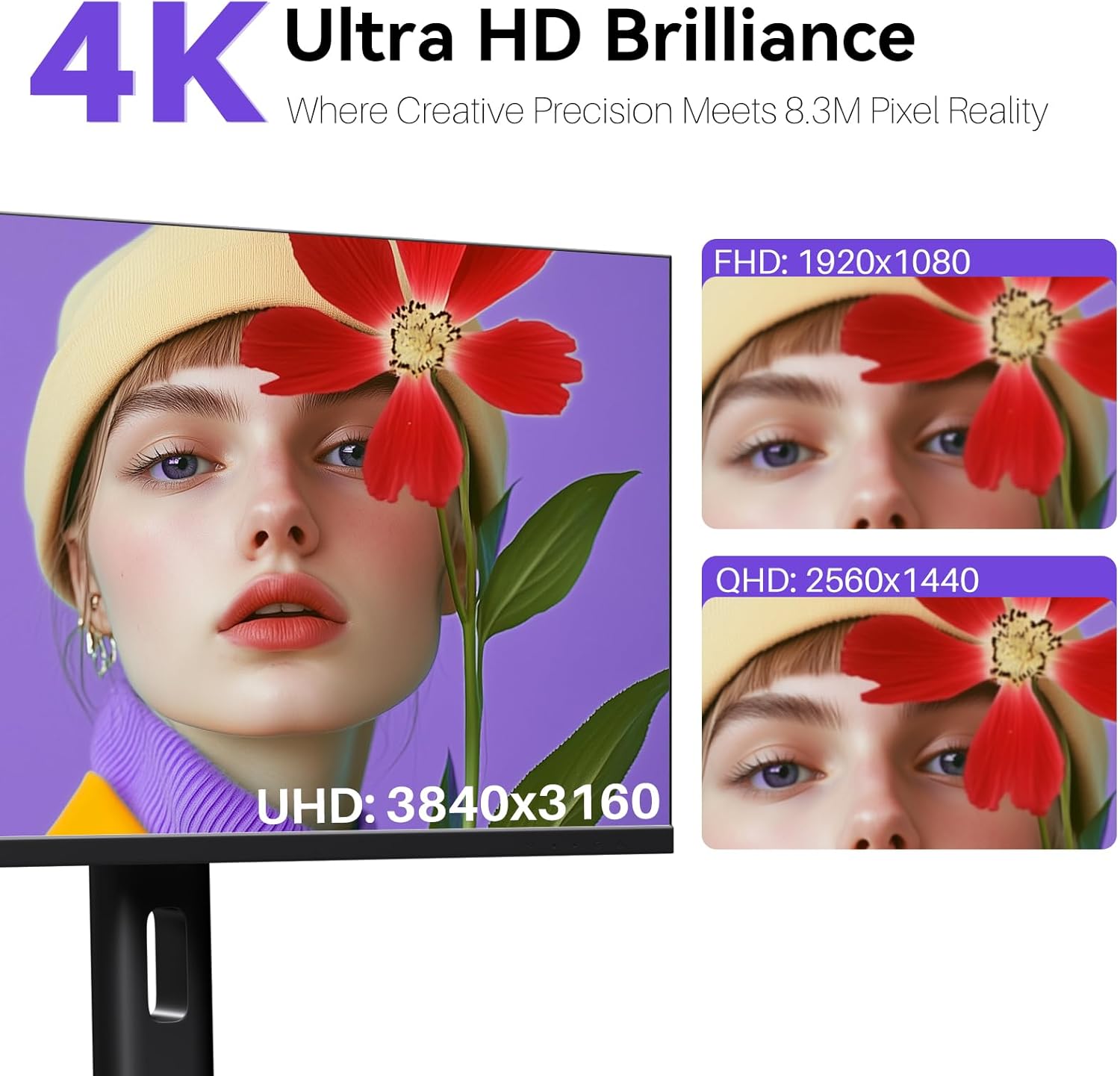
Image: A user's hand interacting with the monitor screen, highlighting the responsive 10-point touch experience.
- Basic Touch: Tap to click, swipe to scroll.
- Viacdotykové gestá: Use two fingers to zoom in/out, rotate, or pan, depending on the application.
- Touch Calibration (Windows Only): If the cursor does not align with your touch, calibration may be required. Go to Control Panel > Hardware and Sound > Tablet PC Settings > Calibrate. Follow the on-screen prompts.
6.4 Using the Built-in Webvačka
Integrovaný webcam is automatically detected by most operating systems and video conferencing applications. No additional drivers are typically required.

Image: The monitor displaying a video conference call, showcasing its integrated webcam for seamless communication.
- Open your preferred video conferencing software (e.g., Zoom, Microsoft Teams, Skype).
- Select the integrated webcam as your video input device in the application's settings.
6.5 Adjusting Display Resolution
To set the resolution of the monitor (Windows):
- Right-click on your desktop and select "Display Settings."
- Find your monitor (if multiple displays are connected).
- Under "Display resolution," select the recommended resolution of 3840 x 2160.
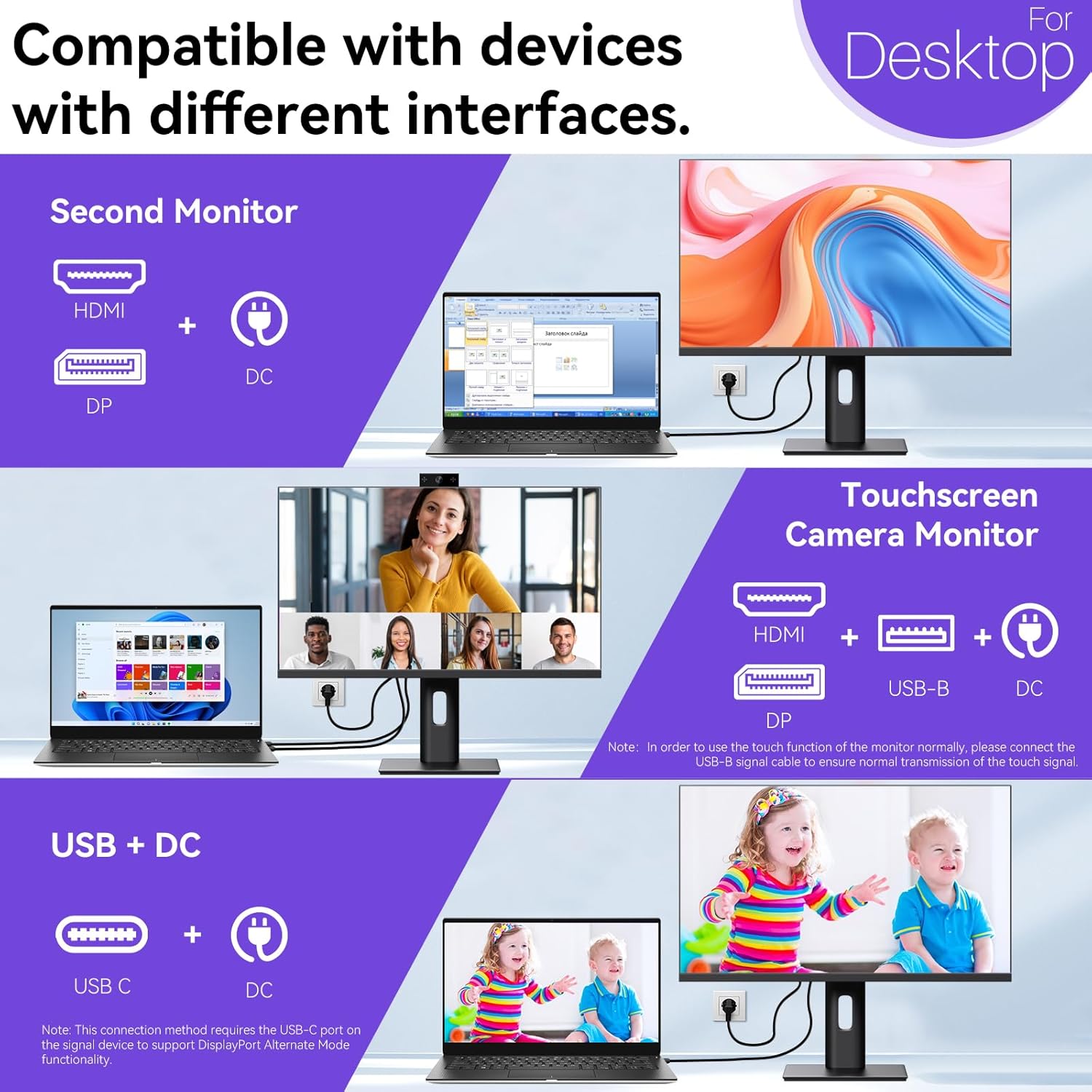
Image: A visual comparison demonstrating the superior clarity of 4K UHD (3840x2160) compared to FHD (1920x1080) and QHD (2560x1440) resolutions.
7. Údržba
- Čistenie obrazovky: Obrazovku jemne utrite mäkkou handričkou, ktorá nepúšťa vlákna. V prípade odolných škvŕn ju jemne utriteamphandričku vodou alebo čistiacim roztokom určeným na obrazovky. Nestriekajte tekutinu priamo na obrazovku.
- Čistenie Casing: Na čistenie monitora použite mäkkú, suchú handričku casing.
- Ukladací priestor: Ak monitor skladujete dlhší čas, odpojte ho od napájania, zabaľte ho do originálneho balenia a uskladnite ho na chladnom a suchom mieste.
8. Riešenie problémov
If you encounter issues with your monitor, refer to the following troubleshooting guide. For problems not listed, please contact customer support.
| Problém | Možná príčina | Riešenie |
|---|---|---|
| Na obrazovke nie je žiadny obraz | Odpojený napájací kábel; Odpojený video kábel; Vybraný nesprávny vstupný zdroj. | Ensure power cable is securely connected. Check video cable (HDMI/DP/USB-C) connections. Select correct input source via OSD menu. |
| Dotykový displej nereaguje | USB-B cable not connected; USB-C port not supporting DisplayPort Alternate Mode; Device incompatibility (e.g., iPhone). | Ensure the USB-B to USB-A cable is connected from the monitor to your computer. If using USB-C, verify your device's USB-C port supports DisplayPort Alternate Mode. Note: Touch function is not supported when connected to an iPhone due to iOS system restrictions. |
| Cursor moves incorrectly (Windows) | Touchscreen calibration required. | Perform touchscreen calibration: Go to Control Panel > Hardware and Sound > Tablet PC Settings > Calibrate. |
| Webvačka nebola zistená | USB connection issue; Software settings. | Ensure all necessary USB cables are connected. Check your application's settings to select the correct weboranžová. |
9. Špecifikácie
| Funkcia | Detail |
|---|---|
| Značka | Pisichen |
| Číslo modelu | 27INTSCMR-4K |
| Veľkosť obrazovky | 27 palca |
| Rozlíšenie | 3840 x 2160 pixelov (4K UHD 2160p) |
| Pomer strán | 16:9 |
| Jas obrázka | 400 Candela |
| Popis povrchu obrazovky | Lesklý |
| Rozmery produktu | 14.37 x 24.21 x 16.54 palca |
| Hmotnosť položky | 16.59 libry |
| Výrobca | Shenzhen Konowa Electronics Co., LTD |
| Konektivita | HDMI, DisplayPort, USB-C, USB-B (for touch), USB-A (x2), Audio Port |
10. Záruka a podpora
This product comes with a manufacturer's warranty. Please refer to the warranty card included in your package for specific terms and conditions. For technical support or inquiries, please contact Pisichen customer service at support_2308@163.com. When contacting support, please provide your model number and a detailed description of the issue, including any relevant pictures or videos.