
1. Úvod
This manual provides essential information for setting up, operating, maintaining, and troubleshooting your HP Pavilion 16-inch 2K Laptop. Please read this guide thoroughly to ensure optimal performance and longevity of your device.
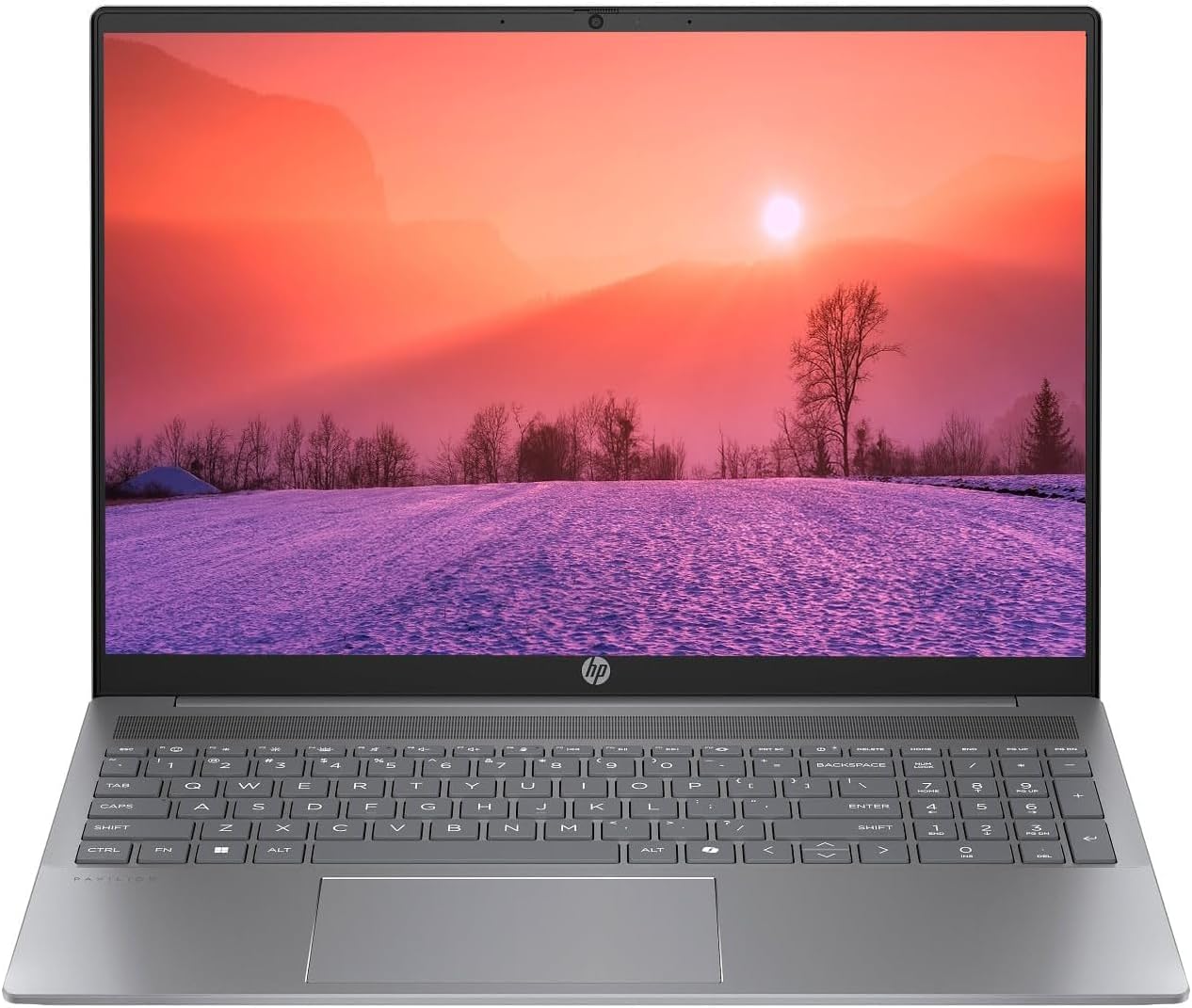
Figure 1.1: HP Pavilion 16-inch Laptop (Angled View)
This image displays the HP Pavilion 16-inch laptop in an open, angled position, highlighting its display and keyboard layout.
2. Nastavenie
2.1 Vybalenie a počiatočná kontrola
Carefully remove the laptop and all accessories from the packaging. Inspect for any signs of damage. If any components are missing or damaged, contact your retailer or HP support immediately.
2.2 Pripojenie napájania
- Connect the AC adapter to the power connector on the side of your laptop.
- Zapojte napájací kábel do elektrickej zásuvky.
- Pred prvým použitím nechajte notebook nabíjať aspoň 30 minút, najmä ak je batéria úplne vybitá.
2.3 Počiatočné spustenie a inštalácia systému Windows 11
Press the power button to turn on your laptop. Follow the on-screen instructions to complete the Windows 11 Home OS setup, including language selection, network connection, and user account creation.
2.4 Pripojenie periférnych zariadení
Váš notebook je vybavený rôznymi portami na pripojenie externých zariadení:
- USB Type-C Ports (2): For data transfer, charging compatible devices, and video output.
- Porty USB typu A (2): Na pripojenie štandardných USB zariadení, ako sú myši, klávesnice alebo externé disky.
- HDMI Port (1): Na pripojenie k externým displejom alebo projektorom.
- Kombinovaný konektor pre slúchadlá/mikrofón (1): Na pripojenie slúchadiel, externých reproduktorov alebo náhlavnej súpravy s mikrofónom.
3. Návod na obsluhu
3.1 Zapnutie/vypnutie a režim spánku
- Zapnutie: Stlačte tlačidlo napájania umiestnené na klávesnici.
- Vypnúť: Kliknite na tlačidlo Štart v systéme Windows a potom vyberte položky Napájanie > Vypnúť.
- Režim spánku: Zatvorte veko notebooku alebo kliknite na tlačidlo Štart a potom vyberte položky Napájanie > Spánok.
3.2 Používanie klávesnice a touchpadu
Notebook je vybavený klávesnicou plnej veľkosti a presným touchpadom.
- Podsvietená klávesnica: To activate or adjust the keyboard backlight, use the dedicated function key (usually F5 or F4, look for a keyboard icon).
- Gestá touchpadu: Prispôsobiteľné gestá na touchpade (napr. posúvanie dvoma prstami, priblíženie a zmenšenie prstami) nájdete v nastaveniach systému Windows 11.
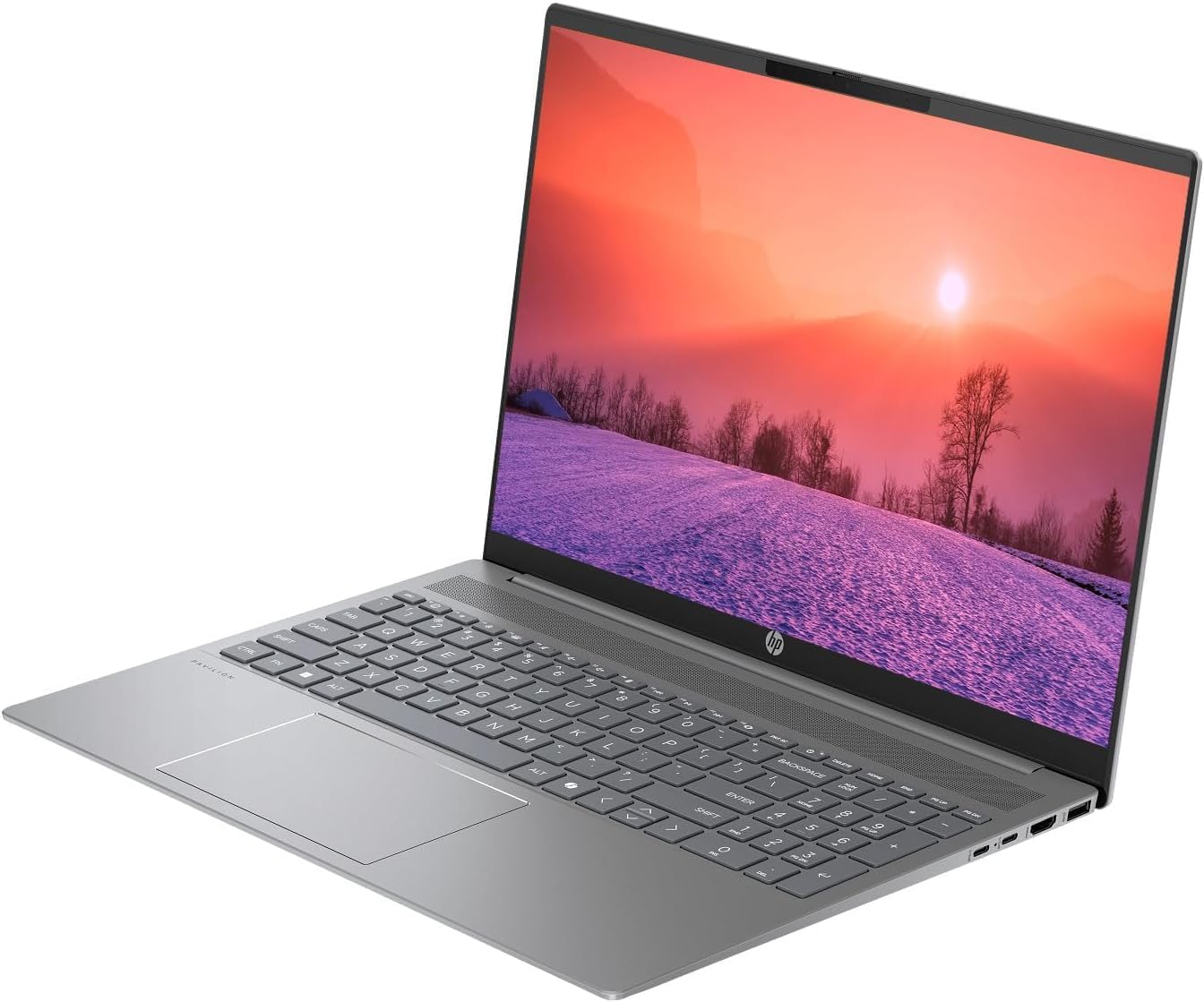
Figure 3.1: HP Pavilion 16-inch Laptop (Front View)
This image shows the HP Pavilion 16-inch laptop from a direct front view, highlighting the screen and keyboard.
3.3 Bezdrôtové pripojenie
- Wi-Fi 6: Ak sa chcete pripojiť k bezdrôtovej sieti, kliknite na ikonu Wi-Fi na paneli úloh, vyberte svoju sieť a zadajte heslo.
- Bluetooth: To pair Bluetooth devices, go to Windows Settings > Bluetooth & devices, and turn on Bluetooth.
3.4 Pomocou Webvačka
Integrovaný HD webcam can be used for video calls and conferences. Access it through applications like Camera, Microsoft Teams, or Zoom.
4. Údržba
4.1 Čistenie notebooku
- Použite mäkkú handričku, ktorá nepúšťa vlákna dampvodou alebo čistiacim prostriedkom na obrazovky displeja.
- Na klávesnicu a šasi používajte mäkkú handričku. Vyhnite sa agresívnym chemikáliám.
- Use compressed air to clear dust from vents periodically.
4.2 Starostlivosť o batérie
- Vyhnite sa častému úplnému vybitiu batérie.
- Ak notebook nebudete dlhší čas používať, skladujte ho na chladnom a suchom mieste.
- For optimal battery health, avoid continuous charging at 100% for prolonged durations.
4.3 Aktualizácie softvéru
Regularly check for and install Windows updates to ensure system stability, security, and performance. Go to Windows Settings > Windows Update.
4.4 Správa úložiska
Pravidelne čistite nepotrebné files and applications to maintain optimal performance of the 512GB SSD. Use Windows built-in tools like Disk Cleanup or Storage Sense.
5. Riešenie problémov
This section addresses common issues you might encounter with your HP Pavilion laptop.
5.1 Notebook sa nezapne
- Uistite sa, že sieťový adaptér je bezpečne pripojený k notebooku aj k funkčnej elektrickej zásuvke.
- Overte funkčnosť elektrickej zásuvky pripojením iného zariadenia.
- Ak je batéria úplne vybitá, nechajte ju nabíjať aspoň 30 minút pred pokusom o zapnutie.
5.2 Problémy s pripojením k Wi-Fi
- Skontrolujte, či je v nastaveniach systému Windows povolená funkcia Wi-Fi.
- Reštartujte smerovač a modem.
- Uistite sa, že ste v dosahu siete Wi-Fi.
- Skúste zabudnúť na sieť a znova sa pripojiť.
5.3 Podsvietenie klávesnice nefunguje
- Press the dedicated keyboard backlight function key (e.g., F5 or F4) to toggle or adjust the brightness.
- Check Windows Mobility Center settings (search for it in the Start menu) for backlight options.
5.4 Pomalý výkon
- Zatvorte nepotrebné aplikácie bežiace na pozadí.
- Uistite sa, že systém Windows je aktuálny.
- Spustite čistenie disku a skontrolujte, či neobsahuje škodlivý softvér.
- Verify that the laptop is not overheating.
6. Špecifikácie
| Funkcia | Špecifikácia |
|---|---|
| Názov modelu | 16-palcový notebook HP |
| Procesor | AMD Ryzen 5 8540U (Up to 4.89GHz) |
| RAM | 8 GB LPDDR5 |
| Skladovanie | 512 GB SSD |
| Displej | 16-inch WUXGA 2K (1920 x 1200 pixels) LED |
| Grafika | Grafická karta AMD Radeon (vyhradená) |
| Operačný systém | Windows 11 Home OS |
| Porty | 2x USB typu C, 2x USB typu A, 1x HDMI, 1x kombinovaný konektor pre slúchadlá/mikrofón |
| Bezdrôtové pripojenie | Wi-Fi 6 (802.11ax), Bluetooth |
| Klávesnica | Podsvietený |
| Webvačka | áno |
| Rozmery (D x Š x H) | 14.17 cm x 9.2 cm x 0.7 cm |
| Batéria | Lithium Ion, 4 Watt Hours |
| UPC | 197961359091 |
7. Záruka a podpora
7.1 Informácie o záruke
This HP Pavilion laptop comes with a 30-denná zárukaPre prípadné reklamácie si uschovajte doklad o kúpe. Záruka sa vzťahuje na výrobné chyby za bežných podmienok používania.
7.2 Zákaznícka podpora
For further assistance, technical support, or warranty inquiries, please visit the official HP support website or contact their customer service. You can typically find contact information and support resources by searching for "HP Support" online.