
1. Úvod
The Strong 4G LTE N300 WiFi Router provides high-speed internet access using a 4G SIM card, offering reliable Cat4 LTE speeds up to 150 Mbps and stable N300 Mbps Wi-Fi coverage. This device is designed for easy setup and use, supporting up to 32 devices simultaneously, making it suitable for both home and small office environments where wired broadband may not be available.
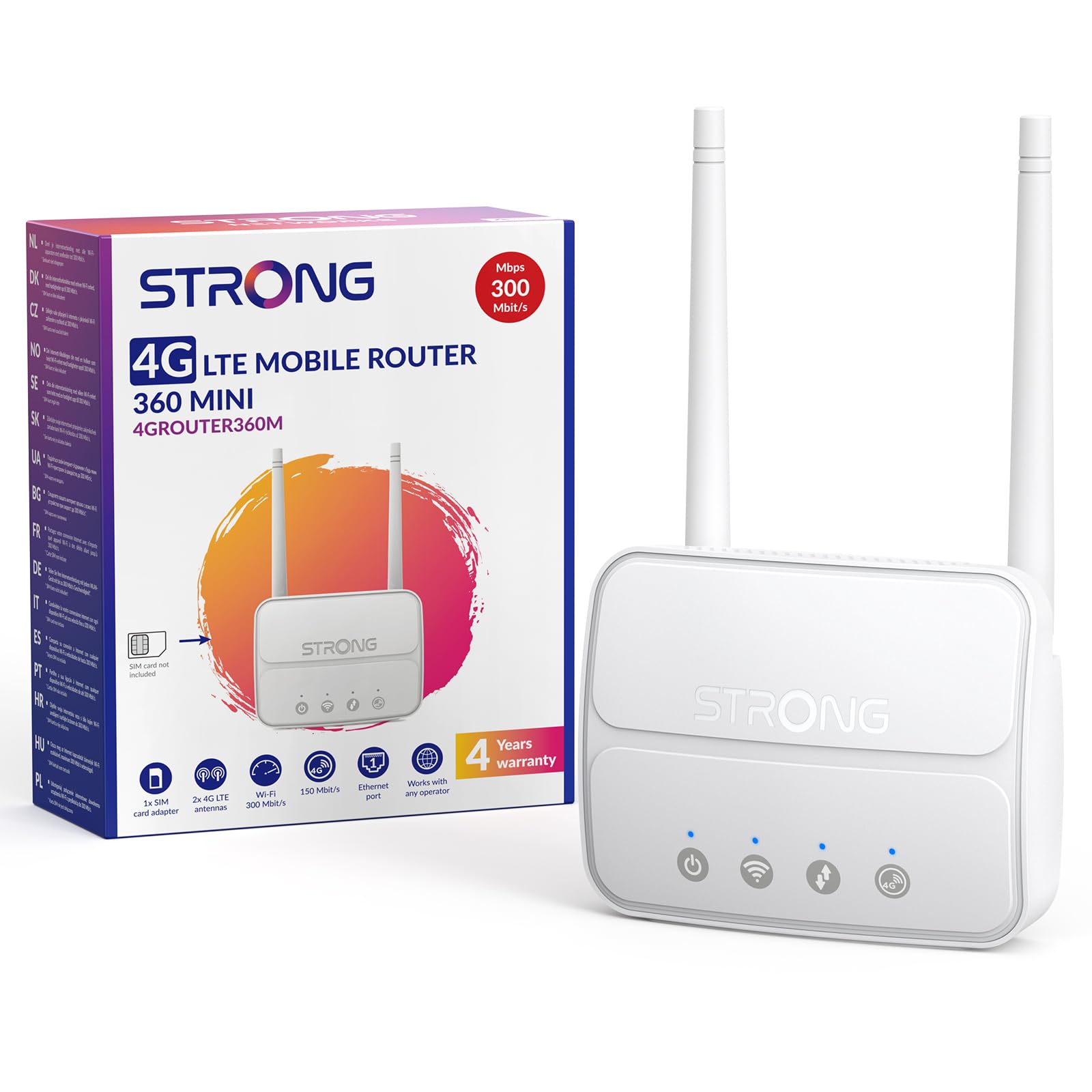
Image 1: The Strong 4G LTE N300 WiFi Router, a compact device with two external antennas for enhanced signal reception.
2. Čo je v krabici
Starostlivo skontrolujte obsah balenia. Ak niektoré položky chýbajú alebo sú poškodené, kontaktujte zákaznícku podporu.
- Strong 4G LTE N300 WiFi Router
- External Antennas (2 units)
- Ethernetový kábel RJ45
- Externý napájací zdroj
- Nano to Micro SIM Card Adapter
- Sprievodca rýchlou inštaláciou
- Bezpečnostný a záručný list
3. Inštalačná príručka
Follow these steps for a quick and easy setup of your Strong 4G LTE N300 WiFi Router.
3.1. Prepare Your SIM Card
Before inserting your SIM card, ensure that any PIN protection is disabled. You can do this by inserting the SIM card into a smartphone and disabling the PIN request through the phone's settings.
3.2. Insert the SIM Card
- Nájdite slot pre SIM kartu na routeri.
- If you have a Nano SIM, use the provided Nano to Micro SIM adapter to fit it into the standard SIM slot.
- Gently insert the prepared SIM card into the slot until it clicks into place.
3.3. Attach External Antennas
Screw the two external 4G antennas onto the designated connectors at the back of the router. Adjust their orientation for optimal signal reception.
3.4. Power On the Router
Connect the external power supply to the router's DC-in port and then plug it into a power outlet. The router will automatically power on and begin the startup sequence.
3.5. Connect to the Network (Plug & Play)
The router is designed for Plug & Play operation. Once powered on and with a valid SIM card, it will automatically connect to the 4G LTE network. You can then connect your devices via Wi-Fi or Ethernet.

Image 2: Visual guide for SIM card insertion and powering on the router for instant connection. The image also shows the SIM card slot supporting standard, micro, and nano SIMs with an adapter.
3.6. Prístup k Web Rozhranie
Pre rozšírené nastavenia a správu siete prejdite na stránku smerovača web rozhranie zadaním 192.168.188.1 do vášho web browser's address bar. Refer to the Quick Installation Guide for default login credentials.
4. Návod na obsluhu
This section details how to use your Strong 4G LTE N300 WiFi Router for optimal performance.
4.1. Pripojenie zariadení
The router supports connections for up to 32 devices simultaneously.
- Wi-Fi pripojenie: Locate the Wi-Fi network name (SSID) and password printed on the label at the bottom of the router. Select this network on your device and enter the password to connect.
- Ethernetové pripojenie: Use an RJ45 Ethernet cable to connect devices such as PCs, game consoles, or Smart TVs to the router's 100 Mbps LAN port for a stable wired connection.
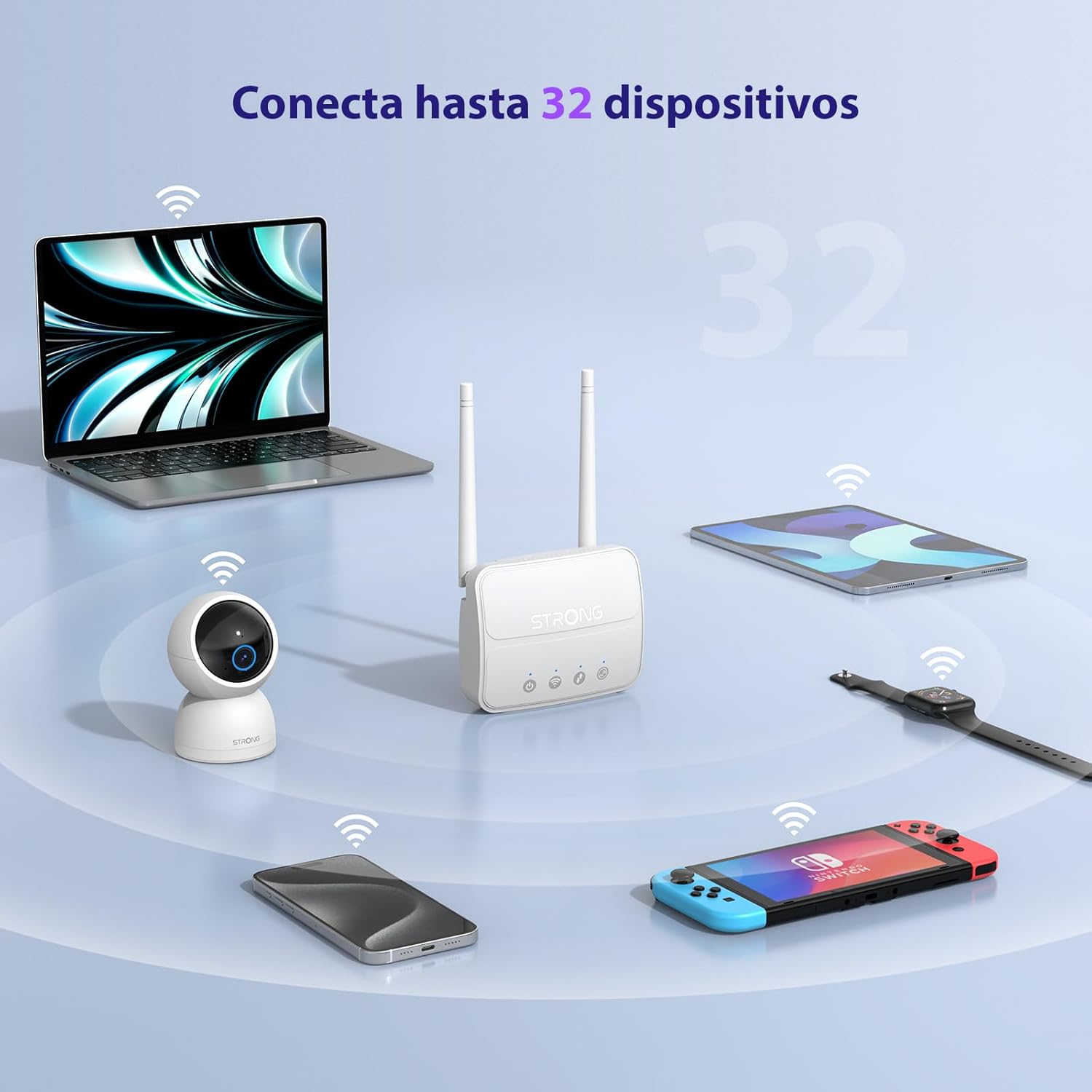
Image 3: The router connecting various devices including laptops, tablets, smartphones, and gaming consoles, demonstrating its capacity for up to 32 simultaneous connections.
4.2. Network Management and Security
The router offers robust security features to protect your network:
- Šifrovanie WPA/WPA2: Ensures secure wireless communication.
- PIN Control: Manage SIM card PIN settings.
- Filtrovanie MAC: Control which devices can connect to your network based on their MAC addresses.
- Advanced Firewall Settings: Customize firewall rules for enhanced protection.
All these settings can be managed through the easy-to-use web rozhranie (192.168.188.1).

Image 4: A user managing network settings on a laptop, illustrating the router's WPA/WPA2 encryption and PIN control features for secure network management.
5. Údržba
Správna údržba zaisťuje dlhú životnosť a optimálny výkon vášho routera.
- Čistenie: Na čistenie vonkajšieho povrchu smerovača použite mäkkú, suchú handričku. Nepoužívajte tekuté čistiace prostriedky ani aerosóly.
- umiestnenie: Umiestnite router na dobre vetrané miesto, mimo dosahu priameho slnečného žiarenia, zdrojov tepla a silných elektromagnetických polí.
- Aktualizácie firmvéru: The router features a USB port specifically for firmware updates. Regularly check the Strong official website for the latest firmware versions to ensure improved performance and security. Follow the instructions provided with the firmware update package carefully.
6. Riešenie problémov
If you encounter issues with your router, refer to the following common troubleshooting steps:
- Žiadne internetové pripojenie:
- Uistite sa, že SIM karta je správne vložená a má aktívny dátový program.
- Verify that the SIM card's PIN protection is disabled.
- Check the signal strength indicators on the router. If the signal is weak, try adjusting the external antennas or relocating the router.
- Reštartujte smerovač odpojením a opätovným zapojením napájacieho adaptéra.
- Wi-Fi nie je viditeľná alebo sa nepripája:
- Ensure the Wi-Fi function is enabled (check the router's LED indicators).
- Overte, či zadávate správne heslo Wi-Fi (SSID a heslo sú uvedené na štítku smerovača).
- Try connecting a device via Ethernet to confirm the router has internet access.
- Pomalé rýchlosti:
- Check the 4G signal strength. Weak signal can lead to slower speeds.
- Uistite sa, že žiadne iné aplikácie alebo zariadenia nespotrebúvajú nadmernú šírku pásma.
- Consider the number of connected devices; the router supports up to 32, but performance may vary with heavy usage.
- Nedá sa získať prístup Web Rozhranie:
- Uistite sa, že vaše zariadenie je pripojené k sieti smerovača (Wi-Fi alebo Ethernet).
- Confirm you are typing the correct IP address: 192.168.188.1.
- Skúste to inak web prehliadač.
If these steps do not resolve the issue, please contact Strong customer support.
7. Špecifikácie
Detailed technical specifications for the Strong 4G LTE N300 WiFi Router (Model 4GROUTER360M).
| Funkcia | Špecifikácia |
|---|---|
| Značka | Silný |
| Názov modelu | 4 ZÁSOBOVAČKA 360M |
| Technológia pripojenia | 4G, Ethernet, LTE, Wi-Fi |
| Wireless Standard | 802.11n (N300 Mbps) |
| Rýchlosť 4G LTE | Up to 150 Mbps (Cat4) |
| Ethernetové porty | 1 x 100 Mbps LAN Port |
| Slot na SIM kartu | Standard (2FF), includes Nano to Micro adapter |
| Typ antény | 2 x External, Detachable 4G Antennas; 2 x Internal Wi-Fi Antennas |
| Maximálny počet pripojených zariadení | Až 32 |
| Bezpečnostné funkcie | WPA/WPA2 Encryption, PIN Control, MAC Filtering, Firewall |
| Operačný systém | StrongOS |
| Rozmery (balenie) | 18.1 x 15.6 x 7.3 cm |
| Hmotnosť produktu | 204 g |
| Napájanie | Externý napájací adaptér |
| Špeciálne funkcie | Secure Network Management, Plug & Play, Connect up to 32 devices, USB port for firmware updates |
8. Záruka a podpora
Strong is committed to providing reliable products and excellent customer service.
8.1. Informácie o záruke
Your Strong 4G LTE N300 WiFi Router comes with a 4-year protection plan, ensuring long-term peace of mind. Please refer to the included Safety and Warranty Card for detailed terms and conditions.
8.2. Zákaznícka podpora
For any technical assistance, troubleshooting, or warranty inquiries, please contact our expert support team:
- Email: support_at@strong-eu.com
Our support team offers solid service and extended coverage to assist you.

Image 5: Visual representation of Strong's reliable support, highlighting the 4-year protection and contact email for assistance.