
1. Úvod
The Huawei OptiXstar K251a-21 is a sub-FTTR (Fiber to the Room) unit designed to extend the high-speed network provided by the Huawei FTTR OptiXstar F50 Plus main unit. This device supports ultra-Gigabit high-speed access via upstream fiber optic lines and delivers Ultra Gigabit dual-band Wi-Fi and ultra-Gigabit network ports to users. It integrates next-generation Wi-Fi 7 technology for higher speeds and lower latency, ensuring a superior home network experience.
2. Bezpečnostné informácie
Please read and understand all safety instructions before using this device. Failure to follow these instructions may result in injury, damage to the device, or property damage.
- Používajte iba napájací adaptér dodaný so zariadením.
- Nevystavujte zariadenie vode, vlhkosti ani extrémnym teplotám.
- Neumiestňujte zariadenie do blízkosti zdrojov tepla alebo na priame slnečné svetlo.
- Zabezpečte správne vetranie, aby ste zabránili prehriatiu.
- Nepokúšajte sa zariadenie otvárať ani opravovať sami. Požiadajte o pomoc kvalifikovaný servisný personál.
- Udržujte zariadenie mimo dosahu detí a domácich zvierat.
3. Obsah balenia
Overte si, či sú v balení všetky položky:
- Huawei OptiXstar K251a-21 Sub FTTR Device
- Napájací kábel
- Stručná úvodná príručka (ak je súčasťou balenia)
4. Produkt skončilview
Oboznámte sa s komponentmi a indikátormi zariadenia.
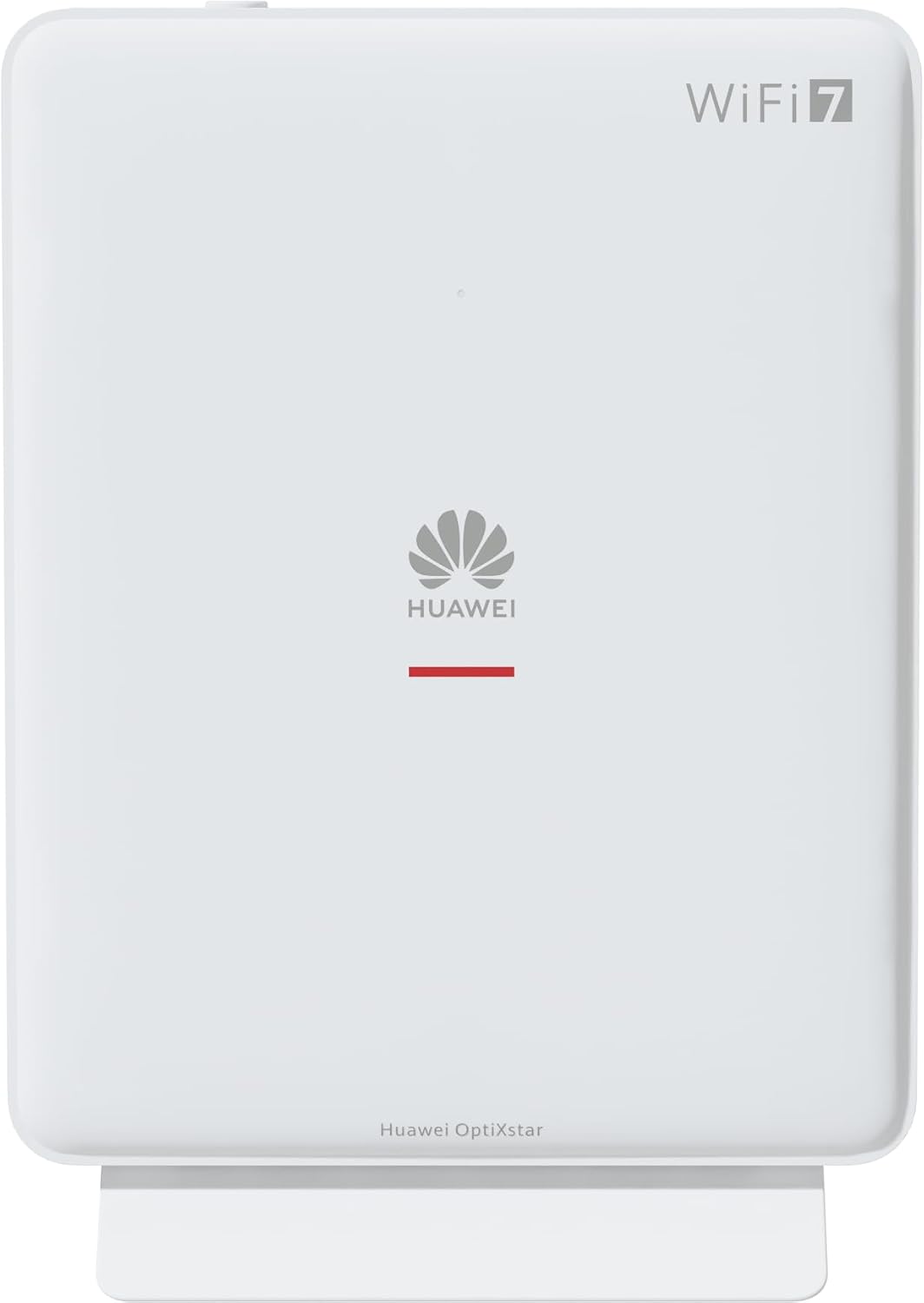
Obrázok 1: Predná strana view of the Huawei OptiXstar K251a-21 Sub FTTR device, showing the Huawei logo and "WiFi 7" branding.

Obrázok 2: Naklonená predná strana view of the Huawei OptiXstar K251a-21 Sub FTTR, highlighting its sleek design and ventilation.

Obrázok 3: Zadná časť view of the Huawei OptiXstar K251a-21 Sub FTTR, displaying the ports (Reset, 2-GE, 1-2.5GE, Power, FTTR) and mounting options.

Obrázok 4: Bočný profesionálfile of the Huawei OptiXstar K251a-21 Sub FTTR, showing its slim form factor and ventilation grilles.

Obrázok 5: Naklonená zadná časť view of the Huawei OptiXstar K251a-21 Sub FTTR, providing a clear look at the port labels and layout.

Obrázok 6: Hore view of the Huawei OptiXstar K251a-21 Sub FTTR, featuring the WPS/LED button.
Porty a tlačidlá:
- FTTR Port: Connects to the main FTTR unit via a fiber optic cable.
- 1-2.5GE Port: Gigabit Ethernet port for high-speed wired connections.
- 2-GE Port: Gigabitový ethernetový port pre káblové pripojenie.
- Napájací port: Pripája sa k napájaciemu adaptéru.
- Resetovacie tlačidlo: Used to restore factory settings (press and hold for 5-10 seconds).
- WPS/LED Button: Initiates Wi-Fi Protected Setup (WPS) for easy device connection and controls LED indicators.
5. Nastavenie
Follow these steps to set up your Huawei OptiXstar K251a-21 Sub FTTR device:
- umiestnenie: Choose a central location in your home for optimal Wi-Fi coverage. The device is suitable for various installation scenarios, including vertical placement on a desk, wall-mounting, plugging into a power strip, or mounting in an 86mm junction box with a bracket.
- Pripojenie optického kábla: Connect one end of the fiber optic cable to the FTTR port on the Sub FTTR unit and the other end to the corresponding FTTR port on your Huawei FTTR OptiXstar F50 Plus main unit or wall outlet. Ensure the connection is secure.
- Pripojenie napájania: Plug the power adapter into the Power port on the Sub FTTR unit, then plug the other end into a power outlet.
- Zapnutie: The device will automatically power on. Wait for the indicator lights to stabilize, typically indicating a successful connection to the main FTTR unit and active Wi-Fi.
- Wired Connections (Optional): For wired devices, connect an Ethernet cable from the 1-2.5GE or 2-GE ports on the Sub FTTR to your computer, gaming console, or other network devices.
6. Prevádzkové
Once set up, your OptiXstar K251a-21 provides seamless Wi-Fi 7 connectivity.
- Wi-Fi pripojenie: Hľadať the Wi-Fi network name (SSID) broadcast by your FTTR system on your devices (smartphones, laptops, etc.). Enter the Wi-Fi password. The system's unique SRCN (Seamless Roaming Coordinate Network) technology ensures seamless roaming throughout your home.
- C-WAN Architecture: The C-WAN architecture centrally controls and coordinates network-wide Wi-Fi resources via the Main FTTR, providing an ultra-Gigabit high-speed experience.
- IoT Casing: The device features an IoT casing designed to protect home network security and privacy.
- Funkcia WPS: Press the WPS/LED button briefly to use Wi-Fi Protected Setup (WPS) for quick connection of compatible devices without entering the password.
- LED indikátory: The LED indicators provide status information. Refer to the main FTTR unit's manual or the device's specific documentation for detailed LED status meanings.
7. Údržba
Regular maintenance helps ensure optimal performance and longevity of your device.
- Čistenie: Gently wipe the device with a soft, dry cloth. Do not use liquid cleaners or abrasive materials.
- Aktualizácie firmvéru: Huawei periodically releases firmware updates to improve performance and security. These updates are typically managed through the main FTTR unit or a dedicated mobile application. Ensure your system is always running the latest firmware.
- Vetranie: Uistite sa, že vetracie otvory nie sú zablokované, aby nedošlo k prehriatiu.
- Správa káblov: Keep fiber optic and power cables neatly organized and free from kinks or excessive bending.
8. Riešenie problémov
Ak narazíte na problémy, vyskúšajte nasledujúce kroky na riešenie problémov:
- Bez napájania: Check if the power cable is securely connected to both the device and the power outlet. Try a different outlet.
- Žiadne internetové pripojenie:
- Verify that the fiber optic cable is correctly connected to the FTTR port.
- Check the status indicators on both the Sub FTTR and the main FTTR unit.
- Restart both the Sub FTTR and the main FTTR unit by unplugging them from power for 30 seconds and then plugging them back in.
- Ensure your main FTTR unit has an active internet connection.
- Pomalá rýchlosť Wi-Fi:
- Ensure the device is placed optimally, away from obstructions and interference sources.
- Check if too many devices are connected to the network.
- Update the firmware of your FTTR system.
- Consider using a wired connection for bandwidth-intensive tasks.
- Nedá sa pripojiť k sieti Wi-Fi:
- Overte, či zadávate správne heslo k sieti Wi-Fi.
- Try using the WPS button to connect.
- Restart your device and the Sub FTTR unit.
- Obnovenie výrobných nastavení: If issues persist, you may need to perform a factory reset. With the device powered on, use a pointed object (like a paperclip) to press and hold the Reset button for 5-10 seconds until the indicators change. Note that this will erase all custom settings.
9. Špecifikácie
| Funkcia | Špecifikácia |
|---|---|
| Značka | HUAWEI |
| Číslo modelu | K8M251a-21G02 |
| Rozmery (balenie) | 24.5 x 23.7 x 7.4 cm |
| Hmotnosť (balenie) | 300 gramov |
| Špeciálna funkcia | Internetová bezpečnosť |
| Trieda frekvenčného pásma | Dual Band |
| Štandard bezdrôtovej komunikácie | 802.11ax (Wi-Fi 7 Generation) |
| Kompatibilné zariadenia | Osobný počítač |
| Odporúčané použitia | Domov |
| Zahrnuté komponenty | Napájací kábel |
| Technológia pripojenia | Ethernet, FTTR, Wi-Fi, Fiberglass |
| Farba | Biela |
| Počet portov | 4 (FTTR, 1-2.5GE, 2-GE, Power) |
| Rýchlosť prenosu dát | 1 gigabitov za sekundu |
| Kompatibilita inteligentnej domácnosti | Compatible with smart home systems |
| Internetové pripojenie | áno |
| Protokol pripojenia | Wi-Fi |
10. Záruka a podpora
Informácie o záruke a technickú podporu získate od oficiálneho zástupcu spoločnosti Huawei. website or contact your local Huawei customer service. Keep your purchase receipt for warranty claims.
Online zdroje: Navštívte oficiálnu podporu Huawei webstránka s často kladenými otázkami, aktualizovanými manuálmi a softvérom na stiahnutie.
Zákaznícky servis: Contact details for customer support can typically be found on the Huawei website or in the documentation provided with your main FTTR unit.